












Optional cookies help us improve Palette. Cookie policy

Skip to main content

Palette Desktop

The easiest way for your whole team to work with the best agents

Work with Claude Code, Codex, Gemini, Mistral, and Palette on your own files and folders. Start with context your team already has, work safely in separate sessions, and review what changes before saving it back.

macOS 12 or later. Apple Silicon and Intel.

Join Windows waitlist
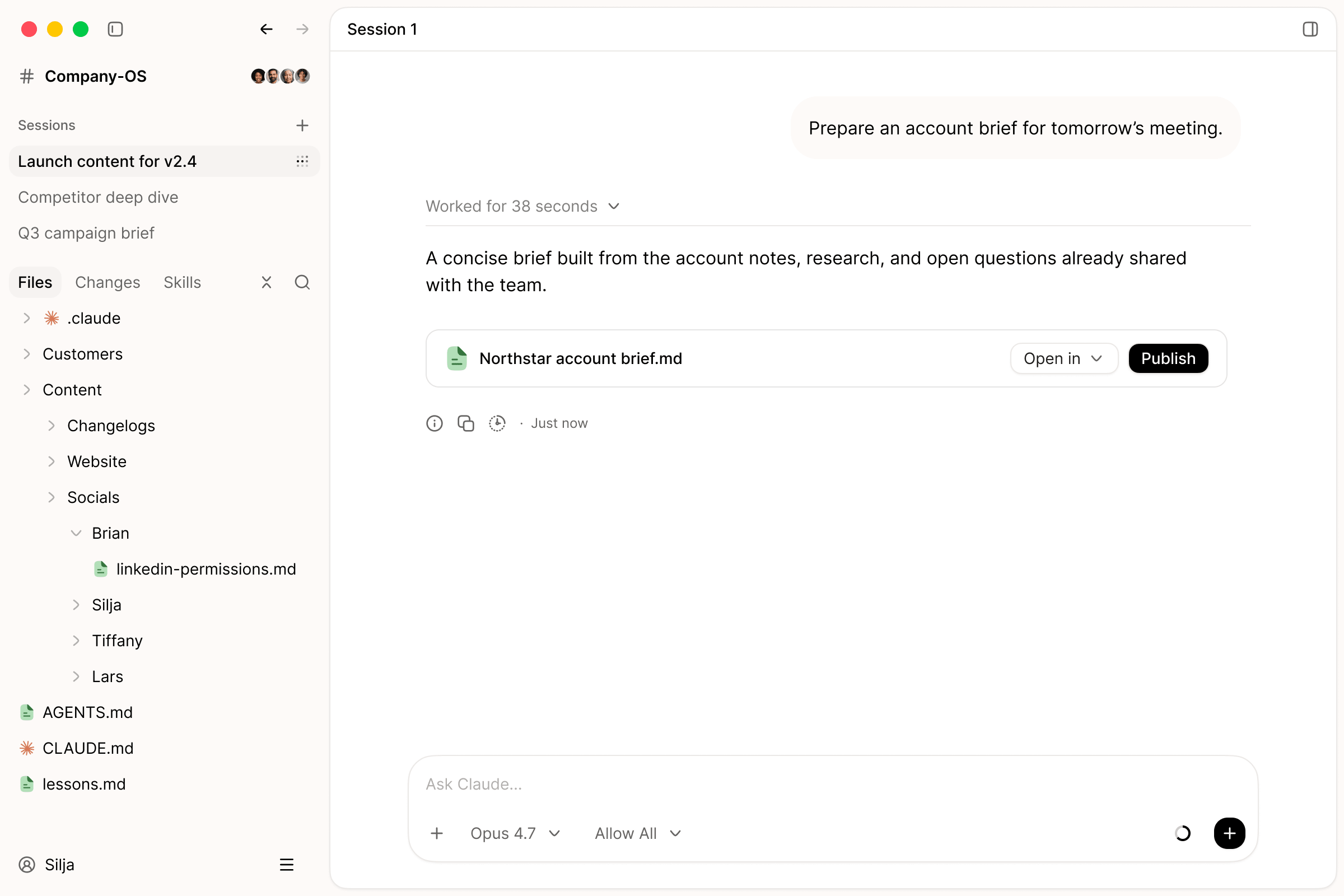
Palette Desktop with a shared Company-OS workspace: an agent has prepared an account brief from the notes, research, and open questions the team already shares, ready to open or publish.

Bring the power of coding agents beyond engineering

Choose the agent that fits the task, then chat, edit files, preview results, and review changes in one visual workspace—without having to work in a terminal.

Choose the agent. Or choose several.

Your context stays in the workspace, so the work does not have to stay with one model. Start with one agent, continue with another, ask them to review each other, or let several move different parts of the work forward at once.

  • Claude Code
  • Codex
  • Gemini CLI
  • Mistral Vibe
  • Palette agent
  • Choose the agent for the task

    Use the agent that fits the work instead of forcing every task through the same model.

  • Use the latest agent and model

    Move to a newer supported agent or model without rebuilding the workspace around it.

  • Let agents continue and review each other

    Start with one agent, continue with another, or ask a second agent to challenge and improve the work.

  • Work with several agents at once

    Use separate chats and sessions to move several tasks forward against the same durable context.

Work in parallel without working over each other

Everyone starts with the workspace context already in place. Each person starts a separate session, works with one or several agents, and saves approved work back so the whole team has it.

  1. Start a new session

    Begin with the workspace context already in place, inside a separate session for the task.

  2. Work with agents

    Use one or several agents while drafts and file changes stay safely inside the session.

  3. Review and save back

    Review the changes, keep what is useful, and save approved work back for everyone.

Set up workspaces for your company, teams, and projects

Each workspace gives people and agents a focused place to work with the context they need. Create several, keep each one in its own folder, and choose whether it stays local or is shared with a team.

  • Company, team, or project

    Create one workspace for the whole company, or separate workspaces for a team, function, or project. Each lives in its own folder.

  • Choose where it lives

    Keep a workspace on your computer, or in a folder synced through Google Drive, Dropbox, OneDrive, or iCloud.

  • Invite the right people

    Share the folder through your storage service. Each teammate opens their synced copy as a workspace in Palette Desktop.

The most effective way teams work with agents

Product, GTM, and operations teams use Palette Desktop on the files and context they already share.

  • Simon HansenCPO, Airtame
    Palette Desktop gives non-technical users superpowers by combining AI models with the tools and files that they and their teams are already working in.
  • DenitsaProduct Manager, Lab08
    Palette Desktop helped me build a Project Brain for the products I manage: connecting meetings, Jira tasks, roadmap plans, features, files, decisions, and code context into one place. Now I can see not only what I generate with AI, but where it lands, how it connects, and what needs to happen next.
  • Ole Qvist-SørensenFounder, Bigger Picture
    Working in folders with Palette completely changed how we run our company.
  • Cal BrennanProduct & Growth Lead, KIN AI
    Palette Desktop and its folder structure is the most effective way our team has used Claude Code so far.
  • Daniel JakobsenLead Product Manager, Abtion
    Palette Desktop clicked for us from day one. We pointed it at our shared project folder, and suddenly the whole team had one context layer to work from. Projects, notes and decisions all in one place the whole team builds on.
  • Julie FauerbyCustomer Success Lead, Comundo
    Palette Desktop helped me automate how we create companies/deals in HubSpot, and enabled me to build my own little tool to get an overview of potential new customers for outreach.

Start with a system built for the work

Choose a ready-made folder system for a company, function, or project, or add a focused workflow to a folder you already use. Install it from Desktop and let your agent adapt it to your work.

Make work your team can keep building on

Each useful brief, decision, report, lesson, and plan stays in the shared structure. The next person or agent starts from what the team already learned and produced.

  • Customer and sales briefs

  • Campaign plans and content

  • Product research and synthesis

  • Operating processes and updates

  • Hiring packs and onboarding

  • Planning, reviews, and decisions

Your team should not have to explain the same thing twice. Decisions, corrections, and useful work stay in the workspace, so the next person or agent can pick up where the last one left off.

Start with work already on your team’s list

Give an agent the files and background for a real piece of work. Keep the result in the same shared structure, ready for the next person or task.

  • Turn customer conversations into product direction

    Bring together feedback, research, and existing plans. Ask an agent to find patterns, update the brief, and propose next steps.

  • Plan and produce a campaign from shared context

    Work from your positioning, customer proof, and previous campaigns to create the brief, copy, assets, and rollout plan.

  • Build a useful tool around the work

    Turn spreadsheets, customer lists, or operating data into a dashboard or lightweight workflow without starting an engineering project.

  • Keep a project moving

    Bring plans, meeting notes, decisions, and deliverables together so every teammate and agent starts from the latest context.

Everything else inside Desktop

Explore the features behind the workflow, from shared workspaces and agent setup to HTML sharing and reusable actions.

Learn the habits that make agents better

Good structure, clear instructions, and shared memory make the same agents more useful. Start with the practices we use inside Palette.

FAQ

Is this the same Claude Code and Codex people use in a terminal?

Yes. Palette gives you the same underlying agent capabilities in an easier visual workspace, with folders, sessions, file previews, and review built around them.

How is this different from chat or Cowork?

The main advantage is choice and context. You can use different supported agents on the files and folders where your team’s work already lives, then keep the result there for everyone else.

Does Palette connect directly to Google Drive or OneDrive?

Palette works with folders on your computer. If your Drive, Dropbox, OneDrive, or iCloud folders are synced locally, you can open them like any other folder.

Will an agent overwrite my files?

Not while you work. Each session starts as a safe copy. You review the changes and decide what to save back.

Do I need a model subscription?

Palette’s own agent is built in. For supported external agents, use the subscription or API key that agent requires.

Does Desktop work without Palette OS?

Yes. Desktop works on its own with the folder you choose. Palette OS is a separate company-wide layer.

Does it work on Windows?

Palette Desktop is available for Mac today. Windows is in development.

Get started

Put the best agents to work on your files and folders

Download Palette Desktop and open your first folder.

Join Windows waitlist

Enterprise-grade security for your company context

  • EU-hosted. EU-only processing available, with US models supported.

  • Zero data retention. Enabled across all models available in Palette.

  • Access stays in your control. Palette only accesses what you authorize.

  • GDPR processes in place. DPA available, with requests handled by our team.

  • ISO 27001. Certification is underway.