


Put new work in the right place.
Agents follow the space’s instructions for organizing files, naming them and using the right format.
Optional analytics cookies help us understand visits. Advertising cookies help us measure campaigns. Cookie policy
Cloud Spaces
Keep the documents, instructions and work you want your AI tools to use and improve in one shared place.
Create a space for a team, client or project. Add the material you work from.
Write, analyze and make changes using the material in your space.
Keep new files and updates for your team, with review where required.
Connect Claude, ChatGPT, Gemini or Mistral to the spaces you have access to. Your colleagues can use different AI tools with the same shared material.
Work from your team’s knowledge and contribute changes as you go. You can also work in the Palette app.
Your tools hold what is happening. A space holds what your team has agreed: the brief, the decisions, the rules.
Your agent reads both, so the work comes back in your terms without you explaining them again.
See how to connect your AI Slack
 HubSpot
 Google Drive
 Notion
 Palette
 Linear
 Gmail
 Google Calendar
 Salesforce
Shared instructions guide agents as they work: where files belong, how to update them and which processes to follow. Share formats, checklists and ways of doing recurring work across your team.
Agents follow the space’s instructions for organizing files, naming them and using the right format.
Agents add new information to the relevant files and can flag outdated or overlapping material for review.
Save useful decisions, preferences and corrections as files the team can read and improve. A correction made during one task can guide the next.
That knowledge stays with your team when someone changes AI tools or leaves the company.
Give people and agents access to the spaces and folders they need.
Decide what they can read, create, edit or delete.
Allow changes to save directly or require a person to approve them first.
Make it clear who is responsible for each file, separately from who last edited it.
Instructions explain how work should be done. Permissions determine which changes are allowed.
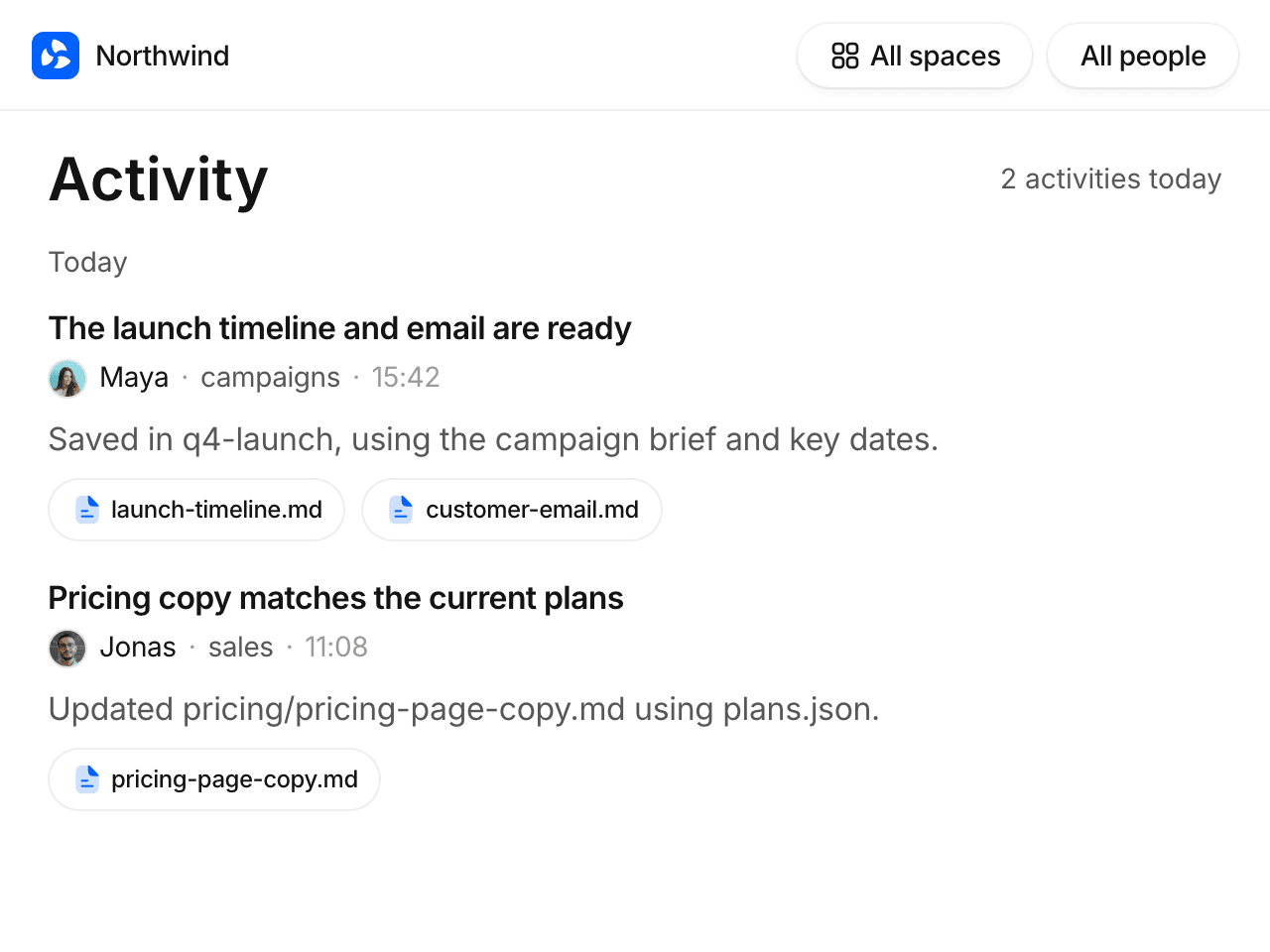
Activity shows what people and agents contribute: which files changed, who worked on them, which agent they used and why.
Follow a whole space, one person’s contributions or a particular file. Catch up on recent work without reading everyone’s conversations.
Every file keeps its version history, so you can see how it developed and return to an earlier version.
Keep guidance and work at the level where they belong.
Information, policies and instructions for everyone to work from.
Work for a team, client or project. Open a space to your organization or invite specific people.
Your notes, preferences and work in progress. Keep them to yourself until you choose to share them.
Start with one team and add more spaces as others join.
Add what your team already has and keep building as you work.
Save useful summaries, decisions and drafts to the space during your work.
Drag in existing files and folders: documents, PDFs, spreadsheets and slides.
Bring in pages, notes and other material from tools such as Notion and Google Drive.
Write and edit yourself, or work with AI to turn rough notes into something your team can use.
Palette automatically indexes your space to help agents navigate its files and folders. Agents can read, create and update files, following the instructions and permissions you’ve set.
Use a space for work you want your team and its agents to maintain together. Shared instructions guide the work, permissions control changes, and Activity keeps contributions visible.
Your existing tools can stay part of the workflow.

You’ll recognize shared files, proposed changes, review and version history.
Cloud Spaces brings that way of working to documents, plans and presentations, with simple actions for reviewing edits and saving changes.
Choose a template with folders, starter instructions and examples. Add your material and adapt it as you work.
Folder system · 14 files
Briefs, meeting notes and delivery work for one client, with the rules agents follow there.
Folder system · 11 files
Guidance, processes and lessons for a team, kept where every task can read them.
Folder system · 12 files
Scope, working files and decisions for one project, from kickoff to delivery.
Folder system · 18 files
Policies, product information and shared instructions for everyone in the company.
A Cloud Space is a place for the documents, decisions and instructions that guide work for a team, client or project. People and connected agents can read and update the same files. You choose who has access and what they can change.
Start with the material you use for real work: project documents, customer information, decisions, brand guidelines and processes. Add the reports, plans and other work you make as you go. One project or client is enough to get started.
Cloud Spaces brings shared files, instructions, editing permissions and change history together. Your team can connect different AI tools, choose which changes need review and see what people and agents have saved.
Yes. Put your writing guidelines, checklists and processes in the space. Connected agents can use them while working. Your team can also share skills: instructions for recurring tasks such as preparing a report.
You choose who can access a space and what they can change. Your connected AI gets the same access to the space as you do. Instructions explain how work should be done; permissions control what changes are allowed.
No. You choose which changes need review and which can save directly. Activity and version history show what changed, so your team can follow the work and check earlier versions.
Create a space for one project or client. Add a few files, connect your AI and try a task. Invite a colleague when you’re ready.