# About Palette: company, team, and Copenhagen
Source: https://palette.team/docs/about/company
Meet Palette's four Copenhagen-based founders building Palette Desktop and Palette OS, backed by Emblem, Acadian Ventures, and Ugly Duckling Ventures.
Palette is based in Copenhagen, Denmark. We build tools for AI-native teams, backed by [Emblem](https://www.emblem.vc/), [Acadian Ventures](https://www.acadianventures.com/), and [Ugly Duckling Ventures](https://www.uglyduckling.ventures/).
Palette Desktop is available today for working with agents on files and folders. [Palette OS](https://palette.team/os) is the wider company system we're building for shared context, skills, handoffs, and connected agent work. The [Context Library](/docs/os/overview) is its shared-context feature.
Each can stand alone, and they are better together. Palette Desktop is one way to work with Palette OS, while compatible AI tools can connect through MCP.
## Team
Four co-founders, all from the Copenhagen tech scene. Find us on [LinkedIn](https://www.linkedin.com/company/palette-team).
**[Lars Ettrup](https://linkedin.com/in/larsettrup/)**, Co-founder & CEO. Previously Linkfire.
**[Steffen Sommer](https://linkedin.com/in/steffendsommer)**, Co-founder & CTO. Previously Monstarlab.
**[Brian Kyed](https://linkedin.com/in/briankyed/)**, Co-founder & CCO. Runs everything GTM.
**[Christian Lomholt](https://linkedin.com/in/christianlomholt/)**, Co-founder. Previously Podimo, Planday.
## Where we are
Early stage. Working closely with design partners, shipping weekly, iterating on what shared context actually looks like in practice.
## Value
Yes, we currently have just one company value. Because it says everything we need.
> **Ordentlighed** At the core of Palette is something deeply Danish: ordentlighed. It's hard to translate, but we know what it means. It means we care. About the work. About each other. About doing things properly, even when it's harder. We're not here to posture or play startup games. We want to build something real. Something useful. And do it in a way we're proud of. That means being honest, even when it's uncomfortable. Moving fast, but not breaking people. Having fun, but also thinking deeply. That's ordentlighed. And that's how we work. That's the kind of company we want to build. That's what we want Palette to feel like.
## Principles
A few simple ideas guide how we build Palette. (See also our [Manifesto](/docs/about/manifesto) for the full belief system.) They help us stay focused, make better choices, and keep things human, even as we build with AI.
**For the 99%, not the 1%.** No prompt engineers. No power users. Just real teams.
**Painkiller before vitamin.** We solve real pain, not "nice-to-haves."
**Respect the human work.** Let AI do what it should, so people can do what only they can.
**Teams over individuals.** We care about the whole team. Not just leads. Not just ICs. The team wins together.
## Contact
Palette Group ApS\
Vester Farimagsgade 1, 6. sal\
1606 København V\
Denmark
Email: [hello@palette.team](mailto:hello@palette.team)
## Join us
We're always curious to meet great people. Drop us a line at [hello@palette.team](mailto:hello@palette.team).
# Palette FAQ: product, security, and early access
Source: https://palette.team/docs/about/faq
Learn what Palette Desktop and Palette OS do, how they work together, who they serve, and how Palette handles security, privacy, and early access today.
Common questions about Palette, answered directly.
For product-specific questions:
* [Palette Desktop FAQ](/docs/desktop/faq)
* [Context Library FAQ](/docs/os/faq)
## What is Palette?
Palette is a Copenhagen-based company building two products for AI-native teams:
* **[Palette Desktop](/docs/desktop/overview)**, available today for working with supported AI agents on the files and folders your team uses.
* **[Palette OS](https://palette.team/os)**, the wider company system we're building for shared context, skills, handoffs, and connected agent work. Its [Context Library](/docs/os/overview) organizes scoped company context for people and agents.
## How do Palette Desktop and Palette OS work together?
Each works on its own. They're better together.
Palette Desktop gives agents a workspace in your files and folders. Palette OS is a separate company-wide layer. In Desktop, people with Palette OS access can browse Context Library pages and mention a page in chat. The agent can read it when the Palette connector is connected.
## Who is Palette for?
Two audiences, one for each product:
* **Palette Desktop** is for knowledge workers across every team but engineering: founders, GTM teams, ops, product managers, designers, and content people who've hit the ceiling of chat tools.
* **Palette OS** is for AI-forward teams rolling out AI across the company and hitting the context wall. It is currently in early access.
Most teams find they want both.
## What about security and data privacy?
We only ingest the channels, projects, and tools you explicitly connect. Nothing is scraped or accessed without your permission. You control what's in, what's out, and you can disconnect anything at any time.
For Palette Desktop, your folder lives on your machine, or in Google Drive or Dropbox if you sync it there. Model traffic follows the agent and model access you choose, which can include a provider plan or API key, Palette Cloud, an on-device model, or a compatible self-hosted endpoint.
For Palette OS, each connection is opt-in. Palette applies scoped access when people or agents read context. See the connection pages for what each tool reads and does not read.
## What does "design partner" mean?
Early access with a direct line to the team. Your input shapes the product. We ask you to use Palette with a small team, share honest feedback, and help us figure out what works. You get early access and close support. We get real-world signal.
## Where can I read more?
* [Welcome to Palette](/docs/), start here if you're new
* [Palette Desktop overview](/docs/desktop/overview)
* [Context Library overview](/docs/os/overview)
* [How the Context Library works](/docs/os/how-it-works)
* [Company](/docs/about/company)
* [Manifesto](/docs/about/manifesto)
# AI agent glossary for teams using shared context
Source: https://palette.team/docs/about/glossary
Plain-English definitions of AI, agent, teamwork, and Palette terms, including tokens, context windows, MCP, workspaces, sessions, and shared context.
Plain-English definitions for teams working with AI and agents. This glossary covers common AI concepts, ways of working across a team, and the language used in Palette.
The focus is practical. Each definition explains what a term changes when people use AI at work. If a technical detail does not help you make a better decision, it is left out.
## Browse by topic
**Palette:** [Artifact](#artifact), [Chat](#chat), [Checkpoint](#checkpoint), [Connection](#connection), [Connector Gateway](#connector-gateway), [Context Library](#context-library), [Context page](#context-page), [Handoff](#handoff), [Palette agent](#palette-agent), [Palette Desktop](#palette-desktop), [Palette OS](#palette-os), [Plan mode](#plan-mode), [Reference](#reference), [Session](#session), [Skill](#skill), [Workspace](#workspace)
**AI basics:** [API key](#api-key), [Context](#context), [Context window](#context-window), [Evaluation](#evaluation-evals), [Generative AI](#generative-ai), [Grounding](#grounding), [Hallucination](#hallucination), [Large language model](#large-language-model-llm), [Model](#model), [Model provider](#model-provider), [On-device model](#on-device-model), [Prompt](#prompt), [Reasoning model](#reasoning-model), [Retrieval-augmented generation](#retrieval-augmented-generation-rag), [Token](#token)
**Agents:** [AI agent](#ai-agent), [Agent harness](#agent-harness), [Agent memory](#agent-memory), [Human in the loop](#human-in-the-loop), [Instruction file](#instruction-file), [Model Context Protocol](#model-context-protocol-mcp), [Permissions](#permissions), [Prompt injection](#prompt-injection), [Sandbox](#sandbox), [System prompt](#system-prompt), [Tool use](#tool-use)
**Teams and context:** [Agent-ready workspace](#agent-ready-workspace), [AI adoption lead](#ai-adoption-lead), [AI-native team](#ai-native-team), [Context engineering](#context-engineering), [Governance](#governance), [Markdown](#markdown), [Organizational context](#organizational-context), [Organizational memory](#organizational-memory), [Prompt engineering](#prompt-engineering), [Scope](#scope), [Shared context](#shared-context), [Workflow](#workflow)
## A
### Agent harness
**Category:** Agents
The software layer that runs an agent. It gives a model its instructions, tools, permissions, and working loop, then manages what happens between each model response. Claude Code, Codex, Gemini CLI, Mistral Vibe, and the Palette agent are different harnesses available in Palette Desktop.
**Related:** [AI agent](#ai-agent), [Model](#model), [Tool use](#tool-use)
### Agent memory
**Category:** Agents
Information an agent can retain and use beyond the immediate message. Memory can come from saved conversation history, files, instruction files, or a shared system such as the Context Library. It is different from a model's context window, which only limits how much information can be considered at one time.
**Related:** [Context window](#context-window), [Instruction file](#instruction-file), [Organizational memory](#organizational-memory)
### Agent-ready workspace
**Category:** Teams and context
A folder or shared environment organized so an agent can understand and work in it without a long explanation every time. Clear names, useful README files, written instructions, examples, and current decisions all help. Agent-ready does not mean machine-only. The same structure should make the work easier for people to navigate.
**Related:** [Instruction file](#instruction-file), [Shared context](#shared-context), [Workspace](#workspace)
### AI adoption lead
**Category:** Teams and context
The person responsible for helping AI work across a company or team, regardless of their formal job title. They test tools, help colleagues adopt new ways of working, set practical rules, and often discover the company's context and governance gaps first.
**Related:** [AI-native team](#ai-native-team), [Governance](#governance), [Shared context](#shared-context)
### AI agent
**Category:** Agents
A system that uses an AI model to work toward a goal over one or more steps. An agent can inspect information, choose tools, take actions, check the result, and continue. A model generates responses, while an agent adds the working loop and the ability to act.
**Related:** [Agent harness](#agent-harness), [Model](#model), [Tool use](#tool-use)
### AI-native team
**Category:** Teams and context
A team that treats AI as part of how work gets done, not as an occasional writing assistant. People still set direction and make important decisions, while agents help research, draft, analyze, and execute. Buying AI licenses alone does not make a team AI-native.
**Related:** [AI adoption lead](#ai-adoption-lead), [Human in the loop](#human-in-the-loop), [Workflow](#workflow)
### API key
**Category:** AI basics
A secret credential that lets software use a service, such as a model provider, on your account. When an agent uses your API key, usage is normally billed by that provider. Treat an API key like a password and never put it in a shared document, prompt, or public file.
**Related:** [Model provider](#model-provider), [Token](#token)
### Artifact
**Category:** Palette
A file or output produced by a person or agent that can be kept, shared, or used in later work. In Palette, artifacts include shared Markdown and interactive HTML outputs. The useful distinction is between the conversation where work happened and the artifact worth carrying forward.
**Related:** [Handoff](#handoff), [Organizational memory](#organizational-memory), [Workspace](#workspace)
## C
### Chat
**Category:** Palette
A conversation with one agent inside a Palette Desktop session. A session can contain several chats working on different parts of the same task, while all of them share the session's working copy of the folder.
Learn more about [Chats in Palette Desktop](/docs/desktop/chats).
**Related:** [AI agent](#ai-agent), [Session](#session), [Workspace](#workspace)
### Checkpoint
**Category:** Palette
A saved snapshot of work in a Palette Desktop folder or session. Checkpoints create a history you can inspect and restore, so experimentation does not depend on remembering every change or undoing it by hand.
**Related:** [Session](#session), [Workspace](#workspace)
### Connection
**Category:** Palette
An organization-level link between Palette and a team tool such as Slack, Linear, GitHub, or Notion. Connections provide source material that can help keep the Context Library current. They are different from personal tools made available to agents through Connector Gateway.
Learn more about [how the Context Library works](/docs/os/how-it-works).
**Related:** [Connector Gateway](#connector-gateway), [Context Library](#context-library), [Model Context Protocol](#model-context-protocol-mcp)
### Connector Gateway
**Category:** Palette
An early Palette capability for connecting a personal tool once and making it available across the agents you use. The connection uses your own account and permissions. Google Calendar is the current pilot, so Connector Gateway should not yet be understood as a broad catalog of personal connectors.
**Related:** [Connection](#connection), [Model Context Protocol](#model-context-protocol-mcp), [Permissions](#permissions)
### Context
**Category:** AI basics
The information available to a model when it produces a response. Context can include your prompt, conversation history, instructions, files, retrieved facts, and tool results. Better context usually improves relevance, but more context is not automatically better if it is stale, noisy, or contradictory.
**Related:** [Context engineering](#context-engineering), [Context window](#context-window), [Shared context](#shared-context)
### Context engineering
**Category:** Teams and context
The practice of deciding what information an AI should receive, how it should be structured, and how it stays current. Prompt engineering improves the request. Context engineering improves the information environment around the request.
**Related:** [Context](#context), [Prompt engineering](#prompt-engineering), [Grounding](#grounding)
### Context Library
**Category:** Palette
The Palette OS feature that organizes scoped context pages for an organization, its teams, and its users. Palette uses selected company activity and check-ins during a weekly generation step. People and supported agents can read the pages their permissions allow.
Learn more about the [Context Library](/docs/os/overview).
**Related:** [Connection](#connection), [Context page](#context-page), [Shared context](#shared-context)
### Context page
**Category:** Palette
An individual document in the Context Library, such as a company overview, team brief, or person profile. A page belongs to an organization, team, or user scope, which controls where it is available. Context pages are designed to be readable by both people and agents.
**Related:** [Context Library](#context-library), [Scope](#scope), [Shared context](#shared-context)
### Context window
**Category:** AI basics
The maximum amount of information a model can consider in one request, measured in tokens. The window may contain instructions, chat history, files, and tool results as well as your latest message. A larger window helps with bigger tasks, but does not give a model permanent memory.
**Related:** [Agent memory](#agent-memory), [Context](#context), [Token](#token)
## E
### Evaluation (evals)
**Category:** AI basics
A repeatable way to test how well a model, agent, prompt, or workflow performs a defined job. An evaluation might check factual accuracy, whether instructions were followed, or whether an action completed safely. Good evaluations use realistic examples and clear criteria instead of judging a few impressive outputs.
**Related:** [Grounding](#grounding), [Hallucination](#hallucination), [Workflow](#workflow)
## G
### Generative AI
**Category:** AI basics
AI systems that create new content such as text, images, audio, video, or code in response to instructions and context. The output is generated from patterns learned during training, which is why it can be useful and fluent without being guaranteed correct.
**Related:** [Hallucination](#hallucination), [Large language model](#large-language-model-llm), [Model](#model)
### Governance
**Category:** Teams and context
The rules and responsibilities that shape how a company uses AI. This includes approved tools, data access, retention, permissions, human review, and who is accountable when an agent takes an action. Good governance makes safe use easier instead of reducing everything to a ban.
**Related:** [Human in the loop](#human-in-the-loop), [Permissions](#permissions), [Scope](#scope)
### Grounding
**Category:** AI basics
Connecting an AI response to relevant sources instead of relying only on what the model learned during training. Files, company context, search results, and tool data can all provide grounding. Grounding reduces unsupported answers, but a source can still be incomplete or wrong, so important claims may still need review.
**Related:** [Context](#context), [Hallucination](#hallucination), [Retrieval-augmented generation](#retrieval-augmented-generation-rag)
## H
### Hallucination
**Category:** AI basics
An answer generated by an AI model that sounds plausible but is unsupported or incorrect. A hallucination is not deliberate deception. The model is producing likely text rather than checking truth by default. Grounding, evaluations, and human review reduce the risk.
**Related:** [Evaluation](#evaluation-evals), [Grounding](#grounding), [Human in the loop](#human-in-the-loop)
### Handoff
**Category:** Palette
A package of work and context passed from one person or agent to another so they can continue without starting again. In Palette, a handoff can include a summary, instructions, references, and the intended recipient or team. It can be opened into a new or existing Desktop session.
**Related:** [Artifact](#artifact), [Organizational memory](#organizational-memory), [Session](#session)
### Human in the loop
**Category:** Agents
A way of working where a person reviews, approves, corrects, or redirects an agent at meaningful points. The human does not need to approve every small step. The goal is to place judgment before consequential actions such as publishing, sending, spending, deleting, or saving changes into shared work.
**Related:** [Governance](#governance), [Permissions](#permissions), [Plan mode](#plan-mode)
## I
### Instruction file
**Category:** Agents
A file that tells an agent how to work in a folder or project. Files such as `AGENTS.md` and `CLAUDE.md` can describe the team, structure, conventions, and checks an agent should follow. Different agent tools read different filenames, so the instructions should remain consistent across the files your team uses.
Learn more about [working with AGENTS.md and CLAUDE.md](/docs/desktop/claude-md-and-agents-md).
**Related:** [Agent-ready workspace](#agent-ready-workspace), [System prompt](#system-prompt), [Workspace](#workspace)
## L
### Large language model (LLM)
**Category:** AI basics
A model trained on large amounts of text so it can understand and generate language. Models such as Claude, GPT, Gemini, and Mistral can summarize, draft, classify, and reason over text. An LLM is the engine, not the complete agent that plans work and uses tools.
**Related:** [AI agent](#ai-agent), [Model](#model), [Model provider](#model-provider)
## M
### Markdown
**Category:** Teams and context
A plain-text format that adds simple structure with headings, lists, links, and other marks. Markdown files use the `.md` extension and remain readable without special software. That makes them useful for shared context because people and agents can both read and edit them reliably.
**Related:** [Agent-ready workspace](#agent-ready-workspace), [Artifact](#artifact), [Instruction file](#instruction-file)
### Model
**Category:** AI basics
The AI engine that interprets input and generates output. Models vary in capability, speed, cost, context window, and whether they can work with text, images, or other media. The same model can be used through different agents, and one agent may let you choose between several models.
**Related:** [Agent harness](#agent-harness), [Large language model](#large-language-model-llm), [Model provider](#model-provider)
### Model Context Protocol (MCP)
**Category:** Agents
An open standard that lets AI agents connect to external tools and information through a common interface. An MCP server can offer resources to read and tools to call. Palette uses MCP to make company context, skills, handoffs, and supported connector tools available to agents.
Learn more about [Palette MCP](/docs/os/mcp).
**Related:** [Connection](#connection), [Connector Gateway](#connector-gateway), [Tool use](#tool-use)
### Model provider
**Category:** AI basics
A company or service that develops or operates AI models. Anthropic, OpenAI, Google, and Mistral are model providers. Your choice of provider affects available models, billing, data handling, and access methods, but it does not by itself determine which agent interface you use.
**Related:** [API key](#api-key), [Model](#model), [On-device model](#on-device-model)
## O
### On-device model
**Category:** AI basics
A model that runs on your own computer instead of sending each model request to a hosted provider. This can support offline work and keeps model inference local, but performance and model size depend on the computer's available memory and processing power.
**Related:** [Model](#model), [Model provider](#model-provider), [Palette agent](#palette-agent)
### Organizational context
**Category:** Teams and context
The shared information needed to understand how a company currently works. It includes goals, responsibilities, decisions, customers, projects, constraints, and the reasons behind them. Tool data shows individual events, while organizational context explains what those events mean together.
**Related:** [Context Library](#context-library), [Organizational memory](#organizational-memory), [Shared context](#shared-context)
### Organizational memory
**Category:** Teams and context
The durable record of what a company has learned, decided, and changed over time. It can live in docs, logs, decisions, artifacts, and handoffs. Context helps with the work happening now, while memory helps a team understand how it got there and avoid repeating old work.
**Related:** [Agent memory](#agent-memory), [Artifact](#artifact), [Organizational context](#organizational-context)
## P
### Palette agent
**Category:** Palette
Palette's own agent harness inside Palette Desktop. It can use a model through Palette Cloud, run an on-device model, or connect to a compatible self-hosted endpoint. It appears beside Claude Code, Codex, Gemini CLI, and Mistral Vibe when you choose an agent for a chat.
Learn more about the [Palette agent](/docs/desktop/palette-agent).
**Related:** [Agent harness](#agent-harness), [On-device model](#on-device-model), [Palette Desktop](#palette-desktop)
### Palette Desktop
**Category:** Palette
A desktop app for running AI agents on the files and folders where your team works. A folder becomes a workspace, sessions create safe working copies, and you review changes before saving them back. Desktop supports the Palette agent, Claude Code, Codex, Gemini CLI, and Mistral Vibe.
Learn more about [Palette Desktop](/docs/desktop/overview).
**Related:** [Chat](#chat), [Session](#session), [Workspace](#workspace)
### Palette OS
**Category:** Palette
The wider company system Palette is building for shared context, skills, handoffs, and connected agent work. Palette Desktop is one way to work with Palette OS, and compatible AI tools can connect through MCP. Palette OS is currently in early access.
**Related:** [Context Library](#context-library), [Model Context Protocol](#model-context-protocol-mcp), [Skill](#skill)
### Permissions
**Category:** Agents
Rules that determine what an agent can read, change, run, or send. Permissions may apply to folders, tools, accounts, or individual actions. Give an agent enough access to complete the task, then require review for actions that are hard to reverse or affect other people.
**Related:** [Governance](#governance), [Human in the loop](#human-in-the-loop), [Sandbox](#sandbox)
### Plan mode
**Category:** Palette
A Palette Desktop chat setting where the agent proposes an approach before it starts changing files. Plan mode is useful when the task is broad, the direction is uncertain, or you want to agree on the outcome before work begins.
Learn more about [Plan mode](/docs/desktop/plan-mode).
**Related:** [Human in the loop](#human-in-the-loop), [Permissions](#permissions), [Session](#session)
### Prompt
**Category:** AI basics
The request or instruction given to a model or agent. A useful prompt makes the goal, relevant constraints, and expected result clear. It does not need to contain every piece of background if the agent can read that context from files, tools, or a shared library.
**Related:** [Context](#context), [Prompt engineering](#prompt-engineering), [System prompt](#system-prompt)
### Prompt engineering
**Category:** Teams and context
The practice of improving instructions so a model or agent produces a more useful result. This can include a clear role, examples, constraints, output format, and success criteria. Prompt engineering shapes the request, while context engineering shapes the information available around it.
**Related:** [Context engineering](#context-engineering), [Prompt](#prompt), [System prompt](#system-prompt)
### Prompt injection
**Category:** Agents
An attack or failure mode where untrusted content contains instructions intended to redirect an agent. The instructions may be hidden in a webpage, email, file, or tool result. Permissions, trusted sources, and human confirmation before consequential actions help limit the damage.
**Related:** [Governance](#governance), [Permissions](#permissions), [Tool use](#tool-use)
## R
### Reasoning model
**Category:** AI basics
A model optimized to spend more computation on multi-step problems before answering. Reasoning models can be useful for planning, analysis, and difficult tradeoffs, but they may take longer and use more tokens than faster general-purpose models.
**Related:** [Model](#model), [Token](#token)
### Reference
**Category:** Palette
A folder outside the current Palette Desktop workspace that you make available to an agent as additional context. The reference remains separate from the workspace, so you do not need to copy its contents into the folder you are working in. References belong to the person's Desktop setup rather than traveling automatically with a shared workspace.
Learn more about [References](/docs/desktop/references).
**Related:** [Context](#context), [Permissions](#permissions), [Workspace](#workspace)
### Retrieval-augmented generation (RAG)
**Category:** AI basics
A method where a system retrieves relevant information before asking a model to generate an answer. Retrieval can ground the answer in current or private sources that were not part of the model's training. RAG is one way to provide context, not a guarantee that the right source was found or interpreted correctly.
**Related:** [Context](#context), [Grounding](#grounding), [Hallucination](#hallucination)
## S
### Sandbox
**Category:** Agents
An isolated working area that limits where an agent can act. In Palette Desktop, a session gives work its own copy of the workspace, while chat permissions control whether the agent can reach beyond the folders you have made available. Sandboxing makes experimentation safer, but it does not replace reviewing consequential changes.
**Related:** [Human in the loop](#human-in-the-loop), [Permissions](#permissions), [Session](#session)
### Scope
**Category:** Teams and context
The level at which context, skills, or other shared assets are available. Palette uses organization, team, and user scopes so information can be shared broadly or kept close to the people who need it. Scope is about access and relevance, not just where a file happens to be stored.
**Related:** [Context page](#context-page), [Governance](#governance), [Skill](#skill)
### Session
**Category:** Palette
A safe working copy of a Palette Desktop workspace. A session can hold several chats, lets agents change files without immediately changing the shared folder, and gives you a review step before saving work back. Several sessions can explore different directions in parallel.
Learn more about [Sessions](/docs/desktop/sessions).
**Related:** [Chat](#chat), [Checkpoint](#checkpoint), [Workspace](#workspace)
### Shared context
**Category:** Teams and context
Information that a team deliberately makes available across people and agents. Shared context can include strategy, decisions, roles, customer knowledge, and working conventions. It should be scoped and maintained, not pasted as one enormous prompt into every conversation.
**Related:** [Context engineering](#context-engineering), [Context Library](#context-library), [Organizational context](#organizational-context)
### Skill
**Category:** Palette
A reusable package that teaches an agent how to perform a particular kind of work. A skill can contain instructions, examples, templates, reference material, and scripts. Palette OS is being built so skills can be shared at organization, team, or user scope.
**Related:** [AI agent](#ai-agent), [Scope](#scope), [Workflow](#workflow)
### System prompt
**Category:** Agents
Starting instructions supplied to a model by the application or agent harness. A system prompt can define behavior, boundaries, and how tools should be used before the user's prompt is added. It is only one layer of instruction, files and live context may add more.
**Related:** [Agent harness](#agent-harness), [Instruction file](#instruction-file), [Prompt](#prompt)
## T
### Token
**Category:** AI basics
A small unit of text processed by a language model. A token is not the same as a word, and the exact split depends on the model and language. Input and output tokens affect context limits, response time, and API usage costs.
**Related:** [API key](#api-key), [Context window](#context-window), [Reasoning model](#reasoning-model)
### Tool use
**Category:** Agents
The ability of a model or agent to request an action outside text generation, such as searching the web, reading a file, querying a system, or updating a document. The surrounding agent or application executes the tool and returns the result to the model. Permissions determine which tools and actions are allowed.
**Related:** [AI agent](#ai-agent), [Model Context Protocol](#model-context-protocol-mcp), [Permissions](#permissions)
## W
### Workflow
**Category:** Teams and context
A repeatable sequence of steps that turns an input into an outcome. An AI workflow may combine people, agents, skills, tools, and approval points. The best workflow does not automate every step. It puts automation where it removes routine work and keeps human judgment where it matters.
**Related:** [AI-native team](#ai-native-team), [Human in the loop](#human-in-the-loop), [Skill](#skill)
### Workspace
**Category:** Palette
A folder opened in Palette Desktop as the main place for a piece of work. The folder and its files are the source of truth, and it can be local or shared through a service such as Google Drive or Dropbox. Sessions let agents work on safe copies before changes are saved back to the workspace.
Learn more about [Workspaces](/docs/desktop/workspaces).
**Related:** [Agent-ready workspace](#agent-ready-workspace), [Reference](#reference), [Session](#session)
## Related
* [Welcome to Palette](/docs/)
* [Palette Desktop](/docs/desktop/overview)
* [Context Library](/docs/os/overview)
* [Working with AGENTS.md and CLAUDE.md](/docs/desktop/claude-md-and-agents-md)
# Palette vision and manifesto for AI-native teams
Source: https://palette.team/docs/about/manifesto
Read why knowledge work is changing, why individuals now move faster than organizations, and why AI-native teams need maintained, shared context as they scale.
**Vision:** Free knowledge workers to think, create, and decide.
**Mission:** Increase the number of small teams doing big things.
## The individual got faster than the organization
Will AI kill knowledge work, or save it?
For the last decade, knowledge work has drifted away from its original promise. It was supposed to be about thinking, creating, deciding, solving hard problems, and building new things. Instead, too much of it became status meetings, reporting, coordination, documentation, alignment rituals, tool maintenance, and burnout.
Very little of modern knowledge work actually feels like deep work.
We believe AI changes that. But not in the simple way people often describe.
AI does not just automate knowledge work. It changes the unit of work.
More and more work now happens inside sessions between humans and agents. Research, reasoning, drafting, analysis, planning, decisions, and execution happen before anything reaches a doc, ticket, CRM, or meeting.
That creates a new reality: the work gets faster, but the context of how it happened becomes harder to see, share, govern, and reuse.
The promise is that humans get to spend more time on the real work. Thinking. Creating. Deciding.
The risk is that the reasoning behind that work disappears into AI sessions the rest of the organization cannot see.
## The shift
Every serious knowledge organization will have to decide what AI-native means for them. We do not know exactly what that looks like. But the direction is becoming clearer.
The session is becoming a new unit of knowledge work.
Many teams will become smaller, faster, and more leveraged. More people will manage work through agents. More people will operate like builders and innovators inside their own domain.
But speed alone will not be enough.
Soon, everyone will be able to execute more. Models will become more powerful and more accessible. The real edge will be judgment.
What do you choose to build? What do you choose not to build? What is your taste? What do you understand about your customers, your market, your product, and your organization that others do not?
In an AI-native world, a growing share of digital execution becomes cheaper. Judgment, context, and taste become more valuable.
## What we felt ourselves
Around January, something changed for us.
We started doing more deep work than we have done at almost any other point in our careers. We spent more time planning, thinking, exploring solutions, and making calls. We used agents to execute. We used sessions to reason. We moved faster. Everyone could produce more.
But that speed created a new bottleneck. Context switching became harder. Reviewing became harder. Sharing what had happened became harder. Standups and demos took too long because too much had been done.
Traditional tools started feeling too slow and too rigid.
The individual became faster than the organization's ability to absorb the work.
That is the important part.
AI does not just make people more productive. It creates a new organizational problem: people can now think, explore, and execute faster than the company can understand, coordinate, and compound.
This is the gap Palette has to close.
## The burning platform
Companies are caught between two bad options. Jump blindly into AI, buy tools, give people access, and hope it creates value. Or wait, move cautiously, and risk being left behind.
Most organizations are somewhere in the middle: convinced AI matters, but unsure how to operationalize it. They see pockets of adoption, but not system-level change.
Engineering teams are often the first to figure it out because the loop is visible. Code can be written, reviewed, tested, and shipped.
The rest of the organization is harder. Strategy, sales, customer success, operations, product, leadership, and people work are full of tacit knowledge. Reasoning. Trade-offs. Customer nuance. Decision history. Context. Taste.
AI can help with all of this, but only if the organization has a system for capturing, maintaining, and reusing the context the work depends on.
Without that, AI creates a strange new failure mode: everyone moves faster, but the organization remembers less.
## The old system is breaking
For the last two decades, companies coordinated through systems of record. Slack held conversations. Jira and Linear held work. GitHub held code. Notion and Confluence held knowledge. Salesforce and HubSpot held customers.
These systems were imperfect, but they gave organizations something important: work left traces.
Now more of the highest-value work happens before the artifact exists. It happens inside AI sessions and agent loops.
This is where people are thinking. This is where agents are helping. This is where decisions begin to form.
But most of it is invisible to the organization. Even when the output is shared, the reasoning often is not.
The company is no longer losing knowledge only because people fail to write things down. It is losing knowledge because the work itself has moved into sessions the organization does not understand.
## The new system of context
AI-native organizations do not just need better search, better docs, or more meetings.
They need maintained, shared context that captures what happened inside the work, not just the final artifact.
A system that helps the organization understand:
* What do we know?
* What did we decide?
* What is current?
* What changed?
* Who owns it?
* What should humans know before deciding?
* What should agents know before acting?
* What's holding us back?
* What is important?
This is not documentation in the old sense. It is the connective tissue between human reasoning, agent execution, and organizational memory.
Because when everyone has access to powerful models, the model is not the moat. The tools are not the moat. The ability to generate output is not the moat.
The moat is the organization's accumulated judgment. Its context. Its taste. Its decisions. Its customer understanding. Its history. Its collective know-how.
That is what agents need in order to act well. That is what humans need in order to decide well.
That is what Palette should organize.
## Why now
AI adoption is no longer theoretical. People are using agents. Work is happening in sessions. Teams are moving faster. But the organization is struggling to keep up.
The first wave of AI adoption was about access: give people ChatGPT, Claude, Copilot, Cursor, or internal agents. The next wave is about coordination: how does the organization understand, govern, and compound the work happening through those tools?
At the same time, AI makes it possible to capture something organizations have always wanted but rarely had: the thinking behind the work.
Traditional tools mostly captured outcomes. AI sessions can expose the process: the reasoning, alternatives, trade-offs, questions, assumptions, and decisions that led to the outcome.
That is a new kind of organizational context. Not just a knowledge base. A living, shared context for humans and agents.
## What we believe
We believe knowledge work will not disappear. It will be redefined.
We believe the best organizations will be the ones where agents execute and humans decide.
We believe speed will become table stakes, and judgment will become the edge.
We believe Palette should help organizations move at the speed of their ambition without losing their collective intelligence.
We exist to free knowledge workers to think, create, and decide.
We do it by increasing the number of small teams doing big things.
This is the story we can build around.
Not AI for more output. AI for better work.
Not replacing knowledge work. Freeing it.
Learn more [about the team](/docs/about/company) building Palette, or start with the [Welcome guide](/docs/).
# Changelog
Source: https://palette.team/docs/changelog
What shipped in Palette Desktop and Palette, newest first.
**October 22, 2026**
## **Start from Home, not a blank page**
Every Palette workspace now has a Home. If you are a new user, it will help you get started. Four concrete steps will guide you through the setup. Plus, six starting points are already written to make it even easier to get your first job done in Palette. \
\
Home also includes a place to import or connect your context. Drop in existing files or folders, or connect to the tools that hold most of your context. Once connected, you’ll see them in the connectors list, filtered by provider.
> **✨ New**
>
> * **Home**: every workspace opens on a start page with your first steps, ideas to try and your AI tools.
> * **Getting started**: a short checklist for each new workspace. Tick through it, then dismiss it.
> * **Try it out**: six starting points, each with the request already written, so you can see what Palette does in one click.
> * **Bring in what you know**: add files, what your AI tools know about you, or pages from your connectors. You approve where each thing goes.
> * **Setup in one window**: new users set up Palette in the workspace window and land on Home when they're done.
> * **Billing and usage in Settings**: people who manage billing can see the plan, how many messages the organization has used this month, and get a heads-up at 80%.
> * **Comments that follow the page**: comments on a page you published are the same in the app and on the web.
> **⚡ Improved**
>
> * **Faster conflict fixing**: resolving a conflict only works through the parts that clash, so it's much quicker.
> * **Simpler buttons under the message box**: Sources and Connectors have shorter names and clearer icons.
> * **New chats follow your settings**: a chat you haven't started yet uses the agent you picked in Settings.
> * **Closing the window**: closing the last window quits Palette, and it only asks first when that would stop work in progress.
> * **A tidier sidebar**: rows, the workspace switcher, the account menu and right-click menus share one look.
> * **An easier edge to grab**: the line you drag to resize the inspector is easier to see.
> **🐛 Fixed**
>
> * **Sessions at launch**: your sessions no longer go missing when Palette opens.
> * **First session**: a new workspace reliably gets its first session.
> * **Deleting a session**: no longer crashes the app.
> * **The Save button**: it stays busy until your save is done, instead of flashing back as if nothing was saved.
> * **Mistral on Mac**: Mistral chats work after you sign in, and Intel Macs no longer try an install that can't work there.
> * **Conflict messages**: a message Palette writes to fix a conflict no longer shows as if you typed it.
> * **Storage errors**: remembering your commands no longer fills up Palette's storage and causes errors.
> * **Setup window**: it no longer flashes empty before it loads.
You can update from Settings.
**October 14, 2026**
## **Know what your agent is up to, and drag files directly into chat or your workspace**
Palette now tells you what it's doing in plain words. While it works, the line above its activity says "Researching the topic" or "Checking the result", not "Reading config.md". A quick look at any chat tells you where things stand. When it's done, you get what changed and what you can do next, not a count of the files it opened.
Sharing files is simpler, too. Drop a file into the chat to send it with your prompt, or add it directly to your workspace. Attachments now stay after a restart, keep their names, and no longer show up as changes you need to save.
> **✨ New**
>
> * **The agent says what it's doing**: the line above its activity names what it is working on, such as "Preparing a draft", until it moves on to the next thing.
> * **Answers that say what changed**: the agent ends by telling you what changed and what you can do next, not how many steps it took.
> * **Two places to drop a file**: drop it on the chat to attach it, or on the file list to add it to your workspace. Palette shows you which one before you let go.
> * **Past sessions on the tabs bar**: open an earlier session from a menu next to your tabs.
> * **Undo and redo while you type**: undo and redo work in the message box, like everywhere else on your Mac.
> **⚡ Improved**
>
> * **Attachments that stay**: files and images you attach are still there after a restart, keep their names, and finish uploading when you add several at once.
> * **Resize the inspector**: drag to make the inspector wider or narrower. Palette remembers the width.
> * **Notices that behave the same**: messages and pop-up windows look and work the same everywhere in the app.
> * **A tidier look**: toolbars match across the app, and tabs and recent items show an icon for what they hold.
> * **Updates that install cleanly**: an update downloads in the background and installs when you restart or quit.
> **🐛 Fixed**
>
> * **Dropping files**: dropped files attach again, and image previews show again.
> * **Attached images**: an image you attach to a chat no longer appears in your workspace as a change to save.
> * **Stopped messages**: a message you stop stays in the chat, marked as cancelled, and no longer confuses the replies after it.
> * **Keeps your place**: the viewer no longer jumps back to the top while you read.
> * **Shortcuts in the right window**: a keyboard shortcut only acts in the window you are using.
> * **First session on a new Mac**: new sessions work on a Mac without developer tools, because Palette sets up what it needs.
> * **Choosing a file after an update**: picking a file works again after Palette updates in the background.
> * **Sidebar menus**: picking an item from a sidebar menu works again.
> * **GPT on a fresh install**: the first message in a GPT chat goes through on a new install.
> * **Mistral sign-in**: signing in to Mistral from Settings opens your browser again.
You can update from Settings.
**October 7, 2026**
## Palette now sets up your first session for you
Open a workspace and you're straight in a session, ready to type. Delete your last session and Palette starts a fresh one for you.
Sharing a folder with your team just got a lot calmer. When you pull in your teammates' latest work, Palette only stops you when you and a teammate changed the same thing. And your list of changes? It's yours again. No more scrolling past files you never touched.
> **✨ New**
>
> * **Always ready to work**: a workspace opens straight into a session, so you can start typing right away.
> * **Never without a session**: delete your last session and Palette starts a new one for you.
> **⚡ Improved**
>
> * **Updates without false conflicts**: when a session updates, changes that fit together no longer ask you to pick a side.
> * **Previews that match the save**: the conflict preview shows the same result you get when you save.
> * **A change list that is only yours**: a session lists the files you changed in it, not the ones your teammates changed.
> * **Connectors that show up**: your active connectors appear even when the list takes a moment to load.
> **🐛 Fixed**
>
> * **Allow all**: an agent in Allow all no longer stops to say you declined something you were never asked about.
> * **Conflicts you can settle**: accepting a fix for a conflict now goes through, instead of failing and asking again.
> * **Sounds and your music**: notification sounds no longer take over your Mac's play and pause controls.
You can update from Settings.
**October 1, 2026**
## **Make Palette fit your screen, and see what each chat needs at a glance**
Your screen, your rules. Hide the sidebar on the left or the inspector on the right with one click, or make the inspector as wide as you like. The best part? Palette remembers how you left it. On a small laptop, panels slide in when you need them and step aside when you don't.
And no more clicking through chats to check on them. Every tab now tells you if the agent has a question, needs your OK, or is done. One look, and you know which agent needs what.
> **✨ New**
>
> * **Panels you can arrange**: show or hide the sidebar and the inspector, make the inspector wider or narrower, and Palette keeps your layout.
> * **Peek on small screens**: on a narrow window, a hidden panel slides in when you need it.
> * **Add to chat from the viewer**: one click adds the file you're looking at to the conversation.
> * **Reconnect a connector**: sign back in to a connector that logged you out, or retry one that failed.
> * **Session actions in plain sight**: a More button on each session shows what you can do with it, no right-click needed. It works from the keyboard too.
> **⚡ Improved**
>
> * **Tabs that show what needs you**: a tab shows when the agent has a question, needs your approval, hit a conflict, failed or has finished.
> * **Change counts beside a wait**: a session that is waiting on you or has a conflict also shows how many changes it holds.
> * **One way around every page**: chats, references, the marketplace and help share the same header and the same way to get around.
> * **Changed files, your way**: in the inspector, see the changed files as one list or grouped by folder.
> * **Connector icons**: each connector shows its own icon, or its brand's logo.
> * **Mentions you can open**: a file you mention in a message opens from the message, like any other file link.
> * **Simpler permission prompts**: the permission card no longer shows the technical request underneath.
> * **Cleaner document view**: documents open in their readable view, without the switch to the raw text in the way.
> **🐛 Fixed**
>
> * **First launch**: Palette sets up what it needs as soon as it opens, so your first actions wait for it instead of failing.
> * **Markdown files in the chat**: markdown files open with a click, like every other file.
> * **Command-line tools in Claude sessions**: tools such as GitHub's command line can connect securely again.
> * **Built-in help**: Palette's own help docs work again.
> * **Steady tabs**: tabs no longer change width when you hover over them.
> * **File paths in tooltips**: hovering a mention no longer shows where the file sits on your computer.
You can update from Settings.
**September 23, 2026**
## **A redesign, automatic session updates, and a sound whenever the agent needs you**
Palette Desktop got a fresh coat of paint. Your sessions now take the spotlight in the sidebar, and the Save button moved to the top, where it warns you when two changes clash. Our favorite: sessions now update on their own, so you're always working on the latest version.
Your agent now explains every step in plain English, so you always know what it's up to. The deep thinking stays folded away until you want the details. And when your agent is done or needs you, Palette plays a little sound.
> **✨ New**
>
> * **Inspector pane**: an overview of your work, a Save button, and a warning when changes conflict. Click the count to open it, with activity shown first.
> * **Redesigned sidebar**: your files sit under Spaces and your conversations under Chats, with a workspace switcher at the top and settings at the bottom.
> * **Presentations open as presentations**: a presentation is one item in your files and in chat, opens straight into a slide view, and updates as its files change.
> * **Clearer conversation view**: each step the agent takes is described in plain English, with a list of the files it changed. Its reasoning stays folded until you open it.
> * **Sound notifications**: hear a sound when an agent finishes or needs your input.
> * **Sessions stay in sync with your folder**: sessions update automatically when the files in your folder change.
> * **Automatic session names**: new sessions are named "Session one", "Session two" and so on, so they're easy to tell apart.
> * **Session header with Save**: every session has a header with a Save button close at hand.
> * **Attachments on requests**: see which files and images were sent with each message. Images show as rounded thumbnail cards.
> * **Queued messages**: messages waiting to be sent appear as bubbles above the message box.
> **⚡ Improved**
>
> * **Easier permission requests**: permission prompts now describe what the agent wants to do in everyday language.
> * **Stronger privacy protection**: agents can no longer reach data that belongs to your other apps, and a saved "allow" rule no longer skips the prompt when an agent asks for something outside your project.
> * **More room to read**: the chat lines up with the message box, and the conversation scrolls behind a message box that fades out.
> * **Refreshed look**: an updated tab bar, a cleaner viewer header and a solid window background.
> * **Model picker order**: models are listed from most capable to least.
> * **Free connection checks**: Palette can check that your connected tools are still working without spending one of your messages.
> * **Sessions say what they're doing**: a session shows the work in progress alongside its unread, unsaved and conflict marks, instead of one hiding the other.
> * **Narrow windows**: the controls under the message box fold up neatly when the window is small.
> **🐛 Fixed**
>
> * **Session reliability**: sessions pick up where they left off each time you send a message. Claude sessions replay correctly after an interruption, and streamed replies no longer show up twice.
> * **Stopped and interrupted steps**: a step you stopped now shows as interrupted after a reload, and a cancelled request no longer looks like an error.
> * **Unsent text kept**: a message you're still writing is kept when you switch to another session.
> * **Reopened folders**: a workspace you reopen with no chats in it now starts you in a working session instead of getting stuck.
> * **Expired Claude sign-in**: the sign-in banner now appears when your Claude login has expired.
> * **Open Recent**: the list stays accurate and warns you when a folder is missing.
> * **Gemini improvements**: stray mode-change messages no longer show in the chat. Refused file changes are now reported, and tool errors are explained in plain language.
> * **Stray tooltip**: the "HTML preview" tooltip no longer pops up while you hover over the preview.
You can update from Settings.
**September 16, 2026**
## **Signing in takes only one click, and Settings has a toolbar now**
A small release. Signing in used to take two clicks, because the lock screen, the sidebar and Settings all sent you through Quick Start on the way. Each of them now signs you in directly.
The main window and Settings are flatter, running edge to edge with clean dividers between panes and a toolbar that tells you which part of Settings you are in. Most of the rest went into making failures easier for us to find, so the next thing that breaks gets fixed faster.
> **✨ New**
>
> * **One-click sign-in**: the lock screen, the sidebar and Settings all sign you in directly, instead of sending you through Quick Start first.
> * **A flatter layout**: the main window and Settings run edge to edge, with clean dividers between panes.
> * **A Settings toolbar**: a toolbar along the top of Settings shows which section you are in.
> **⚡ Improved**
>
> * **Better problem reports**: when something goes wrong, Palette records far more about where and why, so it can be fixed faster.
> * **Start-up tracing**: Palette records how far it got through starting up, so a hang can be pinned down from your log instead of guessed at.
> **🐛 Fixed**
>
> * **A missing folder no longer wedges start-up**: if a folder has been moved or deleted since you last used it, the app starts normally instead of sticking on the loading screen.
> * **Steadier agent sessions**: a command that fails now recovers on its own, instead of leaving everything after it unusable until you restart.
> * **Unknown agents refused cleanly**: an agent Palette does not recognize is turned away outright, rather than quietly falling back to a default.
You can update from Settings.
**September 9, 2026**
## **Collapsed agent activity, clickable files in the chat, and a visual refresh**

You can now click files directly in the chat to open them. And everything an agent does now folds into a few summary lines that are easy to follow. Need the details? Unfold them with one click.
The rest of the release is a visual refresh. New buttons, new text styles and a new set of colors with stronger contrast, so small text and quiet labels are easier to read.
> **✨ New**
>
> * **Collapsible agent activity**: what the agent did folds into readable summary lines, with the files it touched listed under each.
> * **Clickable file mentions**: a file name in a reply is a link that opens the file.
> * **View changes from a preview**: jump from a file you are previewing to everything that changed in the session.
> * **Renames and moves**: a moved file shows both its old and its new path, instead of a delete plus an add.
> * **Connectors without restarting**: add or change a connector and it takes effect in the middle of a session.
> **⚡ Improved**
>
> * **Refreshed design**: new buttons, text styles and colors across the app, with stronger contrast throughout.
> * **Simpler sidebar**: the bottom navigation is now a single settings menu.
> * **Connector status you can trust**: each connected tool says whether it is connected, connecting, paused, failed, or waiting for you to sign in again.
> * **Connectors per folder**: two folders open at once each keep their own connectors instead of borrowing each other's.
> * **Smarter Plan chip**: it hides when the agent you are using cannot make plans.
> * **Private crash reports**: sensitive details are stripped out before a problem report leaves your machine.
> **🐛 Fixed**
>
> * **Stuck loading screen**: a start that fails now shows an error you can act on instead of hanging on the splash.
> * **PDF previews**: PDFs open reliably and no longer slow down the rest of the app.
> * **HTML previews**: an HTML file in the viewer responds to clicks, dragging and scrolling again.
> * **Older macOS versions**: the app runs again on the oldest macOS we support.
> * **Repeated setup windows**: the create workspace window no longer opens on every launch, on top of the folder you were already in.
> * **Sandboxed agents**: Gemini and Mistral stay inside the folder you gave them, and a blocked action explains itself.
> * **Mistral sign-in**: your signed-in state is detected correctly.
> * **File references**: a path resolves correctly no matter which way its slashes were written.
> * **Personal context cards**: a long title no longer knocks the headers out of line.
You can update from Settings.
**September 1, 2026**
## **A new chat interface with model picker, sources, and connectors in one place**

The chat interface now has everything you need in one place: sources on the left, connectors on the right, and the provider, model and effort levels in one chip.
Getting set up is easier too. First run walks you through it, agents install themselves without a terminal, and a changed file now shows as a before and after you can actually read.
> **✨ New**
>
> * **Model and effort in one place**: set the model and how hard it thinks from the message box, and every chat remembers its own.
> * **Sources**: see the exact folders an agent can read and write before you send, not after.
> * **Connectors**: a control showing which of your tools this chat can reach.
> * **Context meter**: see how much of the conversation the model can still hold.
> * **Guided setup**: first run walks you through getting Palette ready instead of leaving you on a blank page.
> * **Readable file changes**: a changed file shows as a before and after, side by side, instead of raw text.
> * **Review folder updates**: see what an update changes and approve it before it lands.
> * **Reveal in your files**: jump from an open file to its place in the file list.
> * **Palette's own help built in**: agents can look up Palette's documentation with nothing to set up.
> * **Shared pages in your context**: pages someone shares with you show up alongside the rest of your context.
> **⚡ Improved**
>
> * **Agents install themselves**: turning an agent on sets it up for you, with no terminal involved, and Palette keeps it current.
> * **A new app window**: a floating card with an inset toolbar, and a proper drag to Applications installer.
> * **Files in chat**: attachments are grouped into one card instead of a row of loose pills.
> * **Read-only folders**: Palette tells you a folder cannot be written to before you spend a session on it, rather than failing at the end.
> * **Account checks**: agents show a clear checking state while Palette confirms your account.
> * **Clearer limits**: Palette keeps an agent inside the folder you gave it, and warns you when a session is running without that limit.
> **🐛 Fixed**
>
> * **Replies in the wrong chat**: every reply now lands in the chat you sent it from.
> * **Allow all and Plan on Gemini and Mistral**: both work on those chats now, and Allow all stays inside your folder instead of reaching past it.
> * **Updates**: installs no longer race each other, a staged update survives a channel switch, and a download that fails to install says so.
> * **Gemini keys**: saving a key updates every open window straight away.
> * **Sign-in**: a second attempt reuses the one already running, and an expired sign-in is recognized properly.
> * **Sharing**: a file used twice is uploaded once, and a rejected share explains why.
> * **Session picker**: it no longer hangs when one agent fails to list its sessions.
> * **File preview**: the viewing marker clears when you close the preview.
> * **Connectors**: "no connectors" is no longer confused with "still loading".
> * **Handoffs**: a handed-over session arrives with its prompt already in place.
You can update from Settings.
**August 10, 2026**
## **A rebuilt interface, and Fable for your most important work**

Chat, the file explorer, settings, dialogs and notifications are now built from the same set of components. The app looks and behaves the same wherever you are in it.
Most of this release went into saving your work. If your workspace lives in Google Drive or iCloud, sessions start faster, save more reliably, and tell you what went wrong instead of failing quietly.
> **✨ New**
>
> * **Share links that update in place**: reshare a project and the link you already sent stays current, instead of going stale.
> * **Fable**: now one of the Claude Code models you can choose.
> * **Frontmatter in the viewer**: markdown files show their frontmatter as a compact summary at the top, not as raw text.
> * **A close button in the viewer**: dismiss a previewed file straight from its header.
> * **Installed skills, listed properly**: your skills show up in the actions list straight away, each labelled with where it came from.
> **⚡ Improved**
>
> * **Faster session creation on cloud folders**: Drive and iCloud folders are prepared at the same time, so a new session starts sooner.
> * **Session-open safety check**: Palette checks a session as it opens and tells you if something is wrong.
> * **Smoother saving on large projects**: a big save no longer freezes the app, so you can keep working while it finishes.
> * **Cleaner checkpoints**: hidden system files like `.DS_Store` no longer land in your checkpoint history.
> * **Refreshed interface throughout**: chat, the explorer, settings, dialogs and notifications now share one set of components.
> **🐛 Fixed**
>
> * **Sessions that would not save**: conflicts, locked files and large changes no longer leave a session stuck, and failures now surface instead of passing silently.
> * **A frozen app on cloud folders**: opening a folder in iCloud or Drive shows progress instead of hanging.
> * **Permanently stuck sessions**: a session can no longer end up locked with no way to carry on.
> * **Stacked permission requests**: simultaneous prompts queue up instead of replacing one another.
> * **Missing session folders**: a session whose folder disappears while a checkpoint is being saved no longer breaks the app.
You can update from Settings.
**July 7, 2026**
## Cloud and self-hosted models for the Palette agent
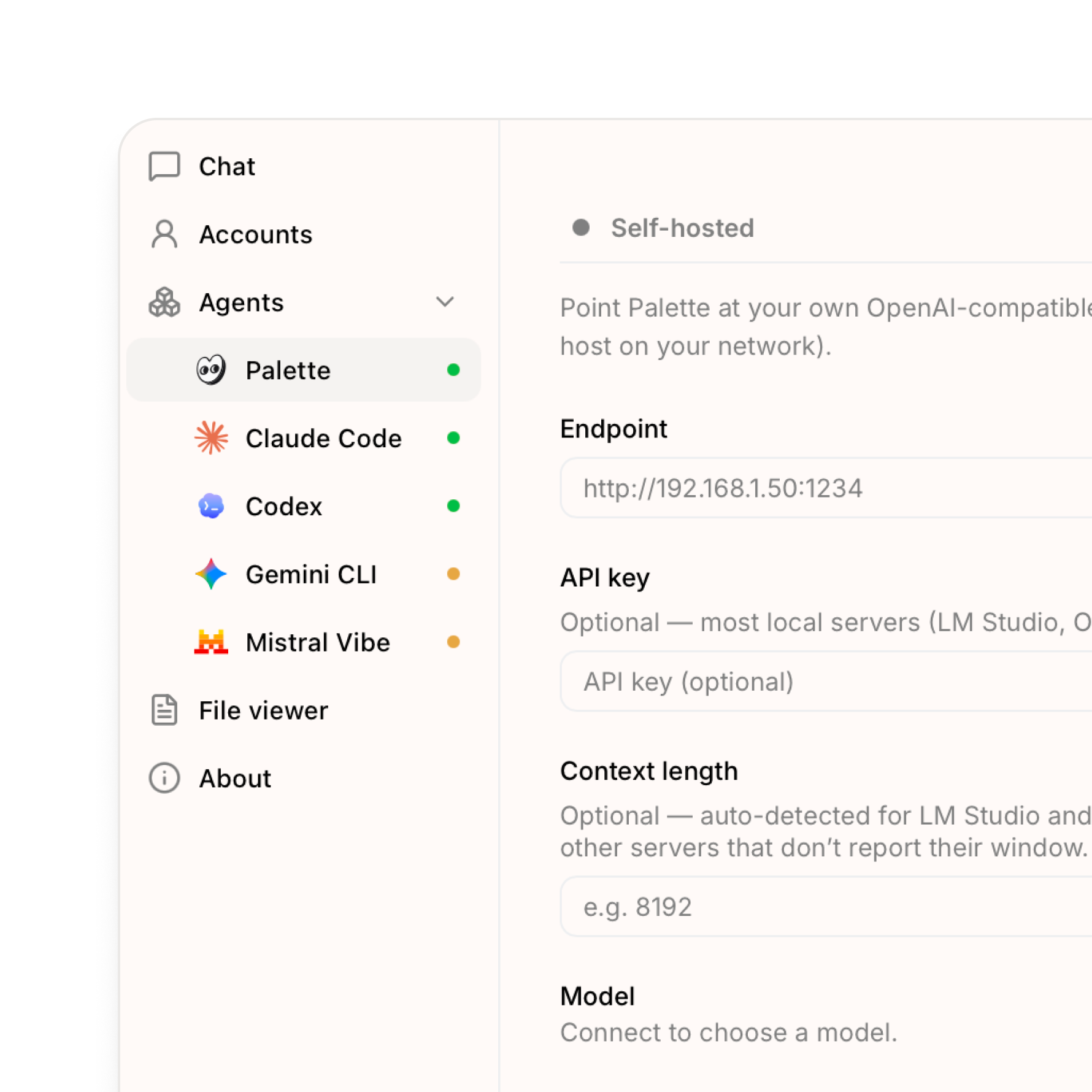
Now you can run the Palette agent on a model we host for you, or on your own server. Together with the on-device model from last time, that gives you three ways to run Palette, and you choose which one each tab uses. The difference is mostly about where the model runs and who hosts it:
* **Cloud**: a model Palette hosts for you (currently DeepSeek). Sign in and it's ready, nothing to download. The easiest option and a good default.
* **On-device**: a model that runs on your own computer (Qwen). It works offline and nothing you type leaves your machine, so it's the most private. These models are smaller and less capable, so they're best for everyday tasks.
* **Self-hosted**: connect to a model server you run yourself (LM Studio, Ollama, or any OpenAI-compatible host on your network). The most control.
> **✨ New**
>
> * **Cloud models**: use a model hosted by Palette, ready as soon as you sign in. Nothing to download.
> * **Self-hosted models**: point Palette at your own OpenAI-compatible server (LM Studio, Ollama, or any host on your network).
> * **A model source per tab**: use the cloud model in one tab and a private one in another. A readiness dot next to each source shows what's good to go.
> * **Share externally**: publish an HTML page you've built in Palette as a public link, and set how long it stays live (1, 7, 30, or 60 days, or a custom window).
> **⚡ Improved**
>
> * **Onboarding**: Palette shows up as a ready-to-use agent during first-run setup.
> **🐛 Fixed**
>
> * **Chat context pill**: the context indicator and history trimming now track the model source you're actually using.
> * **Quickstart window**: adding a workspace no longer closes the setup window unexpectedly.
> * **Explorer header**: header actions line up on the right again.
You can update from Settings. After updating, go to Settings → Agents → Palette to pick a model source.
**July 2, 2026**
## You can now run local models in Palette Desktop
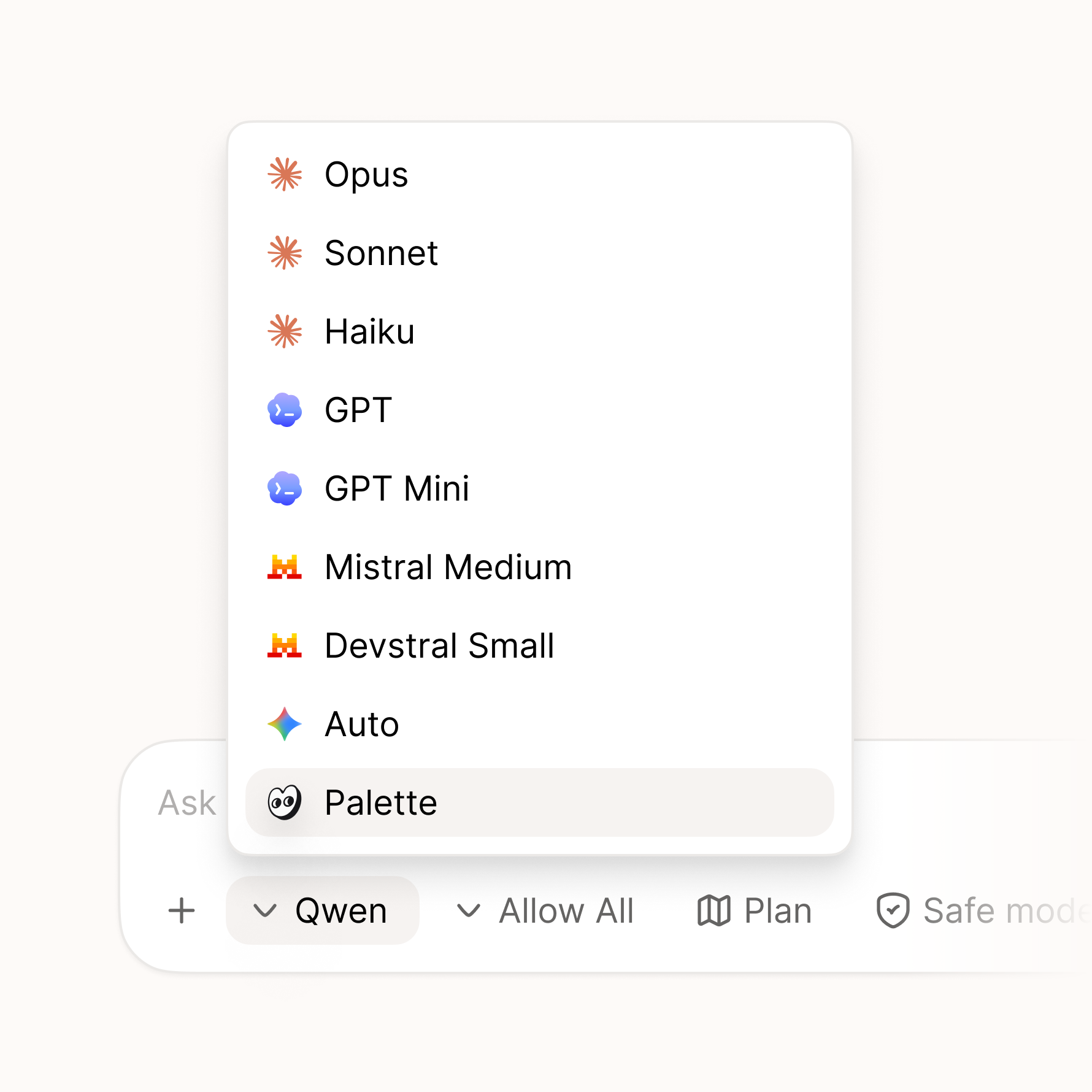
Palette Desktop can now run a local model through a built-in Palette agent. Choose a model like Qwen in Settings, then pick Palette in chat. Palette handles the setup and gives the model access to your folder with the same controls you use for other agents. No separate provider account or API key is needed for the local agent.
We're starting with Qwen, an open-source model from Alibaba. The setup is built so more local models can be added over time. When you use Palette this way, the model runs on your computer, works offline, and nothing you type leaves your device. Local models are smaller and less capable than cloud models like Claude, so they're best for everyday tasks rather than the hardest ones.
> **✨ New**
>
> * **Palette as a local agent**: pick Palette in chat and run it locally on your computer.
> * **On-device model setup**: download what Palette needs, choose Qwen, and manage it from Settings.
> * **Private and offline**: while using the local Palette agent, your files and chat stay on your device and it works without a connection.
> **⚡ Improved**
>
> * **Model defaults**: set a default model in Settings, and keep different models per tab without them changing after restart.
> * **Install progress**: local setup downloads keep going if Settings is closed, restore progress when reopened, and show a completion toast when ready.
> * **Context page mentions**: the mention list now loads more directly and reliably.
> * **Update delivery**: update feeds now use `dl.palette.team/desktop` for more reliable delivery.
> **🐛 Fixed**
>
> * **Getting started**: the "Help me get started" button now creates the session and sends the guide correctly.
> * **Plan history**: plans from plan mode stay visible when you reopen a session's history.
> * **Tooltips**: tooltips now show the current title instead of old cached text.
> * **Gemini errors**: Gemini history and session-list errors now show readable messages.
> * **Claude Code install**: installing Claude Code through Palette works better on machines without Node installed.
You can update from Settings. After updating, go to Settings → Agents → Palette to try the local setup.
**June 23, 2026**
## Gemini and one-click installs for every agent
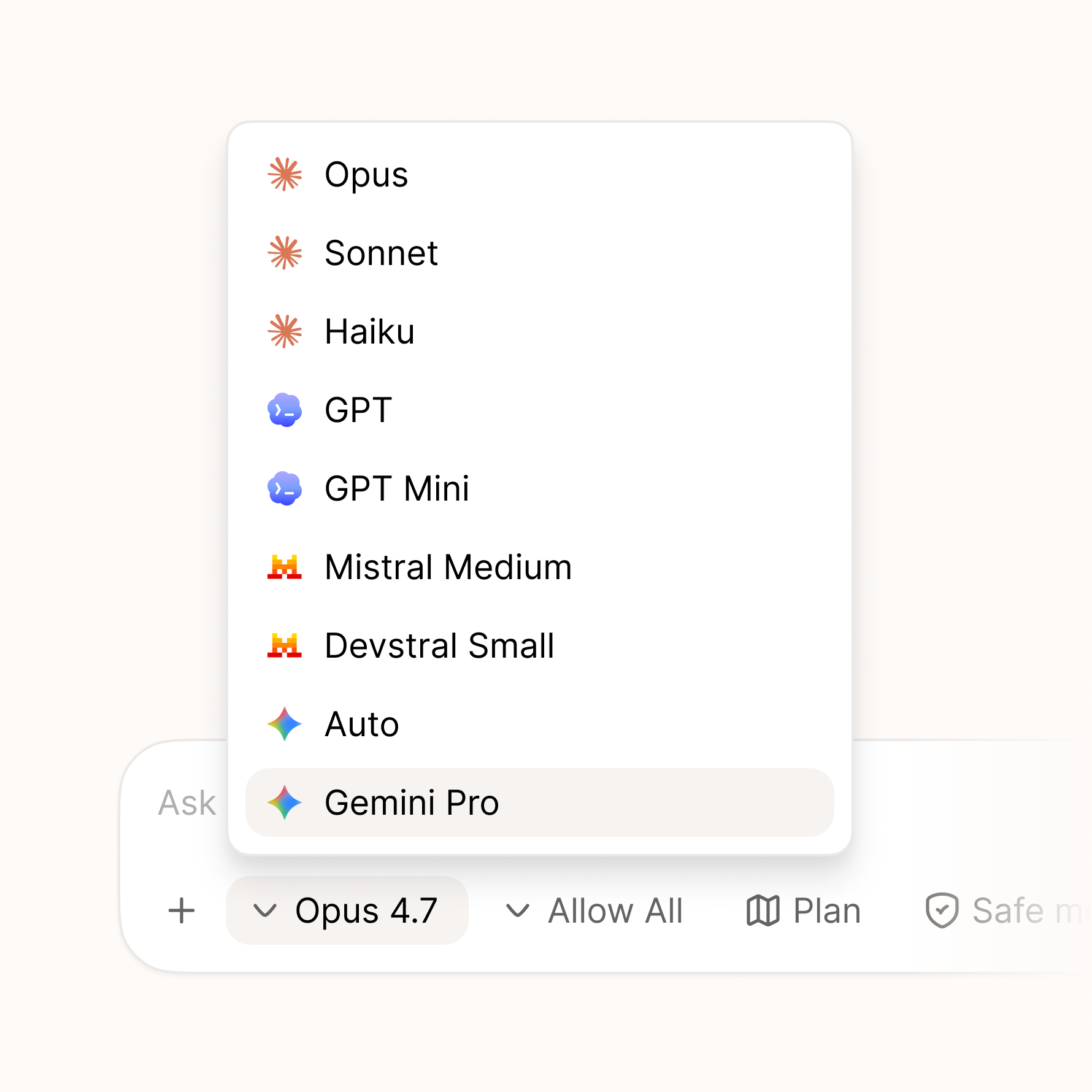
Another big release, with a lot packed in. The headline: Palette now supports Gemini, joining Claude Code, Codex, and Mistral. Getting any of them set up is now a single click. If you don't have a provider installed yet, Palette handles the setup for you, and for each one you choose whether to run it on your subscription or your own API key. A new person can be up and running in seconds instead of wrestling with a terminal.
Two more features we're excited about have also landed: HTML sharing and handoffs. Both are early, and each gets its own closer look in the next couple of weeks.
> **✨ New**
>
> * **Gemini support**: Gemini is now available as a provider, joining Claude Code, Codex, and Mistral.
> * **One-click provider install**: run any of them in Palette. If you don't have a provider installed yet, it's a single click and Palette sets it up for you, no terminal required.
> * **Subscription or API mode**: for each provider, choose whether to run it on your subscription or your own API key.
> * **HTML sharing**: share your work as a styled HTML page that anyone can open and comment on, even if they don't use Palette. A closer look coming in its own update shortly.
> * **Handoffs**: hand off a piece of work to a teammate with the files and full chat context attached, so they pick up right where you left off. More on this in its own update shortly.
> * **Rich markdown editing**: edit `.md` files in a what-you-see-is-what-you-get editor, and copy their markdown from the sidebar.
> * **Interface zoom**: zoom the whole interface in and out across every window.
> * **License viewer**: browse the open-source license attributions from inside the app.
> **⚡ Improved**
>
> * **Automatic Git setup**: if you don't have Git installed, Palette now installs it for you, so you're ready to go without any setup.
> * **Redesigned settings**: a cleaner two-pane layout with a category rail alongside the content.
> * **Smarter checkpoints**: manual file operations and edits made outside the app are now captured in your history.
> * **Turn file links**: file pills in a turn now open the file directly instead of the checkpoint.
> **🐛 Fixed**
>
> * **Zoom shortcuts**: Cmd +, Cmd -, and Cmd 0 now work regardless of your keyboard layout.
> * **Markdown edits on switch**: your changes are no longer lost when switching between sessions.
> * **Unsaved drafts**: drafts are now preserved when you update a session.
> * **Signed commits**: Palette's internal commits are never GPG-signed, so they no longer fail for some setups.
> * **Sharing feedback**: now opens an in-app survey instead of leaving the app.
[Download now](https://palette.team/desktop) or update to the latest in your settings. Let us know what feels better and what doesn't.
**June 8, 2026**
## Mistral, file editing, and a redesigned workspace
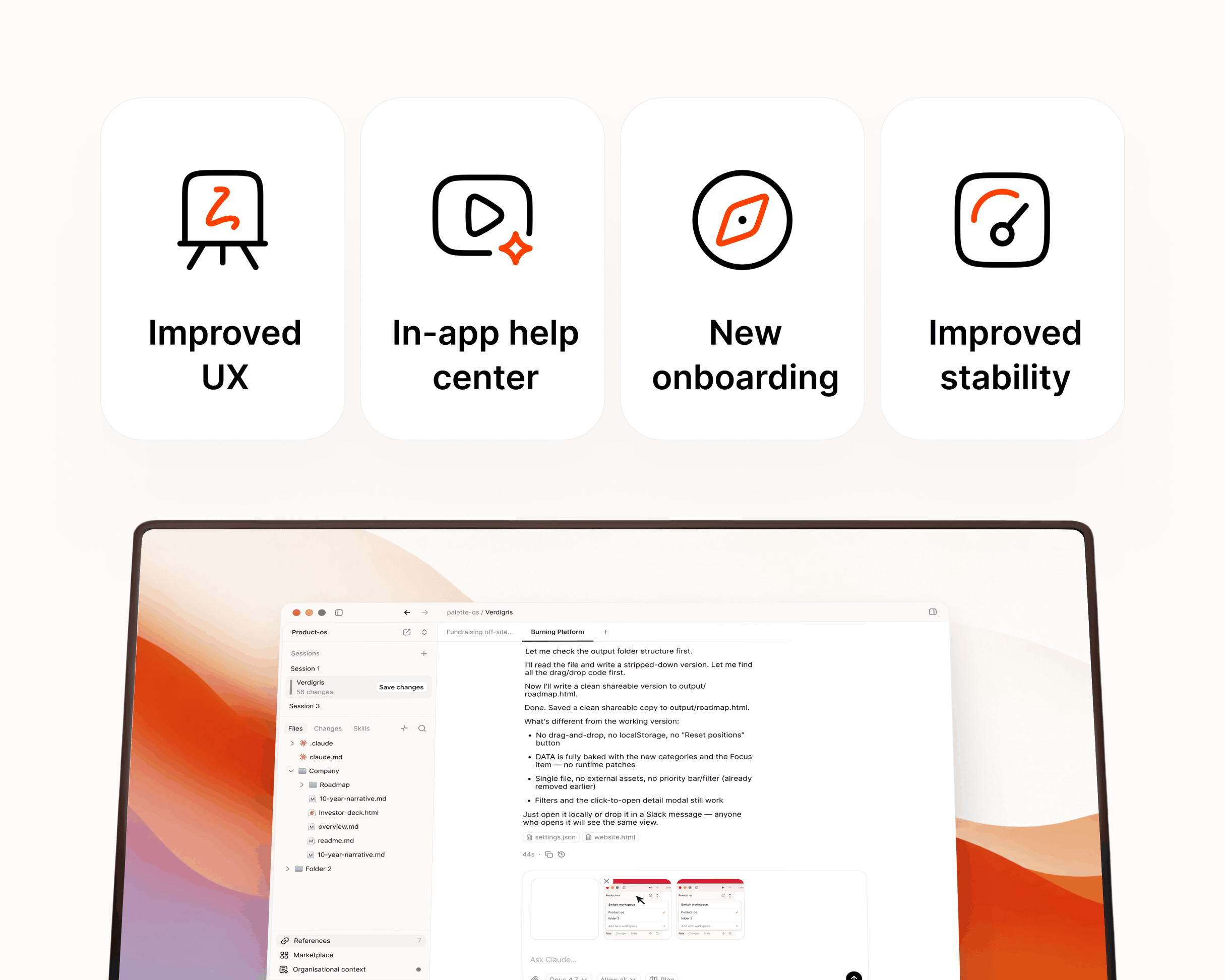
First update to Palette Desktop since launch, and it has quite a lot in it. You can now pick Mistral's Vibe agent as a provider, manage files hands-on right in the Files area, and sign in to your Palette account from the app. On top of that, there's a stack of polish across the workspace shaped by what early users have been telling us. Thank you for the notes. Keep them coming.
> **✨ New**
>
> * **Mistral Vibe provider**: pick Mistral's Vibe agent alongside your existing providers.
> * **Your Palette account**: sign in to set up your account and organization, and see your profile right in the app.
> * **Files area actions**: right-click to delete, rename, or create folders, drag files to move them, and drag in from Finder to copy them into your workspace.
> * **Paste & drop images**: paste screenshots or clipboard images straight into chat, with a drop-to-attach overlay when you drag files over a session.
> * **Report a Bug**: send feedback and bug reports straight from the app.
> * **What's New**: friendly, in-app release notes after each update.
> * **Tab shortcuts**: jump between tabs with native ⌃⇥ and ⌃⇧⇥ shortcuts.
> * **Skills & History explorer**: a rebuilt Skills panel with source and provider filters, plus a reworked sidebar with Skills and History tabs that remember each session.
> * **Context pages**: open References, Marketplace, Help, and your org's context as full main-area pages, with a redesigned Palette surface.
> * **Feedback on plans**: instead of just accept or decline, reply with notes and the plan adjusts.
> **⚡ Improved**
>
> * **Chronological transcript**: sessions now read top to bottom with related tool runs grouped together.
> * **Tab & session indicators**: clearer unread and attention markers across tabs and sessions.
> * **Titlebar breadcrumb**: the currently open menu page now shows in the titlebar.
> * **Cancel keeps your message**: cancelling before a response restores your text to the input so nothing is lost.
> * **Redesigned flows**: refreshed create-workspace, marketplace, and template detail screens.
> * **Empty states**: friendly illustrated placeholders for sessions, Files, Changes, and Skills.
> * **Cleaner error messages**: interrupted plan tools read as "Interrupted" instead of the raw stream-closed CLI error, and decline/interrupt outcomes show as neutral chips rather than red errors.
> * **Visual polish**: native tinted glass, cleaner chat code blocks, smoother tab hover and shimmer animations, and tighter alignment across rows, popovers, and icons.
> **🐛 Fixed**
>
> * **Tab clicks**: closing a tab no longer crashes, and the whole tab is clickable, not just its label.
> * **In-app links**: clicking a link no longer navigates away from the app.
> * **Mentions & queued messages**: the mention popover and queued-message tray now stay tied to the active session.
> * **Session states**: fixed cases where history and Skills could silently show up empty, and replaced a raw What's New heading with a friendly summary.
You can update to the latest in your settings. Let us know what feels better and what doesn't.
**May 19, 2026**
## Palette Desktop is here
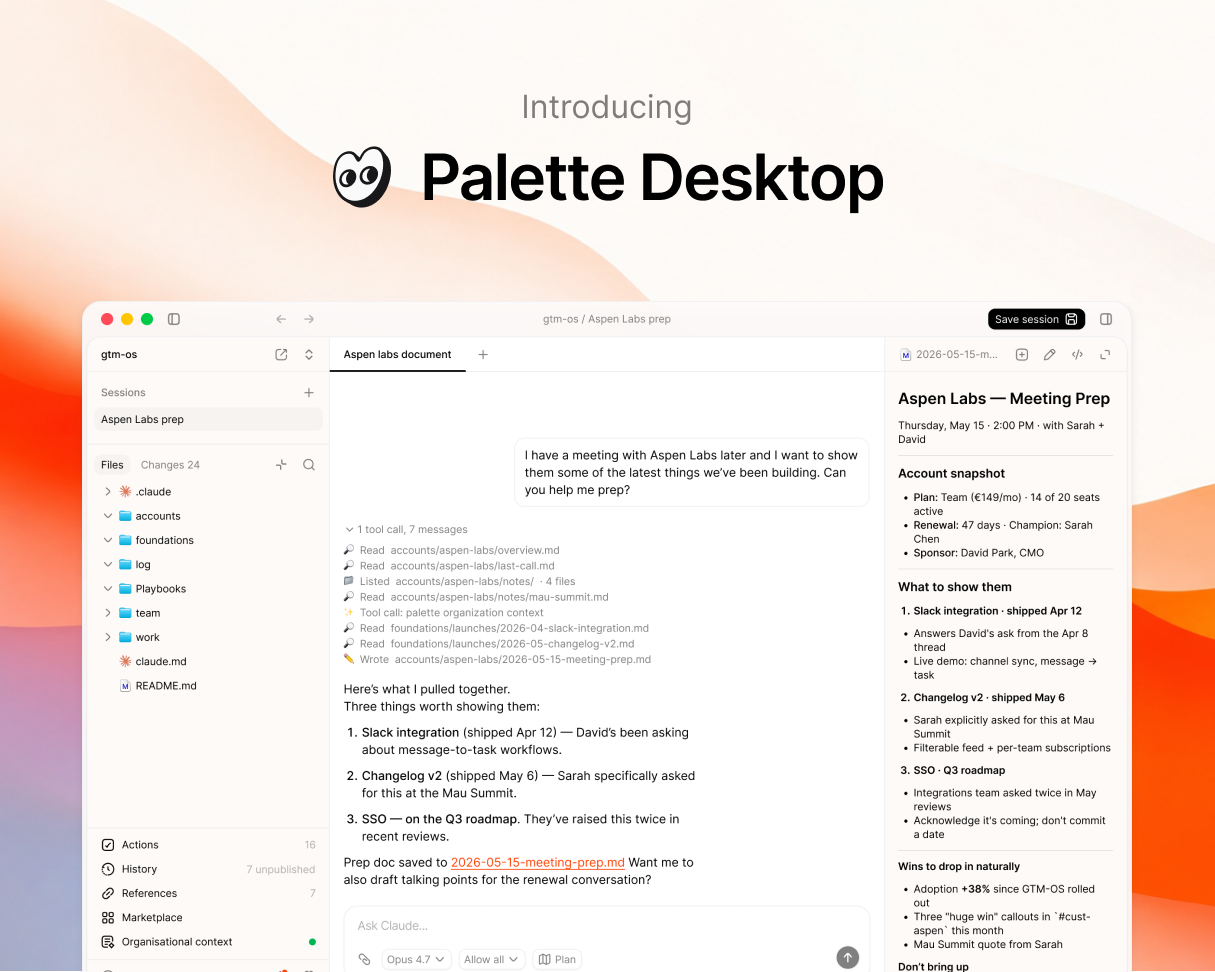
Palette Desktop is an app for running Claude Code and Codex on shared team folders. Point it at a folder on Google Drive or Dropbox, share it with your team, and the folder becomes your team's workspace. No terminal. No git. Most people are in their first session within minutes.
We've been running it internally for months and with a small group of design partners for a few weeks. We're sharing it more broadly now.
### Sessions
A session is a sandboxed clone of your folder where you can work safely. Run multiple chats inside one session, each focused on a different task. When you're ready, save the whole session back to the shared folder. Reviewed, not chat-by-chat. That's how a team can share the same folder without stepping on each other.
* **Multiple chats per session.** Several chats in parallel, each on a different task.
* **Approve changes.** Every change is staged. You review before anything writes back.
* **Changes history.** Every change logged. Browse, compare, restore in one click.
### Agent choice
Palette Desktop runs Claude Code and Codex. Switch per session. Bring your own subscription either way. Your team's context isn't locked to one AI vendor.
* **Detects your agent.** Palette Desktop checks for Claude Code and Codex on your machine. If you don't have one yet, it helps you install.
### Templates
Open a new folder and pick a starter:
* **gtm-os** for go-to-market teams
* **startup-os** for founders
* **ops-os** for ops and PM teams
More on the way. You can also submit your own.
### Plus
A few more features to round out the workspace:
* **File viewer.** Markdown and HTML render inline. Toggle to raw with one click.
* **Actions list.** Every command and skill in your folder, surfaced and ready to run.
* **Shortcuts.** Pin your most-used commands, skills, and prompts.
* **Integrations.** See the MCPs and integrations connected to your agents in one place.
### The Palette context layer
The Palette context layer ships with Palette Desktop. It connects to the tools your team already uses (Slack, Linear, Notion, calendar, email), turns daily activity into structured signals, and serves a living map of your organization to your agents through MCP. On by default. Turn it off if you don't want it.
[Download for macOS →](https://dl.palette.team/desktop/stable/Palette.Desktop_universal.dmg)
**May 1, 2026**
## Briefs
We just shipped Briefs, the morning brief your chief of staff would write, if you had one.
Briefs land in your team's Slack channel on the days you choose: TLDR, what needs attention, what's happening, and today's calendar. Tap through to the full version on the web, same as Slack plus what's moved and what's still unknown.
Most digest tools just repost what happened in your tools. Briefs are written on top of your Context pages, the always-current picture of how your team works, so they describe what changed, what matters, and what needs attention. Interpreted signals, not raw events.
You can enable Briefs under your team settings in Palette.
**April 10, 2026**
## Palette v1.0
Connect your tools. Build a living context map of your org. Serve it to your AI tools. That's the loop, and it's now complete. It took us a while to get here, and we rewrote more of it than we'd like to admit, but the core works and we're using it every day.
If you want to try it, [sign up here](https://palette.team/design-partner).
### Connectors
Palette connects to Slack, Linear, GitHub, Notion, Jira, and Google Calendar. You choose which channels, projects, and repos to connect. We only see what you explicitly add, nothing else.
Signals flow in from the tools your team already uses. No new habits required.
### Shared context
This is the core of Palette. From your tool signals, we build and maintain a living context map of how your org actually works:
* **Org level**: how the company operates, priorities, decisions, tools, culture
* **Team level**: what each team is working on, how they coordinate, blockers, progress
* **Person level**: individual focus, role, working style, current context
Everything is plain English, confidence-scored, and always updating. When we're confident about something, we say so. When we're not sure, we flag it. Your wiki says what you wish were true. This reflects what's actually happening.
### Palette MCP
Install the Palette MCP and your AI tools start every session with your org's latest context. Claude, Cursor, ChatGPT, Copilot. No copy-pasting, no re-explaining the basics every time.
Your AI gets the answer, not the homework.
We went through a few iterations on how to serve context efficiently. The current approach separates stable context (company name, team structure, product) from things that change daily (who's working on what, latest decisions, blockers). Your AI tools get both without wasting the context window.
# Run actions and skills in Palette Desktop
Source: https://palette.team/docs/desktop/actions
Use Palette Desktop's actions list to run shared workspace skills and workflows from a chat, with behavior adapted to the agent you choose for each task.
The actions list surfaces the skills and workflow files Palette finds in your workspace.
[Watch the video](https://youtu.be/OGZs0CzsEnA)
## What an action is
An action is a set of instructions you can run inside a chat. How it runs depends on the agent:
* **Claude Code** can resolve compatible commands natively through `/`.
* **Other agents** can run a filesystem action from Palette's list. Palette sends that action's instructions into the active chat as the prompt.
* **Automatic skill discovery or invocation** depends on the underlying [agent](/docs/desktop/agents). Do not assume every agent will discover the same skill on its own.
The source instructions live as files in your workspace, commonly in agent-specific command or skill folders.
## The actions list
Inside every chat, you can open the actions list and see what's available. It pulls from:
* Compatible commands defined in your workspace
* Skills and filesystem actions installed in your workspace
* Anything a teammate added that synced into the folder
No digging through files, no remembering what's available. You see the full set.
## Why this matters
A workspace can build up dozens of actions over time. Sales motions, content workflows, account reviews, weekly recaps. Without a way to see them, they get forgotten.
The actions list keeps them visible. Click an action to run it from the active chat. With Claude Code, you can also use `/` for compatible commands. Whether an agent discovers a skill without you choosing it depends on that agent.
## In the folder, not your account
Most AI tools (Claude.ai, ChatGPT, and nearly all others) tie skills and commands to your account. They follow you, not your team. If you build a good workflow, your teammate has to rebuild it.
Palette is the opposite. Actions live in the workspace folder as plain markdown files. They sync with the folder. Anyone who has the folder has them.
That's why shared workspaces get more useful over time. Someone figures out a good outreach flow, drops it in as a command, and the whole team has it the next time their folder syncs. The folder is your team's shared brain for how you work with AI.
## Where actions come from
Three sources, in order of how you typically get them:
1. **Marketplace workflows.** A [workflow](/docs/desktop/marketplace) such as Accounts can add actions for recurring work.
2. **You add them.** Drop a markdown file in `.claude/commands/` or `.claude/skills/` in your workspace.
3. **Your team adds them.** Anyone with access to the workspace folder can add an action. Cloud sync delivers it to everyone else.
## Custom commands and skills
Both are markdown files in your workspace. The difference is mostly in how the file is written:
* A **command** is a prompt template. Claude Code can run compatible commands by name through `/`.
* A **skill** describes a capability and when to use it. Native discovery varies by agent, while Palette can still send a selected filesystem action's instructions into the chat.
You don't need to be a developer to write either one. If you can describe the work in plain English, you can write the file.
The easiest way to start: ask the agent in a chat to suggest commands or skills based on what you do most. It can write the file for you and drop it in the right place.
## Next
* [Marketplace](/docs/desktop/marketplace), install folder systems and workflows
* [Chats](/docs/desktop/chats), where actions run
# AI agents in Palette Desktop: setup and models
Source: https://palette.team/docs/desktop/agents
Choose between Palette, Claude Code, Codex, Gemini CLI, and Mistral Vibe for each Palette Desktop chat, with flexible model access in each shared workspace.
Palette Desktop is agent-agnostic. Pick your agent per chat, and switch whenever you like. Your context lives in the folder, not the agent, so switching costs you nothing.
## The five agents
* [**Palette**](/docs/desktop/palette-agent), Palette's own agent. It comes with Palette, so there is no separate account or sign-in, and it is the default agent, so you have one ready in your first chat. You pick a model and where it runs: Palette Cloud, on-device, or your own server.
* [**Claude Code**](/docs/desktop/claude-code), Anthropic's Claude Code. It supports plan mode and is the only agent with slash commands.
* [**Codex**](/docs/desktop/codex), OpenAI's Codex.
* [**Gemini CLI**](/docs/desktop/gemini), Google's Gemini.
* [**Mistral Vibe**](/docs/desktop/mistral), Mistral's agent.
Inside one session you can run different agents in different chats at the same time, on the same folder.
## Choosing how models are powered
How the model behind an agent is paid for and authenticated depends on the agent. There are three ways:
* **Your subscription.** Sign in with your existing plan. Claude Code (Claude Pro or Claude Code) and Codex (your ChatGPT/Codex plan) work this way.
* **Your API key.** Bring an API key instead of a subscription. Supported for Claude, Codex, Gemini (Gemini uses an API key, not a Google sign-in), and Mistral.
* **Palette-provided.** The Palette agent can run on:
* **Palette Cloud**, models Palette provides, ready immediately with no setup or key. Usage is metered.
* **On-device**, a local model that runs on your machine. Free, private, and works offline. Download one from a built-in catalog.
* **Self-hosted**, point Palette at your own model endpoint (for example LM Studio or Ollama).
Which models each agent offers:
| Agent | Models |
| - | - |
| Palette | Any model, run on Palette Cloud (DeepSeek today), on-device (an open model like Qwen), or self-hosted |
| Claude Code | Opus, Sonnet, Haiku, Fable |
| Codex | Your plan's available models |
| Gemini CLI | Auto, Gemini Pro, Gemini Flash |
| Mistral Vibe | Mistral Medium, Devstral |
## How agents learn about your workspace
> [!NOTE]
>
> Requires Palette Desktop v0.52.0 or later.
Instruction-file behavior depends on the agent:
* Claude Code reads `CLAUDE.md`.
* Codex reads `AGENTS.md`.
* Automatic loading of `AGENTS.md` is not currently guaranteed for Gemini, Mistral, or the Palette agent. Mention the relevant file in your prompt when those agents need it.
Use `CLAUDE.md` for Claude Code and `AGENTS.md` for Codex, and keep shared instructions aligned. See [Working with CLAUDE.md and AGENTS.md](/docs/desktop/claude-md-and-agents-md) for the full pattern.
Plan mode is available with Claude Code and the Palette agent. Slash commands remain specific to Claude Code.
## Bring your own, or use Palette's
You are never locked to one vendor. Run the agent and model you want, on your own subscription, your own key, or Palette's own models. When a new agent shows up that your team wants to try, it slots in next to the others.
## Detection and install
> [!NOTE]
>
> Requires Palette Desktop v0.52.0 or later.
Palette detects the agents on your machine and installs one for you in one click on the onboarding's **Enable your AI tools** screen if you don't have it yet. The Palette agent is built in, so there is no separate agent to install. No terminal required.
## Next
* [Chats](/docs/desktop/chats), how you pick an agent per chat.
* [Sessions](/docs/desktop/sessions), what the agent does and what you approve.
* [Quick Start](/docs/desktop/quickstart), install and run your first session.
# Run parallel AI chats in Palette Desktop sessions
Source: https://palette.team/docs/desktop/chats
Run parallel agent chats inside a Palette Desktop session, choose a model for each chat, and bring files into context with @-references without mixing work.
A chat is one conversation with an agent inside a [session](/docs/desktop/sessions). You can run several chats inside the same session, each on a different task.
## Multiple chats per session
A typical session has more than one chat going at once. For example:
* One chat drafting outreach for an account
* Another chat researching a competitor
* A third chat summarizing yesterday's meeting
All three chats work in the same sandbox. They can all read and write to the same files. But each chat has its own conversation history, so the agent doesn't get confused mixing tasks.
You see what each chat did when you review the session before saving back.
## A different agent per chat
You pick the agent per chat. Inside one session, you can have one chat running Claude Code and another running Codex, Gemini, Mistral Vibe, or Palette's own agent.
Why this matters:
* Different agents handle different tasks better
* Switching agents in a single chat would lose conversation context, but starting a new chat with a different agent keeps each one clean
* The leading model keeps changing, so being able to mix is useful
You can also switch the model inside the same agent (e.g., a faster model for quick edits, a stronger model for deeper reasoning).
## @-mentions
Type `@` in a chat to point the agent at something specific: a file, a folder, or any added [reference](/docs/desktop/references).
This is useful when:
* The workspace is big and you want to focus the agent on something specific
* You want the agent to read a particular file before answering
* You're referring to something the agent might otherwise miss
The agent always has access to the whole workspace. `@` is how you point at the part that matters right now. The same syntax works for [references](/docs/desktop/references), the folders you've added from outside the workspace.
## Attachments
Attach files, folders, images, or long pasted text to a message. The agent can read everything you attach.
You can attach items three ways:
* **Picker.** Click **Attach files** in the message box and choose files or folders.
* **Paste.** Paste an image into the message box. Pasted text longer than 500 characters becomes a text attachment instead of filling the message box. Palette names it after the first words of the text.
* **Drag and drop.** Drop files or folders anywhere on the chat.
Attachments keep their original names, so you and the agent see the same file names. Palette stores them with the conversation, so they still open after you restart the app. You can send a message that contains only attachments.
Use attachments for material that isn't in the workspace, like a screenshot, an exported report, or a long email thread. To point at a file already in the workspace, type `@` to mention it instead.
> [!TIP]
>
> Dropping items onto **Files** in the sidebar adds them to the workspace instead of the chat. See [Add files to the workspace](/docs/desktop/workspaces#add-files-to-the-workspace).
## Chats share the sandbox, not the conversation
This is the key thing to understand:
* Every chat in a session writes to the **same** sandboxed workspace
* But each chat has its **own** conversation history
So if one chat drafts a doc and another chat edits it, they're both working on the same file in the sandbox. But neither chat sees the other chat's conversation. Each is having its own conversation with the agent.
When you save the session back, all the changes from all the chats go together.
## Per-chat permissions
Permission controls depend on the agent you choose. Palette only shows the modes that agent supports:
* **Palette and Claude Code** have a folder-sandbox toggle.
* **Codex** offers two modes: **Accept Edits** and **Allow All**. Codex never stops to ask for permission. See [Codex permission modes](/docs/desktop/codex#permission-modes).
* **Gemini and Mistral** use their own agent modes.
Use the narrowest mode that fits the task. Broader access can let an agent reach files or tools outside the workspace, subject to the agent's own permission model and macOS permissions.
## Auto-accept edits
By default, each edit the agent makes is shown so you can read it as it happens. Flip on **Auto-accept edits** to let the agent run without surfacing each one.
The changes still land in your session sandbox, and you still review them all before saving back. The toggle just removes the per-edit interruption while the agent is working.
Good for long-running tasks you trust. Off by default.
## Queuing messages
You don't have to wait for the agent to finish a reply before sending the next message. Anything you type while the agent is working gets queued and runs in order, as soon as the agent is free.
Useful when a follow-up idea hits you mid-thought, or when you want to line up several steps in a row.
## Previewing HTML outputs
Agents sometimes produce HTML: a landing page mockup, a prototype, a styled report. Any HTML file in your workspace previews in the right-side panel, the same way markdown files do. You can also open it in your browser.
This is one of the best ways to share AI-generated work with humans.
## When to start a new chat
Start a new chat when:
* You're switching to a different task in the same session
* You want a clean conversation context
* You want to use a different agent or model for the next thing
Keep going in the same chat when:
* You're iterating on the same piece of work
* The history of the conversation is useful to keep
* You want the agent to remember what you said earlier
## Next
* [Sessions](/docs/desktop/sessions), how chats fit into a session
* [References](/docs/desktop/references), pulling in folders outside your workspace
* [Agents](/docs/desktop/agents), choosing your agent per chat
# Run Claude Code inside Palette Desktop workspaces
Source: https://palette.team/docs/desktop/claude-code
Run Claude Code in Palette Desktop with Opus, Sonnet, Haiku, and Fable using a Claude subscription or your own Anthropic API key inside every shared workspace.
Anthropic's Claude Code, run inside Palette Desktop and driven through the Claude Agent SDK. Pick it per chat like any other agent. It supports plan mode and is the only agent in Palette with slash commands.
## Setup
1. In a chat, choose **Claude Code** as the agent. If you don't have Claude Code yet, Palette installs it for you in one click from Settings. No terminal needed.
2. Connect your access. There are two ways, and both are fully supported:
* **Your subscription (recommended).** Sign in with your Claude plan (Claude Pro, or Max 5x or 20x). This is usually the best value: on the higher plans you get more usage for a flat monthly price, so most people find it cheaper than paying per token.
* **Your API key.** Bring an Anthropic API key instead. Palette stores it in your operating system's keychain and passes it to Claude Code. Usage is metered and billed to your Anthropic account.
That's it. Whichever you pick, the credential is yours; Palette holds it locally and hands it to the agent.
## Models
| Model | When to use |
| - | - |
| **Opus** | The most capable, for the hardest work. |
| **Sonnet** | The balanced default. |
| **Haiku** | The fastest and lightest, for quick work. |
| **Fable** | A fast model option. |
Sonnet is the default, but you can set any model as your default and switch per chat. For more on what each model is best at, see [Anthropic's model overview](https://docs.anthropic.com/en/docs/about-claude/models).
## Usage & billing
On a subscription, usage draws on your Claude plan's included credit. On an API key, usage is metered by tokens and billed to your own Anthropic account, the same as using the key anywhere else. Palette does not add a markup on Claude Code usage.
Subscription credit is per user and cannot be pooled across a team through Palette.
## Connectors and MCP
Palette Desktop runs Claude Code with your existing setup, so anything you have connected in Claude Code works here too. If you have MCP servers (connectors) set up in Claude Code, they are available in Palette Desktop automatically, with nothing to reconnect.
## Limits & notes
* **Plan mode and slash commands.** Claude Code supports [plan mode](/docs/desktop/plan-mode) and is the only Palette Desktop agent with slash commands. The Palette agent also supports plan mode.
* Claude Code reads your workspace context from **`CLAUDE.md`** at the root of your folder (the other agents read `AGENTS.md`). See [Working with CLAUDE.md and AGENTS.md](/docs/desktop/claude-md-and-agents-md).
* Running Claude through Amazon Bedrock or Google Vertex is not supported yet.
## FAQ
### Should I use my subscription or an API key?
We recommend your subscription. If you are on Claude Pro or a Max plan, you usually get more usage for the price, especially on Max 5x or 20x. Use an API key if you would rather meter usage and have it billed to your Anthropic account.
### Where is my API key stored? Is it safe?
It's stored in your computer's keychain and only passed to Claude Code as an environment variable (`ANTHROPIC_API_KEY`). It never leaves your machine through Palette.
### Does plan mode work here?
Yes. Claude Code and the Palette agent support plan mode. Slash commands are specific to Claude Code. See [Plan mode](/docs/desktop/plan-mode).
## Related
* [Agents](/docs/desktop/agents), all five agents and how model access works.
* [Chats](/docs/desktop/chats), pick an agent per chat.
* [Plan mode](/docs/desktop/plan-mode), draft a plan before the agent acts.
* [Quick Start](/docs/desktop/quickstart), install and run your first session.
# Use CLAUDE.md and AGENTS.md in Palette Desktop
Source: https://palette.team/docs/desktop/claude-md-and-agents-md
Use CLAUDE.md with Claude Code and AGENTS.md with Codex to share workspace instructions, and point other agents to the relevant guidance when needed too.
CLAUDE.md and AGENTS.md can tell an agent who you are, what the workspace is for, and how you work. Automatic loading depends on the agent.
* **CLAUDE.md** is read by [Claude Code](/docs/desktop/claude-code).
* **AGENTS.md** is read by [Codex](/docs/desktop/codex).
* Palette Desktop does not currently guarantee automatic AGENTS.md loading for [Gemini](/docs/desktop/gemini), [Mistral Vibe](/docs/desktop/mistral), or [Palette's own agent](/docs/desktop/palette-agent). Mention the file explicitly when those agents need it.
A good one of these files is the difference between an agent that needs you to repeat yourself every chat and one that picks up where you left off.
## Where they live
In the root of your workspace folder, alongside your top-level folders.
```text theme={null}
your-workspace/
├── CLAUDE.md
├── AGENTS.md
├── accounts/
├── playbooks/
└── ...
```
Keep the file for the agents you use. If everyone uses Claude Code, CLAUDE.md is enough. If you use Codex too, keep AGENTS.md as well. The simplest approach is to share the relevant sections and update both together.
## What to put in them
Claude Code or Codex reads its supported instruction file at the start of a session. Keep it scannable, not exhaustive.
A good CLAUDE.md or AGENTS.md covers:
* **Who you are.** Your name, role, what you do day to day.
* **What this workspace is.** The purpose of the folder, what kinds of work happen here.
* **How you work.** Conventions to follow, tools you use, things to avoid.
* **Where to look.** A short map of the folders inside this workspace, so the agent knows where things live.
* **What's in flight.** Active projects or context worth flagging up front.
What to leave out:
* Long histories or wikis. The agent can read other files when it needs to.
* Information that lives elsewhere and changes often (live metrics, calendar, and the like).
* Anything sensitive you wouldn't want every chat to see.
## Writing the first one
> [!NOTE]
>
> Requires Palette Desktop v0.52.0 or later.
Palette fills every new workspace from the Company OS starter template when you [set it up](/docs/desktop/quickstart). To write or tailor `CLAUDE.md`, ask your agent to draft it from:
* Who you are and what you do
* What the workspace is for
* The workflows you run most often
It is a starting point. If your team also uses agents that read `AGENTS.md`, create that file separately and keep the relevant shared instructions aligned.
## Keeping it sharp
The fastest way to update CLAUDE.md or AGENTS.md is to ask your agent to do it.
* "Update CLAUDE.md to add the new accounts folder."
* "Reflect this decision in AGENTS.md."
* "Check CLAUDE.md against how I actually work. Anything out of date?"
Treat it like a living doc. When you change how the workspace is organized, or how you work, update the file.
## Sharing with your team
If you share the workspace folder with your team, you share CLAUDE.md and AGENTS.md with them too. Claude Code and Codex can then read the same supported instructions; other agents need an explicit pointer when automatic loading is not guaranteed.
For shared workspaces:
* Keep the file focused on the team and the work, not on individual preferences.
* Put personal preferences (your voice, how you like things drafted) in a separate file the agent can read.
* Update it together, the same way you'd update any shared doc.
## Related
* [Agents](/docs/desktop/agents), the agents that read these files
* [Working with README and index files](/docs/desktop/readme-files), the same idea one level down, inside each folder
* [Structuring your workspace](/docs/desktop/structuring-your-workspace), how to lay out folders so agents can navigate them
* [Workspaces](/docs/desktop/workspaces), the folder these files live in
* [Quick start](/docs/desktop/quickstart), set up your first workspace
# Run OpenAI Codex in Palette Desktop workspaces
Source: https://palette.team/docs/desktop/codex
Run OpenAI Codex in Palette Desktop using your ChatGPT or Codex plan or an OpenAI API key, with models supplied by your plan inside shared team workspaces.
OpenAI's Codex, run inside Palette Desktop. Pick it per chat like any other agent.
## Setup
1. In a chat, choose **Codex** as the agent. If you don't have Codex yet, Palette installs it for you in one click from Settings. No terminal needed.
2. Connect your OpenAI access one of two ways:
* **Sign in with your ChatGPT or Codex plan (recommended).** Palette opens a browser sign-in. Usage then draws on your plan, per user. If you already pay for ChatGPT, this is usually the best value.
* **Add an OpenAI API key.** Bring a key instead of signing in. Palette stores it in your operating system's keychain and passes it to Codex as `OPENAI_API_KEY`. Usage is metered and billed to your own OpenAI account.
Both paths are fully supported. Pick whichever matches how you already pay for OpenAI.
## Models
Codex does not use a fixed Palette model list. The models you can pick are resolved at runtime from your own Codex or OpenAI plan, so the picker shows whatever your plan gives you. If your plan changes, the list changes with it. There is nothing to configure in Palette for this.
You can pick any model your plan offers and switch per chat. For what each model is best at, see [OpenAI's model docs](https://platform.openai.com/docs/models).
## Permission modes
Codex offers two permission modes. Pick one per chat, or set the default in Settings.
| Mode | What Codex does |
| - | - |
| **Accept Edits** (default) | Makes edits and skips risky steps. |
| **Allow All** | Runs everything without restrictions. |
Codex never asks for permission in either mode. It doesn't pause a turn to wait for your approval. Choose the mode before you send the message.
Codex no longer supports the **Ask for approval** mode. Chats and defaults that used it now use **Accept Edits**.
## Usage & billing
On a **subscription**, usage draws on your ChatGPT or Codex plan, per user. On an **API key**, usage is metered and billed to your own OpenAI account, the same as using the key anywhere else. Palette does not add a markup on Codex usage.
## Connectors and MCP
Palette Desktop runs Codex with your existing setup, so MCP servers (connectors) you have configured for Codex are available here too, with nothing to reconnect.
## Limits & notes
* Codex reads your workspace context from **`AGENTS.md`** at the root of your folder (Claude Code reads `CLAUDE.md`). See [Working with CLAUDE.md and AGENTS.md](/docs/desktop/claude-md-and-agents-md).
* **Plan mode is available with [Claude Code](/docs/desktop/claude-code) and the Palette agent.** Slash commands are specific to Claude Code. Neither is available for Codex.
## FAQ
### Should I use my subscription or an API key?
We recommend signing in with your ChatGPT or Codex plan if you already have one, it is usually the best value. Add an OpenAI API key if you would rather meter usage against your own OpenAI account.
### Which models can I use?
Whatever your OpenAI or Codex plan gives you. Palette does not set a fixed list for Codex; the picker is built at runtime from your plan.
### Where is my API key stored, and is it safe?
It's stored in your computer's keychain and only passed to the Codex agent as an environment variable (`OPENAI_API_KEY`). It never leaves your machine through Palette.
## Related
* [Agents](/docs/desktop/agents), all five agents and how model access works.
* [Chats](/docs/desktop/chats), pick an agent per chat.
* [Quick Start](/docs/desktop/quickstart), install and run your first session.
# Use Context Library in Palette Desktop sessions
Source: https://palette.team/docs/desktop/context-library-in-desktop
Use the Context Library in Palette Desktop to browse organizational context and mention a permitted page for the connected agent to read through Palette MCP.
Palette Desktop works on its own with the folder you choose. If your organization has Palette OS access, you can also browse Context Library pages and mention one in chat.
## What the Context Library adds
Your workspace is the folder you are working in. The Context Library contains scoped company context generated from selected source activity and team check-ins.
Depending on your access and the pages your organization generates, the Context Library can include:
* Organization background and priorities
* Team purpose, members, focus, and active work
* User roles, teams, and relevant working context
Generated pages refresh weekly. They are not a real-time feed of every connected tool.
## How it shows up in Palette Desktop
Open the organizational context view to browse the pages available to you. In a chat, mention a context page you want the agent to use.
The agent reads the mentioned page through Palette MCP when the Palette connector is connected. It does not automatically load every Context Library page into every session.
## It's optional
You can use Palette Desktop without the Context Library. Just your workspace, your sessions, your chats. That's the full product.
The Context Library is an additional Palette OS feature for organizations that want to make scoped company context available to people and supported agents.
## Setting it up
Palette OS access and the Palette connector are separate from the folder you open in Desktop:
1. Connect supported company tools and select the sources Palette can access.
2. Wait for the first generated context pages to appear in Palette.
3. Connect the Palette connector in Desktop.
4. Browse organizational context or mention a permitted page in chat.
See the [Context Library overview](/docs/os/overview) for the full picture, or the [Context Library quick start](/docs/os/quickstart) to get going.
## Why both together is the point
The workspace holds the files for the work in front of you. The Context Library adds company context without copying that material into the workspace.
When you mention a page, the connected agent can read that selected context on demand. You remain in control of which page the chat uses.
## Next
* [Context Library overview](/docs/os/overview), what it is and how it works
* [Context Library quick start](/docs/os/quickstart), connecting your tools
* [Workspaces](/docs/desktop/workspaces), the local side of Palette Desktop
# Edit and preview Markdown files in Palette Desktop
Source: https://palette.team/docs/desktop/editing-markdown
Edit and preview Markdown in Palette Desktop with a document-style viewer, structured frontmatter, and portable plain text that remains on your own disk.
Markdown is the format Palette works in, and you can read and edit it right in the viewer. Open any markdown file and it shows up as a clean, formatted document you can type into, not a wall of syntax.
## Edit like a document
The markdown editor is what you see is what you get. Headings, lists, tables, and links render as you write, so editing a doc feels like editing a doc. Underneath, the file stays plain markdown, so your agent reads and writes the exact same file.
## Frontmatter without the fuss
If a file starts with frontmatter, the small settings block at the top, the viewer shows it as a simple form. You can set the fields without hand-editing the raw text.
## Why edit in Palette
Your notes and docs live as plain markdown in your folder, and you work on them in the same place your agent does. There is no separate notes app to keep in sync, and no copying back and forth between tools. You and your agent edit one source of truth.
## Related
* [The viewer](/docs/desktop/viewer), everything you can view and edit
* [Working with CLAUDE.md and AGENTS.md](/docs/desktop/claude-md-and-agents-md), files you will edit often
* [HTML files](/docs/desktop/html-files), the other format the viewer renders
# Palette Desktop FAQ for teams and AI agents
Source: https://palette.team/docs/desktop/faq
Answers about Palette Desktop agents, subscriptions, privacy, review and undo, team collaboration, and comparisons with other AI tools before your team starts.
Common questions about Palette Desktop. For broader Palette questions see the [general FAQ](/docs/about/faq). For questions about the Context Library specifically, see the [Context Library FAQ](/docs/os/faq).
## Which agents can I use?
Five: Palette's own agent, Claude Code, Codex, Gemini CLI, and Mistral Vibe. You pick one per chat and can switch whenever you like, because your context lives in the folder, not the agent. See [Agents](/docs/desktop/agents).
## Do I need a subscription to a model?
Not necessarily. You have three options. Bring your own **subscription** (Claude Pro or Max, ChatGPT or Codex plan). Bring your own **API key** (Anthropic, OpenAI, Google, or Mistral). Or use **Palette's own agent**, which needs no third-party subscription and can even run a model on your machine for free. See [Agents](/docs/desktop/agents).
## Do I need to know how to code, or use the terminal?
No. Palette Desktop is built for people who work in folders, not repos. There is no terminal and no code. You work with your agent in chats, and review changes before they save.
## What file types can it work with?
Any files in your folder. It works best with text-based files like markdown and plain text, because your agent reads and edits those directly. It can also open and reference other files as context, and preview PDFs, images, and code in the viewer.
## Can I point it at a code repository?
Yes, it works on any folder, including one that is version-controlled. That said, Palette Desktop is built for non-engineering work in folders, not for writing code. If writing code is the goal, an engineering tool like Cursor or Claude Code in the terminal is a better fit.
## What if the agent I want isn't installed yet?
Palette installs it for you in one click from Settings. Palette's own agent is built in, so it needs nothing at all.
## Where does my data live, and is it private?
On your machine. Palette Desktop is a local app, so your files stay with you (and in your Google Drive or Dropbox if your folder is synced there). Palette does not train on your data. When an agent runs, the calls go to whichever model provider you chose, under that provider's terms. If you want everything to stay local, run Palette's own agent with an on-device model.
## What happens to my files when the agent makes changes? Can I undo?
Changes inside the main workspace are staged for review before they save back, and you can restore an earlier checkpoint. A [reference](/docs/desktop/references) marked editable sits outside that workspace boundary, so changes to it are written directly and are not included in the session save-back review.
## Can I use my own API key instead of a subscription?
Yes. For Claude Code, Codex, and Gemini CLI, you can bring an API key instead of signing in. Palette stores those keys in your operating system's keychain and passes them to the agent. Mistral Vibe uses Mistral's browser sign-in, which provisions a La Plateforme API key and stores it locally in `~/.vibe/.env`; Palette does not copy that key into its keychain.
## Does it work offline?
Palette's own agent can, with an on-device model. Download a model once and it runs locally on your machine, so it is private and works without a connection. The other agents call their provider, so they need to be online.
## Can I use it on my own, or is it just for teams?
Both. Point it at any folder on your machine and work solo, or point the whole team at one folder shared on Google Drive or Dropbox.
## How does my team collaborate on the same folder?
Point Palette Desktop at a folder shared via Google Drive or Dropbox. Each person works in a separate session and reviews changes before saving them back. If the main folder and a session changed the same file, Palette can detect the conflict during Update or Save and ask you to resolve it. See [Sharing workspaces](/docs/desktop/sharing-workspaces) for the full setup.
## How is Palette Desktop different from Claude Cowork?
Claude Cowork is Anthropic's Claude-native workspace. Its remote sessions, background work, and access across supported devices make it a strong fit for people and organizations standardized on Claude.
Palette Desktop lets your team choose between five supported agents: Palette's own agent, Claude Code, Codex, Gemini CLI, or Mistral Vibe. It works from a local folder that can be shared through your storage service, and sessions let you review changes before they save back.
## How is it different from Cursor or Windsurf?
Those are built for engineers writing code in repos. Palette Desktop is for everyone else, working in folders: account plans, briefs, campaigns, notes. If you are happy writing code in Cursor, you are not the target user.
## How is it different from using ChatGPT or Claude in a browser?
ChatGPT and Claude can keep personal context through projects, uploaded files, and memory. Palette Desktop works directly on the folder you choose, lets a team share that folder through its storage service, and holds changes for review before they save back.
## Can I use Palette Desktop without the Context Library?
Yes. Palette Desktop works on its own with just your folder. If your organization has Palette OS access, you can also browse the [Context Library](/docs/os/overview) and mention a context page in chat. The agent can read that page when the Palette connector is connected.
## Mac or Windows?
Palette Desktop is Mac-only right now. We are working on Windows. Sign up for the waitlist at [palette.team](https://palette.team) and we will let you know as soon as it is ready.
## Can I try it for free?
Palette's own agent can run a model on your machine at no cost, so you can use Palette Desktop without paying for a model. For plan pricing and any trial, see [palette.team](https://palette.team).
## What does it cost?
You bring your own model access (a subscription or API key), or run Palette's own agent. For plan pricing, see [palette.team](https://palette.team).
# Run Gemini CLI inside Palette Desktop workspaces
Source: https://palette.team/docs/desktop/gemini
Run Google's Gemini in Palette Desktop with a Google AI Studio API key instead of sign-in. Choose Auto, Gemini Pro, or Gemini Flash independently per chat.
Google's Gemini, run inside Palette Desktop through the Gemini CLI. Pick it per chat like any other agent.
## Setup
1. In a chat, choose **Gemini** as the agent. If you don't have the Gemini CLI yet, Palette installs it for you in one click from Settings. No terminal needed.
2. Add a **Google AI Studio API key**. Gemini in Palette is powered by an API key, not a Google account sign-in.
* Get one at [Google AI Studio](https://aistudio.google.com/apikey): create a key, then paste it into Palette when prompted.
* Palette stores the key in your operating system's keychain and passes it to Gemini as `GEMINI_API_KEY`.
That's it. The key is yours; Palette just holds it locally and hands it to the agent.
## Models
| Model | When to use |
| - | - |
| **Auto** | Let Gemini pick the right model for the task. |
| **Gemini Pro** | The most capable, for harder reasoning. |
| **Gemini Flash** | Faster and lighter, for quick work. |
You can set any of these as your default and switch per chat. For details on each, see [Google's Gemini models](https://ai.google.dev/gemini-api/docs/models).
## Usage & billing
Gemini runs on **your Google AI Studio API key**, so usage is billed to your own Google account, metered by tokens, the same as using the key anywhere else. To raise limits or pay for more, manage the key and billing in Google AI Studio. Palette does not add a markup on Gemini usage.
## Connectors and MCP
Palette Desktop runs the Gemini CLI with your existing setup, so MCP servers (connectors) you have configured for Gemini are available here too, with nothing to reconnect.
## Limits & notes
* **API key only.** Signing in with a personal Google account (the free Gemini CLI login) is not supported here, so use an AI Studio key. This is deliberate: those login tiers aren't licensed for use from a third-party app.
* Palette Desktop does not currently guarantee that Gemini loads `AGENTS.md` automatically. Mention the file in your prompt when Gemini should use those workspace instructions.
## FAQ
### Can I sign in with my Google account instead of a key?
No. Gemini in Palette uses a Google AI Studio API key. The personal-account login tiers aren't available for use from Palette.
### Where do I get the API key?
At [Google AI Studio](https://aistudio.google.com/apikey). Create a key and paste it into Palette.
### Is my key safe?
It's stored in your computer's keychain and only passed to the Gemini agent as an environment variable. It never leaves your machine through Palette.
## Related
* [Agents](/docs/desktop/agents), all five agents and how model access works.
* [Chats](/docs/desktop/chats), pick an agent per chat.
* [Quick Start](/docs/desktop/quickstart), install and run your first session.
# Create and preview HTML in Palette Desktop
Source: https://palette.team/docs/desktop/html-files
HTML is one of the best output formats for AI-generated work. Ask the agent for HTML, preview it inside Palette Desktop, and share it as a real artifact.
HTML is one of the best ways to share AI-generated work with humans.
Markdown is great when you and your agent are working together. But when you need to show someone something, a prototype, a landing page, a styled report, HTML wins. It looks like a real thing. It loads in any browser. It's easy to react to.
## When to ask for HTML
Good uses of HTML output:
* **Prototypes.** A feature mockup, a landing page, a new flow you want to show the team
* **Styled reports.** A research summary, a customer brief, a status update
* **Decks.** Slides built as a single self-contained HTML file
* **Sharable artifacts.** Anything you'd want to send as a link rather than as raw text
Ask the agent for HTML directly: "Make this an HTML page," or "Build a quick prototype as an HTML file."
For a polished result, point the agent at any brand or design notes you have in the workspace. The agent will follow them.
## Previewing inside Palette Desktop
Any HTML file in your workspace can be previewed inside Palette Desktop. Click the file in the file panel and it renders right there.
This is the fastest way to iterate. You ask the agent to change something, the file updates, the preview reloads. You don't leave the app.
You can also open the file in your browser if you need to.
## Sharing
To share an HTML file with someone outside Palette Desktop:
* **Share it as an artifact.** Turn the HTML into an artifact, a self-contained, shareable version of the page. Send it as a link, and people can comment on it, without needing Palette Desktop.
* **Send the file.** It opens in any browser.
* **Drop it in your shared folder.** If your workspace syncs through Google Drive or Dropbox, save it there.
### Comments on a shared file
Comments on a shared HTML file stay in sync between Palette Desktop and the shared page on app.palette.team. You and the people you share with see the same conversation.
* **When you share the file**, the comments you already pinned in the viewer upload to the shared page.
* **When you pin a new comment** in the viewer, it uploads to the shared page too.
* **When someone comments on the web**, the comment shows up in Palette Desktop the next time you open the file in the viewer or switch back to the window.
* **When you delete a comment**, Palette Desktop removes it from the shared page. Deleting a comment on the web removes it from Palette Desktop.
If a comment was left on an earlier version of the page, Palette Desktop labels it **From a previous version of this page**.
## Why this works
HTML removes the "this is AI output" feel that raw markdown or chat transcripts have. It looks like a real artifact, because it is one. People react to a styled prototype differently than they react to a wall of text, even if the underlying content is the same.
For AI-generated work that's headed for humans, HTML is usually the right format.
## Next
* [The viewer](/docs/desktop/viewer), everything you can view in Palette Desktop
* [Editing markdown in the viewer](/docs/desktop/editing-markdown), the other format you work with
* [Chats](/docs/desktop/chats), where you ask for HTML
* [Sharing workspaces](/docs/desktop/sharing-workspaces), getting HTML in front of teammates
# Use lessons.md to guide Palette Desktop agents
Source: https://palette.team/docs/desktop/lessons-md
Use lessons.md in Palette Desktop to keep durable corrections, then link or mention the file so agents can apply them reliably across future workspace sessions.
`lessons.md` is a short, running list of what to do differently next time. The filename is a useful convention, not a built-in instruction that every agent reads automatically.
Link it from [CLAUDE.md or AGENTS.md](/docs/desktop/claude-md-and-agents-md), or ask the agent to read it when the lesson matters. That gives future sessions a durable source for your corrections.
## What goes in
Forward-looking corrections and durable preferences. Newest on top, one dated line each:
```markdown theme={null}
**2026-07-14** Draft investor updates in plain prose, not bullet lists.
**2026-07-09** Check the roster in accounts.md before prepping a call.
**2026-07-02** We say "customers", not "users".
```
Keep it to things worth remembering. A lesson earns a line when a teammate, or an agent doing this next month, would want to know.
## Lessons, not history
`lessons.md` is what to do *differently* (rules, forward-looking). It is not a record of what happened, that is [log.md](/docs/desktop/log-md). Keep the two apart: corrections in lessons, events in the log.
## How to add one
Tell your agent, or let it offer.
* "Add a lesson: keep subject lines under six words."
* "That was wrong, note it so you don't do it again."
You can also ask the agent to suggest a lesson when it learns something durable, then review the line before it is saved.
## Shared across your team
`lessons.md` lives in the workspace, not in one agent's memory, so it can be versioned and shared. Teammates can point their agents to the same lessons, but sharing the file does not make every agent read it automatically. Keep team-wide rules here, put personal preferences in your own file, and link the shared file from the instructions that should load it.
## Put each lesson where it's true
Scope a lesson to the narrowest place it applies: a lesson about one customer goes in that account's folder, a lesson about how you write goes at the workspace root. A lesson that keeps coming up has earned a spot in your [CLAUDE.md or AGENTS.md](/docs/desktop/claude-md-and-agents-md) or a folder README, so promote it there.
## Related
* [Working with log.md](/docs/desktop/log-md), the other memory file: what happened, not what to do differently
* [Working with CLAUDE.md and AGENTS.md](/docs/desktop/claude-md-and-agents-md), where recurring lessons graduate to
* [Structuring your workspace](/docs/desktop/structuring-your-workspace), the files that keep a workspace current
# Use log.md for shared Palette Desktop context
Source: https://palette.team/docs/desktop/log-md
Use log.md in Palette Desktop to keep a concise shared record of important decisions and changes, so teammates and agents can recover context when needed.
`log.md` is a short, running record of what happened: the decisions you made and the changes worth remembering. It is your team's memory, kept in the workspace instead of in one person's head or one agent's chat history.
The point is that it stays focused. It is not a transcript of everything, which would bloat every session and stop being useful. It is the handful of durable decisions and changes a teammate or an agent would want to know next month.
## What goes in
Dated lines, newest on top. Prefix a real decision with `Decision:` so the important forks are easy to find later.
```markdown theme={null}
**2026-07-15** Decision: moved account briefs from Notion into the workspace.
**2026-07-11** Renamed the "prospects" folder to "accounts".
**2026-07-03** Decision: we sponsor one newsletter a month, not three.
```
Only log what someone revisiting would care about. Routine work does not need a line.
## Tell the agent when to read it
`log.md` is a convention, not a filename agents automatically load. Link it from [CLAUDE.md or AGENTS.md](/docs/desktop/claude-md-and-agents-md), or ask the agent to consult it when earlier decisions matter.
Keep it focused when you do load it. If you pour every message and every small edit into the file, the agent spends its attention on noise. Decisions and notable changes keep it worth reading.
## Logs, not lessons
`log.md` is what *happened* (history, backward-looking). What to do *differently* goes in [lessons.md](/docs/desktop/lessons-md). The decision goes in the log; the rule you draw from it goes in lessons.
## How to add one
Ask your agent, or let it offer at the end of a session.
* "Log that we decided to drop the free tier."
* "Add a log line for the folder rename."
## Shared across your team
Because the log lives in the workspace, it can be shared and versioned. Teammates can point their agents to the same history, but sharing the file does not load it into every session automatically.
## Related
* [Working with lessons.md](/docs/desktop/lessons-md), the other memory file: what to do differently, not what happened
* [Working with CLAUDE.md and AGENTS.md](/docs/desktop/claude-md-and-agents-md), the files an agent reads first
* [Structuring your workspace](/docs/desktop/structuring-your-workspace), the files that keep a workspace current
# Install Marketplace templates and workflows
Source: https://palette.team/docs/desktop/marketplace
Learn how to install Palette Marketplace folder systems and workflows into a current or new session, review what was added, and restore the checkpoint.
Marketplace gives you ready-made folder systems and workflows for Palette Desktop. Install one into the folder you already use, or start a new folder from it.
## Choose what to install
* **Folder systems** organize a broad area of work, such as a company, product function, go-to-market team, or project.
* **Workflows** add a focused way to handle recurring work, such as account management, content, presentations, or workspace maintenance.
Some workflows use agent instructions behind the scenes. You still install and use them as one workflow. Marketplace does not present Skills as a third item type.
## Install into a current or new session
1. Open a workspace in Palette Desktop and select **Marketplace**.
2. Choose a folder system or workflow and open its detail page.
3. Review what it adds to your folder.
4. Select **Install in \[session name]** to add it to your current session. Use the menu beside the button if you want Palette to create a new session instead.
5. Continue in the setup chat that opens. The agent explains what was added and handles any setup the item needs.
Palette creates a checkpoint before it adds files. If a file already exists at the same path, Palette keeps your existing file instead of overwriting it.
> [!NOTE]
>
> Requires Palette Desktop v0.52.0 or later.
Every new workspace you [set up](/docs/desktop/quickstart) starts from the Company OS starter template. To add another folder system or workflow, install it from Marketplace into a session as described above.
## Folder systems
* **[Company OS](https://palette.team/marketplace/company-os).** Keep accounts, GTM, product, engineering, operations, and people context in one company workspace.
* **[GTM OS](https://palette.team/marketplace/gtm-os).** Keep brand, market, strategy, playbooks, accounts, team context, and active GTM work together.
* **[Product OS](https://palette.team/marketplace/product-os).** Connect feedback, discovery, strategy, specs, competitors, and team input.
* **[Project OS](https://palette.team/marketplace/project-os).** Run one project with its brief, meetings, decisions, research, deliverables, and generated status dashboard.
## Workflows
* **[Accounts](https://palette.team/marketplace/accounts).** Keep account briefs, meeting notes, health reads, next steps, and call preparation together.
* **[Content](https://palette.team/marketplace/content).** Turn ideas into drafts, voice checks, distribution plans, and a record of what you publish.
* **[Competitor Analysis](https://palette.team/marketplace/competitor-analysis).** Maintain a market landscape and consistent, sourced competitor profiles.
* **[Presentations](https://palette.team/marketplace/presentations).** Turn Markdown drafts into self-contained HTML decks with presenter notes and PDF export.
* **[Workspace Heal](https://palette.team/marketplace/workspace-heal).** Check broken links, stale indexes, unfinished setup, and instruction drift before making repairs.
[Browse the full Marketplace](https://palette.team/marketplace) for screenshots, installed structures, examples, and setup details.
## What about Skills?
Shared Skills in Palette OS are separate from Marketplace folder systems and workflows. The [Actions](/docs/desktop/actions) page explains how commands and skills appear inside a workspace.
## Undo an installation
Open the session history and restore the checkpoint created before installation. The files are also ordinary workspace files, so you can keep the setup and change any part of it.
## Related
* [Quick Start](/docs/desktop/quickstart), create or open your first workspace
* [Actions](/docs/desktop/actions), commands and skills inside a workspace
* [Workspaces](/docs/desktop/workspaces), why folders work this way for agents
* [Sessions](/docs/desktop/sessions), review and restore changes
# Run Mistral Vibe in Palette Desktop workspaces
Source: https://palette.team/docs/desktop/mistral
Run Mistral Vibe in Palette Desktop with Mistral Medium or Devstral Small, using an API key billed directly to your own Mistral account for each chat.
Mistral's Vibe agent, run inside Palette Desktop through the `vibe-acp` CLI. Pick it per chat like any other agent.
## Setup
1. In a chat, choose **Mistral Vibe** as the agent. If you don't have it yet, Palette installs it for you in one click from Settings. No terminal needed.
2. Choose **Sign in with Mistral** and complete the browser flow. This provisions a Mistral **La Plateforme** API key and stores it locally.
That's it. See below for what the sign-in actually sets up, because it is not what most people expect.
## Models
| Model | When to use |
| - | - |
| **Mistral Medium** | The general-purpose default. |
| **Devstral Small** | A lighter model tuned for coding-style tasks. |
You can set either as your default and switch per chat. For more on Mistral's models, see [Mistral's model overview](https://docs.mistral.ai/getting-started/models/models_overview/).
## Usage & billing
"Sign in with Mistral" is **not** a consumer Le Chat subscription. It provisions a Mistral **La Plateforme API key** and stores it in `~/.vibe/.env` as `MISTRAL_API_KEY`. Mistral Vibe owns this local credential; Palette does not copy it into your operating system's keychain. Access is metered by tokens and billed to your own Mistral La Plateforme account. To raise limits or manage payment, use your Mistral account. Palette does not add a markup on Mistral usage.
## Limits & notes
* Palette Desktop does not currently guarantee that Mistral loads `AGENTS.md` automatically. Mention the file in your prompt when Mistral should use those workspace instructions. See [Working with CLAUDE.md and AGENTS.md](/docs/desktop/claude-md-and-agents-md).
* **Plan mode is available with [Claude Code](/docs/desktop/claude-code) and the Palette agent.** Slash commands are specific to Claude Code. Neither is available for Mistral.
## FAQ
### Is "Sign in with Mistral" a subscription?
No. It is not a consumer Le Chat subscription. It provisions a Mistral La Plateforme API key, and usage is metered and billed to your own Mistral account.
### Where is my key stored?
Mistral Vibe stores it on your machine in `~/.vibe/.env` as `MISTRAL_API_KEY`. Palette does not copy it into your operating system's keychain.
### Which models are available?
Mistral Medium (the general-purpose default) and Devstral Small (lighter, tuned for coding-style tasks).
## Related
* [Agents](/docs/desktop/agents), all five agents and how model access works.
* [Chats](/docs/desktop/chats), pick an agent per chat.
* [Quick Start](/docs/desktop/quickstart), install and run your first session.
# Palette Desktop for shared AI workspaces
Source: https://palette.team/docs/desktop/overview
Work with Claude Code, Codex, Gemini, and more on shared folders in Palette Desktop. Use safe sessions, review every change, and save only approved work back.
A desktop app for working with powerful agents like Claude Code, Codex, and Gemini on your own files and folders.
Point Palette Desktop at a local folder, or one your team shares through Google Drive or Dropbox. That folder becomes the workspace. Keep multiple chats going across multiple sessions, and review all work before saving it back.
Palette Desktop works on its own. If your organization has Palette OS access, you can also browse the [Context Library](/docs/os/overview) and mention a context page in chat. The agent can read that page when the Palette connector is connected.
> **Why it exists:** Powerful agents like Claude Code, Codex, and Gemini started in developer tools. Palette Desktop makes them practical for the work that is not code, with no terminal and review before anything saves back.
[Watch the video](https://youtu.be/iQcTg9bL_6I)
## What it is
Files and folders are a practical way to give an agent durable context. They hold the source material, the structure of the work, and instructions the agent can follow. The context stays under your control and works with different supported agents.
Point Palette Desktop at any folder on Google Drive or Dropbox, share it with your team, work with the [agent of your choice](/docs/desktop/agents) across multiple chat sessions, and review every change before it saves back. No terminal, no setup that takes a week.
## Who it's for
People doing work outside the codebase who have hit the ceiling of chat tools:
* GTM, ops, product, and design teams running real work through AI
* Founders and operators in folders, not in chat
* Anyone whose work lives in documents and folders, not in code
* Teams that want to use the same context with different supported agents
### For the work that is not code
Coding tools already serve codebase work well. Palette Desktop is for the planning, research, customer, operational, and company work around it. Engineers can use it for that work too.
## Where it came from
Not long ago we found ourselves using Claude Code for pretty much everything, including everything outside engineering. We tried Cursor and Conductor. We even used the terminal directly. They were all made for engineering, not for the rest of our work.
Cowork came along as a Claude-native workspace. What we wanted was to choose between supported agents, work together in shared folders, and review changes before they saved back. So we built it.
## Next
Ready to try it? Follow the [Quick Start](/docs/desktop/quickstart) to download Palette Desktop and start your first session.
Want to understand how it works first? Start with [Workspaces](/docs/desktop/workspaces), [Sessions](/docs/desktop/sessions), or the [agents](/docs/desktop/agents) you can work with.
# Use the Palette Agent in Palette Desktop
Source: https://palette.team/docs/desktop/palette-agent
Use Palette's built-in agent in Desktop. Pick a model and run it through Palette Cloud, on your device, or on your own endpoint for each workspace chat.
Palette's own agent, built into Palette Desktop. Instead of wrapping a third-party tool, it is a single harness you point at the model you want, and you choose where that model runs: on Palette Cloud, on your own machine, or on your own server. It comes with Palette, so there is no separate account, sign-in, or agent to install, and it is the default agent, so you have one ready from your first chat. Pick it per chat like any other agent.
## Setup
The Palette agent is built into Palette Desktop, so unlike Claude Code or Codex there is no separate agent to install. Once Palette Desktop is installed, open a chat and choose **Palette** as the agent.
Then choose a model and where it runs, in **Settings** or from the chat picker:
* **Palette Cloud** needs no download. If you are signed in to Palette, you can start straight away.
* **On-device** needs a one-time model download of a few GB.
* **Self-hosted** needs your own model endpoint.
## Models and where it runs
The Palette agent is a harness: you choose a model, and you choose where it runs. There are three ways to run it.
| Where it runs | Models today | What you need |
| - | - | - |
| **Palette Cloud** *(experimental)* | **DeepSeek**, with more on the way. Models Palette hosts for you. | Nothing to download. Runs on your Palette account, metered by usage. |
| **On-device** | **Qwen** (an open model), with more on the way. Runs locally on your machine. | A one-time model download of a few GB. Then it is free, private, and works offline. |
| **Self-hosted** | Whatever your own server offers. | Your own OpenAI-compatible endpoint, for example LM Studio or Ollama, plus an optional key. |
On-device is the most complete option today. Palette Cloud is live but still experimental, so expect it to change. More models are being added to both Palette Cloud and the on-device catalog.
## Usage & billing
The Palette agent runs on Palette-provided models or your own compute, not a third-party subscription.
* **Palette Cloud** usage is metered on your Palette account.
* **On-device** and **self-hosted** run on your own machine or endpoint, so there is no per-token charge from Palette. They use no credits.
### When your organization runs out of credits
When your organization has no credits left, Palette Cloud refuses the Palette agent's message and does not send it. Today this applies to organizations on the Free plan. On-device and self-hosted chats are not affected.
Palette Desktop shows a banner on the refused turn instead of a retry prompt:
* If you can manage billing, it reads **This message was not sent. Upgrade your plan to keep using the Palette agent.** with a **Manage billing** button.
* Otherwise, it reads **This message was not sent. Ask an organization admin to upgrade your plan.**
Retrying does not help until your organization upgrades or its credits reset.
### Track your organization's message usage
Organization admins can see the organization's monthly message usage on the **Billing** page in the Palette web app. The **Messages** section shows:
* Messages used out of the number included, and the percentage used.
* The date usage resets.
* A breakdown by agent.
Everyone with permission to manage billing gets a notification once per billing period when usage crosses 80%. The notification arrives in their Palette inbox. It also arrives as a Slack DM if their Slack account is linked.
## Limits & notes
* Palette Desktop does not currently guarantee that the Palette agent loads `AGENTS.md` automatically. Mention the file in your prompt when the agent should use those workspace instructions. See [Working with CLAUDE.md and AGENTS.md](/docs/desktop/claude-md-and-agents-md).
* The Palette agent supports [plan mode](/docs/desktop/plan-mode). Slash commands remain specific to [Claude Code](/docs/desktop/claude-code).
* An on-device model downloads once and runs locally, so the first message can take a few seconds while the model loads.
## FAQ
### Do I need to install or sign in to anything?
The Palette agent comes with Palette Desktop, so there is no separate agent to install like Claude Code or Codex. To use Palette Cloud you just need to be signed in to Palette. For on-device, you download a model once first.
### Can I run it fully offline and privately?
Yes. Choose an on-device model. After the one-time download it runs locally on your machine, so it is private and works offline.
### Can I use my own model server?
Yes. Choose self-hosted and point Palette at your own OpenAI-compatible endpoint, for example LM Studio or Ollama.
### Which models can I use?
On Palette Cloud, DeepSeek today, with more coming. On-device, an open model like Qwen that you download once. Self-hosted, whatever your own endpoint serves.
## Related
* [Agents](/docs/desktop/agents), all five agents and how model access works.
* [Chats](/docs/desktop/chats), pick an agent per chat.
* [Quick Start](/docs/desktop/quickstart), install and run your first session.
# Review agent plans before Palette Desktop changes
Source: https://palette.team/docs/desktop/plan-mode
Use plan mode with Claude Code or Palette's own agent to review and adjust an approach before the agent safely changes files inside your chosen workspace.
In plan mode, the agent maps out what it's going to do before it does it. You review the plan, adjust it, then let the agent run.
Plan mode is available when a chat runs [Claude Code](/docs/desktop/claude-code) or the [Palette agent](/docs/desktop/palette-agent).
## What plan mode does
Without plan mode, the agent starts working as soon as you send a message. It reads, writes, and goes.
In plan mode, the agent stops at the planning step. It tells you:
* What it understands you're asking for
* The steps it would take to do it
* Any assumptions it's making along the way
You either approve the plan, edit it, or send the agent back to revise.
Only after you approve does the agent actually do the work.
## When to use plan mode
Use plan mode when:
* The task is complex enough that you want to align before work happens
* You're not sure the agent fully gets what you're asking for
* The work touches a lot of files or could go wrong in expensive ways
* You want to teach the agent how you'd approach the work, not just what to do
Plan mode is also good when you're new to working with agents. Seeing the plan first builds intuition for what they're going to do.
## When not to use plan mode
Skip it when:
* The task is small and obvious
* You're iterating fast and don't want to wait for plans on every step
* You already have a clear back-and-forth going in the chat
Plan mode adds a step. For quick work, that's just friction. Save it for the work that's worth slowing down for.
## How it fits with sessions and chats
Plan mode is a per-chat setting for Claude Code and Palette agent chats. Toggle it on where you want it and leave it off elsewhere.
Inside a [session](/docs/desktop/sessions), you might have one chat in plan mode (a bigger piece of work) and another chat without it (quick edits). They run side by side.
## Editing the plan
A plan from the agent isn't the final word. You can:
* Edit the steps directly in the chat
* Tell the agent what to change and ask for a new plan
* Reject the plan and start over with different instructions
The point is alignment before action. The plan is a draft, not a contract.
## Next
* [Chats](/docs/desktop/chats), where plan mode runs
* [Sessions](/docs/desktop/sessions), the sandbox the agent works in once the plan is approved
* [Claude Code](/docs/desktop/claude-code), plan mode plus slash commands
* [Palette agent](/docs/desktop/palette-agent), Palette's own agent with plan mode
# Start using Palette Desktop on shared folders
Source: https://palette.team/docs/desktop/quickstart
Download Palette Desktop, connect a shared folder, run your first session, review every proposed change, and save approved work back to the team folder.
From download to your first session is a few clicks.
[Watch the video](https://youtu.be/G3U70XvlF2I)
## 1. Download Palette Desktop
Palette Desktop is a local Mac app. It runs on your machine, not in a browser. Download it from [palette.team](https://palette.team).
On Windows? We're working on it. [Join the Windows waitlist](https://palette.team/windows-waitlist) and we'll let you know as soon as it's ready.
## 2. Set up Palette
> [!NOTE]
>
> Requires Palette Desktop v0.52.0 or later.
When a window has no workspace, or you're signed out, Palette Desktop shows a full-window onboarding with three screens:
1. **Sign in.** Select **Get started** and finish signing in in your browser.
2. **Enable your AI tools.** Turn on the [agents](/docs/desktop/agents) you want to use. Any enabled agent lets you continue, including Palette's own agent, which is always on.
3. **Set up your workspace.** Choose where your workspace lives.
Palette only shows the screens you still need. If you sign out, the onboarding covers your window, and signing back in returns you to the workspace as you left it. To create another workspace later, choose **New Workspace** from the app menu to open the onboarding again.
### Set up your workspace
The last screen has two choices:
* **Pick a location.** Choose where Palette creates a new workspace. Put it in your Google Drive or Dropbox folder on your computer, and your colleagues can work in it with you. If the folder you pick is empty, it becomes the workspace. If it already has files, Palette creates a `Palette workspace` folder inside it.
* **Open a workspace you already have.** Point Palette at any folder you've already got. Local, or synced through Google Drive, Dropbox, or iCloud.
Palette fills every new workspace from the [Company OS](/docs/desktop/marketplace) starter template. If Palette can't fetch the template, the workspace opens empty.
Opening a large cloud folder, such as a Google Drive shared drive, can take a while the first time. Palette shows a spinner on the button you selected and a count of the files it has processed so far.
If you point at a folder your team already syncs, the whole team is in. No invite flow, no separate workspace to set up.
## 3. Run your first session
Once your workspace opens, you can start your first [session](/docs/desktop/sessions). A session is a sandboxed clone of your folder. The agent works inside the clone, so nothing touches your real folder until you decide.
Inside a session, you run [chats](/docs/desktop/chats). Pick your [agent](/docs/desktop/agents) per chat, from Palette's own agent, Claude Code, Codex, Gemini, or Mistral Vibe. Different chats in the same session can use different agents, and you can run multiple sessions in parallel.
If an agent isn't installed yet, Palette installs it for you in one click on the **Enable your AI tools** screen. Palette's own agent is built in and needs nothing. For the others, bring your own subscription or API key, or use Palette's own agent, which needs no third-party subscription. See [Agents](/docs/desktop/agents).
## 4. Review and save back
When you're done, [review every change](/docs/desktop/sessions) the agent made. Then save the session back to the shared folder.
Nothing writes to the shared folder until you approve it. That's what makes it safe for the whole team to work in the same folder.
## Get started from Home
> [!NOTE]
>
> Requires Palette Desktop v0.54.0 or later.
Home is the page that shows you what to do next in a workspace. Select **Home** above **Files** in the sidebar to open it.
A workspace window opens on Home. If you closed the window while in a session, Palette reopens that session instead. Palette remembers this per workspace folder.
Until you dismiss **Getting started**, the **Home** row in the sidebar shows your progress, such as **2 of 4**. The badge stays visible when you're away from Home, so you can see that steps are left.
Home has a greeting with a composer at the top. Type what you want to work on and send it. Palette starts a new [session](/docs/desktop/sessions) with your request.
Below the composer, Home has four sections:
* **Getting started.** A checklist of four steps. Select a step to expand it, then select its button to run it:
* **Start your first session** starts a session where the agent explains the workspace and helps you set up your profile.
* **Get set up in the workspace** starts a session where the agent walks you through what's left to set up.
* **Import files and agent memory** scrolls to **Import context** and highlights it.
* **Manage agents and connectors** scrolls to **Your AI agents** and highlights it.
A step counts as done once you select its button. Palette tracks the first three steps per workspace and the last one per install. When every step is done, select **Dismiss** to hide the checklist.
* **Try it out.** Six starting points: **Profile card**, **Weekly recap**, **Week plan**, **Folder brief**, **Meeting note**, and **Customer update**. Select one to start a session with its request already written. This also completes **Start your first session**.
* **Import context.** Three ways to bring what you already have into a new session:
* Drop files on **Drop files here**, or choose files or a folder.
* Select **From your AI agents**. Copy the prompt into ChatGPT, Claude, or Gemini, paste the reply, and select **Import context**.
* Select **From your connectors** to have the agent pull in pages and docs from tools like Google Drive, Notion, or Slack.
Palette attaches your files or pasted reply to the session's first message. It doesn't copy them into the workspace. Palette also attaches filing rules, so the agent knows how to file what you import. Each import needs a new session, so at the session limit Palette shows a notice and starts nothing. Delete a session you've finished with, then try again.
* **Your AI agents.** One card per [agent](/docs/desktop/agents) with its status. Select **Enable**, **Install**, or **Sign in** to get an agent ready. A ready agent lists its connectors by their plain names. Select **Add connectors** to connect more tools to it. Select the settings icon to open that agent's page in Settings.
## Next
* [Agents](/docs/desktop/agents), the five agents you can run and how model access works
* [Sessions](/docs/desktop/sessions), the sandboxed unit of work
* [Chats](/docs/desktop/chats), running one or several at once with different agents
* [Workspaces](/docs/desktop/workspaces), how Palette works with folders on your computer
* [Sharing workspaces](/docs/desktop/sharing-workspaces), how teams work in the same folder
* [Marketplace](/docs/desktop/marketplace), install a folder system or workflow
* [FAQ](/docs/desktop/faq)
# Use README files to guide Palette Desktop agents
Source: https://palette.team/docs/desktop/readme-files
Use a short README or index to explain a folder to teammates and give agents useful context when you link or point them to the relevant file for a task.
A README (or index) file is a short note at the top of a folder that explains what the folder is for and where things live. CLAUDE.md and AGENTS.md can instruct supported agents across the workspace; a folder README is a reference for one folder.
`README.md` is not a universal agent-instruction filename. Link important READMEs from CLAUDE.md or AGENTS.md, or point the agent to the relevant file in your prompt.
## Why folder READMEs help
* Agents can use the relevant README when you link or point them to it, so you need less explaining.
* New teammates get oriented without asking.
* The folder documents itself, so it stays useful as it grows.
## What to put in a folder README
* What this folder is for, in a sentence.
* What lives here and how it is organized.
* Any conventions specific to this folder.
* Where to go next.
## Example
Add READMEs where a folder needs explanation. Here is a slice of a go-to-market workspace in which parent READMEs point to what is below them.
```text theme={null}
gtm-workspace/
├── README.md # what this workspace is
├── foundations/
│ ├── README.md # what you know: brand, market, strategy
│ ├── brand/
│ │ └── README.md # voice, messaging, positioning
│ ├── market/
│ │ └── README.md # your ICP and competitors
│ └── strategy/
│ └── README.md # where you're going and why
└── accounts/
├── README.md # one folder per customer
├── acme-corp/
│ └── README.md # the Acme account context
└── globex/
└── README.md # the Globex account context
```
A folder README can list its sub-folders, so an agent or a teammate finds the right one fast:
```markdown theme={null}
# Foundations
What you're built on: the reference material that rarely changes. Ask agents
to read this before work that depends on the company's foundations.
## Subfolders
- **brand/:** voice, messaging, positioning. How you present yourself.
- **market/:** your ICP and competitors. Who you sell to and what you're up against.
- **strategy/:** where you're going and why.
```
## Set it up across your workspace
You do not have to write these by hand. Give your agent a prompt like this, and it will do the whole tree in one pass while you review before it saves.
```text theme={null}
Go through this workspace and add a short README.md to every folder that
doesn't have one, starting at the top level and working into the main
sub-folders. Each README should say, in a few lines: what the folder is for,
what lives in it and how it's organized, any conventions specific to it, and
where to go next. When a folder has sub-folders, list them with a one-line
description each. Keep them scannable and match the style of the parent
folder's README. Guidance: https://palette.team/docs/palette-desktop-readme-and-index-files
```
To cover folders outside this workspace, add them as [references](/docs/desktop/references) first, then name them in the prompt.
## Keeping them current
Ask your agent to update the README when the folder changes, the same way you keep CLAUDE.md and AGENTS.md sharp.
## Related
* [Working with CLAUDE.md and AGENTS.md](/docs/desktop/claude-md-and-agents-md), the same idea for the whole workspace
* [Structuring your workspace](/docs/desktop/structuring-your-workspace), how the folders fit together
# Add reference folders in Palette Desktop
Source: https://palette.team/docs/desktop/references
Attach outside folders to Palette Desktop chats as read-only or editable references, with clear control over whether the agent may change their files.
References let a chat reach into folders **outside** the current workspace.
[Watch the video](https://youtu.be/uNs6YDRR0jE)
## What references do
You're working in a workspace, but the thing you need to read is somewhere else: a different folder on your machine, a separate workspace, a synced Google Drive folder you don't have open as a workspace.
Add it as a reference. Your workspace stays the workspace, while the referenced folder remains in its original location. Choose whether the agent may only read it or may also edit it.
## Why this matters
Most teams split their work across more than one folder.
* Accounts in one place, campaigns in another
* A shared team folder and a personal scratch folder
* A workspace per area, but context that's useful across all of them
Without references, you'd have to copy content between folders or open a different workspace. References let you stay in one workspace and pull what you need.
## How references work
Open the References panel in the left sidebar, select `+`, pick a folder on your machine, and choose its access mode.
With either mode, the [agent](/docs/desktop/agents) can:
* Read files from the referenced folder
* Use the folder structure as context
* Cite content from it when answering
Choose one access mode:
* **Read-only:** the agent can inspect the folder but cannot change it.
* **Editable:** the agent can change files in the referenced folder.
Editable references sit outside the session's cloned workspace. Changes to them are not staged in the main workspace save-back review and are not undone by discarding the session. Only enable editing when you intend the agent to write directly to that folder.
## References are personal
Your references are yours. They don't sync to your teammates when the workspace folder is shared. Each person decides which external folders to pull into their own setup.
If you want everyone on the team to point at the same external folder, make sure everyone has it synced locally (e.g., a shared Google Drive folder) and adds it as a reference themselves.
For context you want to travel with the workspace, put it in the workspace itself or share it through [actions](/docs/desktop/actions), which live in the folder.
## Examples
A GTM team:
* Workspace is `campaigns/` for the campaign they're running
* Reference is `accounts/` so the agent can pull context on the accounts in the campaign
A founder:
* Workspace is `strategy/`
* References are `metrics/` and `investors/` for current numbers and recent updates
A product team:
* Workspace is the current launch's folder
* Reference is the team's `playbooks/` folder so the launch follows the standard motion
## Using a reference in chat
Once a reference is added, you point the agent at it the same way you'd point at anything else: with `@`.
* `@reference-name` focuses the chat on the whole referenced folder
* `@reference-name/some-file.md` picks out a specific file inside it
The agent treats the reference according to the access mode you chose. Mentioning an editable reference can let the agent change files outside the main workspace review boundary.
See [Chats](/docs/desktop/chats) for more on `@`-mentions.
## Next
* [Workspaces](/docs/desktop/workspaces), the main folder the session is cloned from
* [Chats](/docs/desktop/chats), where references get used
* [Sessions](/docs/desktop/sessions), the unit of work references plug into
# Run sandboxed sessions in Palette Desktop
Source: https://palette.team/docs/desktop/sessions
Learn how Palette Desktop sessions create sandboxed workspace clones where agents work and you review changes before saving them back to the shared folder.
A session is the unit of work in Palette Desktop. It's what makes it safe to share a workspace with your team.
[Watch the video](https://youtu.be/wpd2LNdyzVk)
## What a session is
When you start a session, Palette Desktop creates a clone of your workspace. The agent works inside the clone. Nothing touches the main workspace folder until you decide it should.
That clone is the sandbox. You can try things, throw things out, start over. Whatever happens in a session stays in the session until you save it back.
This boundary covers the main workspace. A [reference](/docs/desktop/references) marked editable sits outside the clone, so changes to that reference are written directly and are not part of the workspace save.
## Why sessions exist
Two reasons.
**To make agent work safe.** Agents move fast. They write a lot. Without a sandbox, you'd be living with every change the agent made the moment it made it. That doesn't work for shared folders, and it doesn't really work for solo work either.
**To make shared workspaces work.** If your team is in the same folder, you can't have multiple people writing to it through agents at the same time. Sessions give each person their own clone to work in. Saving back is the moment of coordination.
## Creating a session
> [!NOTE]
>
> Requires Palette Desktop v0.48.0 or later.
When you open a workspace, Palette Desktop opens it straight into a session. If the workspace has no session yet, Palette creates one for you, so you can start working right away.
To start another session, click "New session". The clone gets created on your machine. You're in.
New sessions get default names in order: "Session one", "Session two", and so on. You can rename a session by what you're working on (e.g., "draft Acme outreach"). Sessions persist between launches, so you can leave one open and come back to it later.
A workspace always has at least one session. If you delete the last one, Palette creates a new session in its place.
## Working in a session
Inside a session, you run [chats](/docs/desktop/chats). One chat or several, your choice. Each chat is a conversation with an agent. The agent reads from and writes to the same sandboxed clone.
You can also run multiple sessions in parallel:
* Different sessions for different angles of the same work
* Long-running work in one, quick tasks in another
* Two teammates working on the same workspace at the same time, each in their own session
## Updating a session
> [!NOTE]
>
> Requires Palette Desktop v0.48.0 or later.
Because a session is a clone, the main folder can move ahead while you have a session open. For example, a teammate saves their work back, or your synced folder changes on another device.
Palette updates the session from the folder automatically. When the folder's changes merge cleanly with your session, Palette pulls them into your clone without asking. You keep working on top of the current folder instead of an old copy.
If the folder and your session changed the same file in ways that collide, Palette doesn't merge on its own. Instead:
* The session header shows **Resolve conflict** in place of Save
* The inspector marks each file in conflict
* The session's row in the sidebar keeps a conflict mark until you resolve it
Click **Resolve conflict** to review the proposed merge for each file. Each file has a plain-language summary and a diff you can expand. You can accept the resolution, cancel, or hand the conflict to the agent in the chat to resolve.
## Saving back
> [!NOTE]
>
> Requires Palette Desktop v0.48.0 or later.
When the session is ready, you save it back to the main folder. This is the only moment when work inside the cloned workspace touches the main workspace folder.
Every session has a header at the top of the chat. It shows the session name, how many changes the session holds (for example, "3 changes"), and the action that moves them:
* **Save to workspace** when the session has changes and nothing collides
* **Resolve conflict** when the folder and the session changed the same file
To review your changes before saving, click the change count. The inspector opens on its Overview, which lists every file the session changed.
Click **Save to workspace** to save. Palette writes all of the session's changes to the main folder in one step, with no confirmation dialog. Palette checks for conflicts before you save, so a collision shows as **Resolve conflict** instead of a Save that fails. Resolve it first, then save.
## Throwing a session away
If a session went nowhere, you can discard it. The clone is deleted and your main workspace folder is untouched. Changes already made to an editable reference are outside that rollback and remain in the referenced folder.
This is part of what makes agent work feel safe. The cost of trying something is low.
## Next
* [Agents](/docs/desktop/agents), the agents you run inside a chat
* [Chats](/docs/desktop/chats), how you actually do work inside a session
* [Sharing workspaces](/docs/desktop/sharing-workspaces), why sessions matter for team work
* [Workspaces](/docs/desktop/workspaces), the folder a session is cloned from
# Share workspaces with your team in Palette Desktop
Source: https://palette.team/docs/desktop/sharing-workspaces
Share a Palette Desktop workspace through Google Drive, Dropbox, or iCloud so teammates can work in isolated sessions, review changes, and resolve conflicts.
Palette Desktop is built for shared workspaces. Put your workspace folder on a cloud sync service, and your whole team is in.
[Watch the video](https://youtu.be/pOOCA3pYT1o)
## How it works
Pick where the folder lives:
* Google Drive
* Dropbox
* iCloud
* Any other folder sync tool your team already uses
Each person on your team installs Palette Desktop and points it at the same folder. The cloud service syncs files between machines. Palette Desktop handles the agent work on top.
No invite flow. No separate Palette workspace to set up. If your team can share a folder, your team can share a Palette workspace.
## Why this works in parallel
When two people work in the same folder through chat-based tools, things get messy fast. Files overwrite each other. Drafts get lost. The team stops trusting the shared folder.
Palette Desktop fixes this with [sessions](/docs/desktop/sessions):
* Each person works in their own session, which is a sandboxed clone of the folder
* The agent writes to the sandbox, not the live folder
* When the session is ready, the person reviews changes and saves back
Palette compares the session with the main folder during Update and Save. If both changed the same file, Palette can detect the conflict and ask you to resolve it before continuing. Cloud sync distributes the saved files between teammates; it is not Palette's merge engine.
## Setting it up
The first time:
1. One person creates the workspace folder, ideally inside their Google Drive or Dropbox
2. Share the folder with the team through Google Drive or Dropbox
3. Each teammate downloads Palette Desktop and points it at their synced copy
After that:
* Everyone opens Palette Desktop, picks the shared folder, and starts a session
* Work happens in parallel, sandboxed, reviewed before saving back
## When things get crowded
Sessions reduce collisions, but they cannot make them impossible. If the main folder and a session changed the same file, Palette can open a conflict resolver during Update or Save. Review both versions and choose the content that should continue. Do not rely on cloud sync to merge concurrent edits.
For larger teams, consider:
* One workspace per major area of work, not one workspace for the whole company
* A naming convention for sessions so people can tell what each one is for
* A light norm around who's working on what, the same way you'd handle any shared doc
## Next
* [Sessions](/docs/desktop/sessions), the unit of work that makes parallel safe
* [Workspaces](/docs/desktop/workspaces), what the workspace itself is
* [Marketplace](/docs/desktop/marketplace), shared folder systems and workflows your team can use
# Structure shared AI workspaces in Palette Desktop
Source: https://palette.team/docs/desktop/structuring-your-workspace
A folder is how you give an agent context. A clear, shallow structure named for the work helps agents and teammates find things fast in every session.
A folder is how you give an agent context, so the way you lay one out matters. A clear structure helps both your team and your agent find things without hunting.
## Start with the files that keep it current
The most valuable part of a workspace is a small set of files that preserve how the work is organized. Add the ones your team will maintain:
* [**CLAUDE.md and AGENTS.md**](/docs/desktop/claude-md-and-agents-md) at the root, so every agent knows who you are and how the workspace is organized.
* **A [README](/docs/desktop/readme-files) where a folder needs explanation**, then link it from your instructions or prompt when an agent should read it.
* [**lessons.md**](/docs/desktop/lessons-md) for durable corrections you want agents to consult.
* [**log.md**](/docs/desktop/log-md) for decisions and changes the team may need to revisit.
These files are not automatically read or updated because of their names. Link the important ones from CLAUDE.md or AGENTS.md, and ask the agent to update them when the work changes.
## Principles
* **Name folders for the work, not the tool.** Prefer `accounts/`, `campaigns/`, `hiring/` over `docs/` or `misc/`.
* **Keep it shallow.** A few clear top-level folders beat deep nesting.
* **One topic per folder.** If a folder holds two unrelated things, split it.
* **Let each folder explain itself.** Add a short [README](/docs/desktop/readme-files).
## A starting structure
Here is a workspace for a GTM team. The folders are named for the work, it stays shallow, and each folder has a README.
```text theme={null}
gtm-workspace/
├── CLAUDE.md # who you are and how this workspace is organized
├── accounts/ # one folder per customer
├── campaigns/ # work in flight
├── competitors/ # one profile per competitor
├── playbooks/ # how you do the recurring work
└── README.md # what this workspace is
```
## Starting from Marketplace
You do not have to build this by hand. Marketplace can add a ready-made folder system or workflow, then adapt it to your work. See [Install from Marketplace](/docs/desktop/marketplace) for the steps.
## Related
* [Working with CLAUDE.md and AGENTS.md](/docs/desktop/claude-md-and-agents-md), the file at the root of the workspace
* [Working with README and index files](/docs/desktop/readme-files), folder-level front doors
* [Marketplace](/docs/desktop/marketplace), ready-made folder systems and workflows
# View and edit workspace files in Palette Desktop
Source: https://palette.team/docs/desktop/viewer
Use Palette Desktop's viewer to read and edit Markdown, preview HTML, and inspect files beside the chat that created them without leaving the workspace.
The viewer is where you see and work with your files inside Palette Desktop, without switching to another app. Open a file from the file panel and it shows up in the viewer.
## What you can do
* **Read and edit markdown.** Markdown files open in a clean editor you can type into directly, and they stay plain markdown on disk. See [Editing markdown in the viewer](/docs/desktop/editing-markdown).
* **Preview HTML.** HTML files render right in the viewer, and you can open them in a browser or share them. See [HTML files](/docs/desktop/html-files).
* **View your other files.** It also previews files like PDFs, images, and code, and shows the red and green diff when you review a session's changes.
## Why it matters
Your work stays in one place. You do not need a separate markdown app to read your notes, or a browser tab to check a prototype. You edit, preview, and review right next to the chat that produced the work.
## Related
* [Editing markdown in the viewer](/docs/desktop/editing-markdown), read and edit your docs in place
* [HTML files](/docs/desktop/html-files), preview, open in a browser, and share
* [Sessions](/docs/desktop/sessions), where you review changes in a diff view
# Turn folders into Palette Desktop workspaces
Source: https://palette.team/docs/desktop/workspaces
Learn how Palette Desktop turns local, Google Drive, or Dropbox folders into workspaces your AI agents can safely read, edit, organize, and use as context.
A workspace is a folder on your computer. Point Palette Desktop at it and that folder is your workspace.
[Watch the video](https://youtu.be/b5iuQPouNU0)
## The folder is the workspace
There's no separate database, no cloud workspace, no Palette account that owns your files. The folder on your machine is the source of truth.
That means:
* You can open the folder in Finder and see everything that's in your workspace
* You can edit any file outside of Palette and the change is there next time you open it
* If you stop using Palette, your folder is still your folder
## What the agent reads
When you start a session, the [agent](/docs/desktop/agents) has access to everything in the workspace folder:
* Markdown notes and docs
* Plain text files
* HTML and other text-based formats
* The folder structure itself, which the agent uses as context
The agent can read across the whole workspace. That's how it knows what your project is, what's in flight, and what's been decided.
## What the agent writes
The agent can create files, edit existing files, and reorganize folders inside the workspace.
It doesn't write directly to your folder. Every change goes through a [session](/docs/desktop/sessions) first, where you review before anything saves back.
## Add files to the workspace
Drag files or folders from Finder onto **Files** in the sidebar to copy them into the workspace. You can drop them on the **Files** row or on the open files browser.
1. Drop the items onto **Files**. Palette opens the **Add to workspace** dialog.
2. Choose the folder to add the items to.
3. Click **Add to workspace**.
Palette keeps the folder structure of anything you drop. If an item with the same name already exists in the chosen folder, Palette adds a number to the new item's name instead of overwriting the existing one.
Dropping items onto a chat attaches them to the message instead. See [Attachments](/docs/desktop/chats#attachments).
## Multiple workspaces
You can have several workspaces open in Palette Desktop at the same time. Each one is its own folder, with its own sessions, chats, and agent context.
Switch between them in the sidebar. Useful when you keep different kinds of work in different folders, like a team workspace and a personal one, or one workspace per area.
## Why folders
Folders are how teams already organize knowledge. They work across tools and do not depend on one vendor's database.
Folders are also the right unit of context for an agent. A well-structured folder gives the agent everything it needs to do good work, without you pasting background into every chat.
## A new way of working
Most teams haven't worked this way before. Working in plain markdown files, structured for both humans and agents to read, is new behavior.
Three ways to start a workspace:
* Start a new folder
* Point Palette at a folder you already have
* Start from [Marketplace](/docs/desktop/marketplace) with a folder system or workflow
## Next
* [Sharing workspaces](/docs/desktop/sharing-workspaces), how your team works in the same folder
* [Sessions](/docs/desktop/sessions), what happens when you start working
* [Marketplace](/docs/desktop/marketplace), folder systems and workflows
# Welcome to Palette: the OS for AI-native teams
Source: https://palette.team/docs/index
Meet Palette Desktop and Palette OS: an app for agent work on files today, and the wider system Palette is building for shared company context and skills.
Palette is building a new way for teams and agents to work together. Palette Desktop is available today. Palette OS is the wider company system we're building toward.
## Pick where to start
> **[Palette Desktop](/docs/desktop/overview)**
>
> A desktop app for working with supported AI agents on the files and folders your team uses.
> **[Palette OS](/docs/os/overview)**
>
> The company-wide system we're building for shared context, skills, handoffs, and connected agent work.
Palette OS's [Context Library](/docs/os/overview) turns selected company activity and check-ins into scoped context for people and agents.
## How they fit together
Palette Desktop gives agents the files inside the folder you choose. Palette OS is a separate company-wide layer. If your organization has Palette OS access, people can browse Context Library pages and supported agents can search and read permitted context through the Palette connector or MCP when needed.
## More
* [FAQ](/docs/about/faq), common questions about Palette
* [Company](/docs/about/company), who's behind it
* [Manifesto](/docs/about/manifesto), why Palette exists
# Connect ChatGPT to Palette OS through MCP
Source: https://palette.team/docs/os/connect-chatgpt
Connect ChatGPT to Palette OS through a custom MCP app on supported plans, or upload a manual Context Library snapshot when custom apps are unavailable.
ChatGPT supports custom MCP apps on supported plans and workspace configurations. Admin controls and Developer Mode availability vary, so confirm that your workspace allows custom apps before starting.
## Connect through MCP
1. Ask your ChatGPT workspace administrator to enable custom apps or Developer Mode if required for your plan.
2. Open **Settings**, then **Apps**. Choose **Create**. Workspace administrators may instead start from **Workspace settings → Apps**.
3. Create an app named **Palette** with this MCP endpoint: `https://api.palette.team/mcp`.
4. Complete the tool scan and OAuth sign-in when ChatGPT prompts you.
5. Publish or enable the app according to your workspace's controls.
6. In a chat, enable Palette and ask ChatGPT to search or read the Palette OS material available to you.
When connected, ChatGPT uses Palette tools on demand. It only receives material allowed by the signed-in person's Palette permissions.
See [OpenAI's custom MCP app guide](https://help.openai.com/en/articles/12584461-developer-mode-and-full-mcp-connectors-in-chatgpt) for current plan availability, admin controls, and UI details.
## Project snapshot fallback
If your plan or workspace does not allow custom apps, use a manual Project snapshot:
1. In Palette, export the permitted Context Library pages you need as Markdown. The exact export flow can vary during early access.
2. In ChatGPT, create or open a **Project**, such as "Work" or your company name.
3. Add the Markdown file to the Project.
4. Add Project instructions such as:
> You have access to a Context Library snapshot from Palette covering our organization, teams, and ways of working. Refer to it when answering questions about our company, team structure, priorities, or colleagues. Treat its export date as the freshness boundary.
The Project file is a snapshot, not an MCP connection. Re-export and upload it again after the Context Library changes.
New to Palette? Start with the [Quick Start guide](/docs/os/quickstart).
# Connect Claude to Palette OS through MCP
Source: https://palette.team/docs/os/connect-claude
Connect Claude and Claude Code to Palette OS through MCP so they can search, list, and read permitted Context Library pages and capabilities on demand.
Palette connects to Claude through [MCP](/docs/os/mcp). Once the connector is enabled for a conversation, Claude can search, list, and read the Palette OS material available to you on demand.
Two ways to set it up, depending on how you use Claude.
## Claude
Claude supports custom connectors backed by remote MCP servers. The setup flow depends on your plan: individual users can add a connector from Customize, while Team and Enterprise owners may need to add it for their organization first.
**Setup:**
1. Open [Claude.ai](https://claude.ai). In the left sidebar, click **Customize**.
2. Click **Connectors**.
3. Click the **+** button in the top-right of the Connectors panel, then select **Add custom connector**.
4. Fill in the form: **Name:** Palette **URL:** `https://api.palette.team/mcp`. Click **Add**.
5. You'll be redirected to sign in via WorkOS (same login you use for Palette). Authorize the connection.
6. In a conversation, use the **+** menu to enable Palette under **Connectors**.
See [Anthropic's custom connector guide](https://support.claude.com/en/articles/11175166-get-started-with-custom-connectors-using-remote-mcp) for plan-specific administration and current UI details.
**What Claude can do once connected:**
* Search, list, and read Context Library pages permitted for you
* Read when a generated page was last refreshed
* Use other Palette OS capabilities enabled for your organization and account
## Claude Code (CLI)
For developers using Claude Code in the terminal.
**Setup:**
1. In your terminal, run:
```bash theme={null}
claude mcp add --transport http --scope user palette https://api.palette.team/mcp
```
2. Open Claude Code and run `/mcp`.
3. Choose Palette and complete the OAuth sign-in in your browser.
Claude Code can now use Palette on demand. It receives the same permission-scoped Palette OS access as the signed-in person.
New to Palette? Start with the [Quick Start guide](/docs/os/quickstart).
# Connect AI tools to Palette OS through MCP
Source: https://palette.team/docs/os/connect-other-tools
Connect remote HTTP MCP tools such as Cursor or Conductor to Palette OS so agents can search, list, and read permitted company context securely on demand.
Tools that support remote HTTP [MCP](/docs/os/mcp) with OAuth can connect to Palette using its server URL. Once connected, the agent can search and read the Palette OS material permitted for the signed-in person.
## Setup
1. In your tool's settings, find the **MCP server** or **custom connector** section.
2. Add a new MCP connection with: **URL:** `https://api.palette.team/mcp` **Auth:** OAuth 2.0 (the tool will prompt you to sign in via WorkOS, same login you use for Palette)
3. Authorize the connection.
The specific UI varies by tool, but the URL and auth flow are the same everywhere.
This can work with Cursor, Conductor, and other tools that support remote HTTP MCP and OAuth. Check the tool's current MCP documentation if its setup screen uses different names.
## Comparison
| | Claude | Claude Code | ChatGPT using this guide | Other compatible tools |
| - | - | - | - | - |
| **Connection** | Remote MCP | Remote MCP | Manual Project snapshot | Remote MCP |
| **Reads Palette** | On demand | On demand | From the uploaded snapshot | On demand |
| **Refresh** | Reads latest generated pages | Reads latest generated pages | Re-export and upload | Reads latest generated pages |
| **Auth** | WorkOS OAuth | WorkOS OAuth | None for the file | WorkOS OAuth when supported |
New to Palette? Start with the [Quick Start guide](/docs/os/quickstart).
# How Palette maps living organizational context
Source: https://palette.team/docs/os/context-map
Learn how the Context Library organizes company context across organization, team, and user scopes, refreshes it weekly, and applies permission-aware access.
The Context Library organizes plain-English company context into pages scoped to the organization, a team, or a user. The exact pages and fields vary with your organization's setup and the sources it connects.
Scope determines where a page belongs and who can read it. It does not give people or agents access beyond their Palette permissions. See [How the Context Library works](/docs/os/how-it-works) for the capture and generation flow.
## Organization
Organization pages can describe company background, priorities, teams, and other shared context. They sit at the broadest scope.
## Team
Team pages can describe a team's purpose, members, focus, active work, and dependencies. They are available according to the team's scope and the reader's access.
## User
User pages can describe a person's role, team, focus, and relevant working context. User scope keeps personal context separate from organization-wide material.
## How pages are refreshed
Palette captures selected activity from organization connections throughout the week. Team check-ins can add context or corrections that tool activity does not contain.
Once each week, a generation step uses that source material to refresh generated context pages. The readable pages are not updated in real time.
Generated fields can include a model-provided confidence value and source citations. A confidence value is not a simple count of supporting events, and citations can vary by field.
Read more about the weekly generation step in [Signal engine](/docs/os/signal-engine).
## How people and agents read pages
People can browse context pages in Palette. In [Palette Desktop](/docs/desktop/overview), people can browse organizational context and mention a page in chat.
MCP-compatible agents can search, list, and read the pages available to the signed-in person through [Palette MCP](/docs/os/mcp). Access is on demand and follows Palette permissions. Context is not automatically preloaded into every conversation.
# Palette Context Library FAQ for teams and AI
Source: https://palette.team/docs/os/faq
Learn how the Context Library refreshes scoped company context, differs from wikis and dashboards, and makes context available to supported AI agents.
Common questions about the Context Library. For Desktop questions see the [Palette Desktop FAQ](/docs/desktop/faq). For broader Palette questions see the [general FAQ](/docs/about/faq).
## How does the Context Library work?
Connect supported company tools. Palette captures selected activity and check-ins, then refreshes scoped context pages once each week. People read pages in Palette, and compatible agents can search and read permitted context through [MCP](/docs/os/mcp). See [How the Context Library works](/docs/os/how-it-works) for the full flow.
## What if the AI gets things wrong?
Generated fields can include a model-provided confidence value and source citations. Team check-ins add corrections or context that tool activity does not contain. Confidence is not a guarantee, so people should still review important information before acting on it.
## How is this different from a dashboard?
Dashboards are useful for metrics and reporting. The Context Library instead presents generated company context as readable pages for people and agents. Those pages refresh weekly from selected source activity and check-ins.
## How is this different from a wiki?
Wikis are useful for authored knowledge and durable reference material. The Context Library complements them by generating scoped context from selected activity and check-ins. Both can be useful, and neither removes the need for review and ownership.
## What tools do you connect to?
The current organization setup guides cover Slack, Jira, Linear, GitHub, and Notion. Connection availability can vary during early access. Google Calendar is a personal Connector Gateway connection, not an organization-level Context Library connection.
## How long does setup take?
Connection time depends on the tool, the sources you select, and your organization's early-access setup. After the connections are active, wait for the first generated context pages to appear. Your Palette onboarding contact can confirm the initial generation schedule.
## Why not just connect my tools to Claude or ChatGPT directly?
Direct connections can give an AI tool source-specific data. The Context Library instead composes selected activity into generated organization, team, and user pages. When an agent reads those pages through [MCP](/docs/os/mcp), it only receives context allowed by the signed-in person's Palette permissions.
## What if we already have good processes?
The Context Library does not replace good processes, authored docs, or clear ownership. It makes selected context from those processes available as scoped pages that permitted people and agents can read.
# GitHub integration for Palette Context Library
Source: https://palette.team/docs/os/github
Palette connects to GitHub, reads PRs, issues, reviews, and deployments from repos you choose. It reads activity only, never source code or file contents.
Palette connects to your GitHub organization and reads activity from the repos you choose.
| Capability | Details |
| - | - |
| **Reads** | PRs, issues, comments, reviews, deployments, repo metadata, org members |
| **Doesn't read** | Source code, file contents, diffs, commit details, CI/CD results |
| **Scope** | Per-workspace. Installs as a GitHub App on your organization. |
## What Palette reads
* Pull requests (opened, closed, merged, edited)
* Issues (opened, closed, edited)
* Issue and PR comments
* PR reviews
* Deployments
* Repository metadata (name, description, default branch)
* Org members (username, email, role)
## What Palette doesn't read
* Source code, file contents, or diffs
* Commit messages or details
* CI/CD results or workflow runs
* Branch protection rules
* Repository secrets or settings
Palette reads the activity feed, not the actual code. It never scans your codebase, reads file contents, or accesses source code.
## What you control
You choose which repos to connect. Individual repos can be enabled or disabled per Palette team. Disconnect a repo and Palette stops reading it.
## Connection
Per-workspace. Palette installs as a GitHub App on your organization. Users are mapped individually between Palette and GitHub.
See [How the Context Library works](/docs/os/how-it-works) for the full picture, or go back to the [Context Library quick start](/docs/os/quickstart).
# Use Google Calendar with Palette Connector Gateway
Source: https://palette.team/docs/os/google-calendar
Connect Google Calendar to Palette Connector Gateway so supported agents can read and manage calendars and events under the signed-in user's Google access.
Google Calendar is a personal Connector Gateway connection. Each person connects their own Google account and uses it under their own permissions.
| Capability | Details |
| - | - |
| **Connector Gateway tools** | Read and write actions on calendars available to the connected Google account |
| **Context Library capture** | Selected event data, excluding private, confidential, and untitled events |
| **Scope** | Per-user. Each team member connects individually. |
## What Connector Gateway tools can do
The current Calendar tools can list calendars, find available time, list or read events, and create, update, or delete events. They act under the connected Google account's permissions and can target calendars that account can access.
Tool responses may include private event details, reminders, and untitled events when the connected Google account can access them. Write actions change Google Calendar directly, so review the proposed action before approving it.
## What Context Library capture reads
The separate Context Library capture flow watches selected calendars and can process event titles, descriptions, times, attendees, locations, conference links, and calendar metadata. That capture flow excludes untitled events and events explicitly marked `private` or `confidential`.
The Context Library filter does not currently apply to Connector Gateway calendar tools. Treat the connected Google account's permissions as the access boundary for agent tool calls.
## What you control
Each person connects their own Google account and can disconnect it at any time. The account's Google permissions govern Connector Gateway tool access. Any calendar selection used for Context Library capture applies to that capture flow, not to every agent tool call.
## Connection
Per-user. Google Calendar is one of Palette's personal connections; Gmail and Google Drive are also per-user connections. Calendar is currently the first personal connection exposed as first-class agent tools.
Google Calendar is separate from organization-level [Context Library connections](/docs/os/overview). It is currently the first Connector Gateway pilot.
# How Palette turns activity into shared context
Source: https://palette.team/docs/os/how-it-works
See how the Context Library in Palette OS captures selected tool activity, refreshes scoped context weekly, and makes it available to people and agents.
The Context Library is a feature of Palette OS. It captures selected activity from company tools, combines it with team check-ins during context generation, and publishes scoped context pages for people and agents to read.
## 1. Connect company tools
Choose the organization-level tools and sources Palette can access. The current setup guides cover [Slack](/docs/os/slack), [Jira](/docs/os/jira), [Linear](/docs/os/linear), [GitHub](/docs/os/github), and [Notion](/docs/os/notion). Access is limited to what your organization authorizes.
Google Calendar is a personal Connector Gateway connection, not an organization-level Context Library connection.
## 2. Palette captures relevant activity
Events from connected tools are ingested throughout the week and filtered by source. This stage stores relevant activity as source material. It does not yet combine several events into one conclusion.
Team check-ins can add the meaning or correction that tool activity does not contain.
## 3. Palette refreshes generated context
Once each week, Palette uses captured activity and check-ins to refresh context pages. This generation step is where activity from several sources can be synthesized into plain-English context.
Pages are scoped to the organization, team, or user. Generated fields can include a model-provided confidence value and source citations. Confidence is not a simple count of supporting events.
## 4. People and agents read permitted context
People can read context pages in Palette. In [Palette Desktop](/docs/desktop/overview), people can browse organizational context and mention a page in chat. MCP-compatible agents can search, list, and read the context available to the signed-in person through [Palette MCP](/docs/os/mcp).
MCP provides the latest generated context on demand. It does not preload every page into every prompt, and it does not bypass Palette's access controls.
## How the flow fits together
| Stage | What it does |
| - | - |
| Connected company tools | Supply selected activity |
| Team check-ins | Add human meaning and corrections |
| Capture pipeline | Filters and stores relevant source activity |
| Weekly generation | Synthesizes source material into scoped context pages |
| Palette Desktop and MCP | Let people and agents read permitted context |
## Why Palette separates capture from access
Connecting each source directly to each AI tool gives that tool raw data one integration at a time. The Context Library separates source capture from reading. It composes selected activity into organization, team, and user context, then applies Palette's access controls whenever a person or agent reads it.
## Next
Follow the [Context Library quick start](/docs/os/quickstart), read about the [context scopes](/docs/os/context-map), or connect a supported agent through [MCP](/docs/os/mcp).
# Jira integration for Palette Context Library
Source: https://palette.team/docs/os/jira
Connect Jira Cloud to Palette to capture selected project, issue, comment, and changelog activity for weekly Context Library generation and agent use.
Palette connects to your Jira Cloud instance and reads project activity from the projects you choose.
| Capability | Details |
| - | - |
| **Reads** | Projects, issues, comments, changelogs, users |
| **Doesn't sync** | Full sprint, board, custom-field, time-tracking, or audit-log state |
| **Scope** | Per-workspace. Jira Cloud connects to one Palette organization. |
## What Palette reads
* Projects (name, key, type)
* Issues created and updated (real-time via webhooks)
* Comments on issues
* Changelogs (what changed, before and after values)
* Users (name, email, timezone)
## What Palette doesn't sync as full state
* Sprint or board data
* Custom-field state
* Time tracking and worklogs
* Issue history and audit logs
* Permission configuration
Issue webhooks include human-readable changelog entries. When a webhook reports a change to a label, version, sprint, or custom field, Palette may capture that change even though it does not sync the full state for those features.
## What you control
You choose which Jira projects to connect. Individual projects can be enabled or disabled per Palette team. Disconnect a project and Palette stops reading it.
## Connection
Per-workspace. Your Jira Cloud instance connects to one Palette organization. Users are automatically matched by email.
See [How the Context Library works](/docs/os/how-it-works) for the full picture, or go back to the [Context Library quick start](/docs/os/quickstart).
# Linear integration for Palette Context Library
Source: https://palette.team/docs/os/linear
Connect Linear to Palette to capture selected issue, comment, project, and cycle activity, plus initiatives when enabled, for weekly Context Library generation.
Palette connects to your Linear workspace and reads project activity from the teams and projects you choose.
| Capability | Details |
| - | - |
| **Reads** | Issues, comments, projects, cycles, teams, users, and initiatives when enabled |
| **Doesn't read** | Priorities, labels, estimates, attachments, issue relations |
| **Scope** | Per-workspace. Linear workspace connects to one Palette organization. |
## What Palette reads
* Issues created and updated (real-time via webhooks)
* Comments on issues
* Project and cycle updates
* Initiative updates when initiatives access is enabled
* Teams (name, description)
* Users (name, email, role)
## What Palette doesn't read
* Issue priorities, labels, or estimates
* Attachments
* Issue relations and dependencies
* Full comment history (only new comments)
## What you control
You choose which Linear teams to connect. Individual teams can be enabled or disabled per Palette team. Disconnect a team and Palette stops reading it.
## Connection
Per-workspace. Your Linear workspace connects to one Palette organization. Users are automatically matched by email.
See [How the Context Library works](/docs/os/how-it-works) for the full picture, or go back to the [Context Library quick start](/docs/os/quickstart).
# Connect AI agents to Palette OS through MCP
Source: https://palette.team/docs/os/mcp
Connect supported AI agents to Palette OS through MCP so they can search, list, and read permitted company context and capabilities securely on demand.
Palette MCP is how supported agents read from Palette OS. Once connected, an agent can search, list, and read permitted Context Library pages on demand. The connection does not preload every page into every conversation.
Depending on the capabilities enabled for your organization and account, Palette MCP can also expose linked pages, Skills, Handoffs, and personal connector tools.
## How it shows up
Palette appears as an MCP connection in compatible AI tools. The agent decides when to use a Palette tool, or you can ask it explicitly to search or read Palette.
**In Claude**, Palette appears as a custom connector. Enable it for the conversation, then ask Claude to search or read the Palette material available to you.
**In ChatGPT**, the current Palette guide uses a manual Context Library snapshot in a Project. ChatGPT custom MCP app availability depends on plan and workspace settings. See [Connect to ChatGPT](/docs/os/connect-chatgpt).
**In Palette Desktop**, people can browse organizational context and mention a page in chat. The agent can read the selected page when the Palette connector is connected. See [Context Library in Palette Desktop](/docs/desktop/context-library-in-desktop).
**In other compatible tools**, add Palette as a remote HTTP MCP server and complete the OAuth flow. See [Connect other tools](/docs/os/connect-other-tools).
## Access and permissions
Palette MCP acts as the signed-in person. It can only return pages and capabilities that person's Palette permissions allow. Connecting Palette to an agent does not widen those permissions.
Context Library pages contain generated, plain-English context rather than a raw dump of every connected source. Generated fields can include a model-provided confidence value and source citations, but those can vary by field.
## Why this is different from connecting tools directly
Direct source connections give an agent source-specific data. Palette OS can compose selected activity and check-ins into scoped Context Library pages, then expose those pages through one MCP connection.
The agent searches and reads that generated context when needed. It still follows the signed-in person's Palette permissions. See [How the Context Library works](/docs/os/how-it-works) for the full flow.
## Setup
See the setup guides for [Claude](/docs/os/connect-claude), [ChatGPT](/docs/os/connect-chatgpt), and [other MCP-compatible tools](/docs/os/connect-other-tools).
# Notion integration for Palette Context Library
Source: https://palette.team/docs/os/notion
Connect Notion to Palette to capture selected page, database, comment, and user activity for weekly Context Library generation across your organization.
Palette connects to your Notion workspace and reads pages and databases from the spaces you choose.
| Capability | Details |
| - | - |
| **Reads** | Page/database metadata, page content (plain text), comments, users |
| **Doesn't read** | Database-row property values, block-level formatting, file attachments |
| **Scope** | Per-workspace. Notion workspace connects to one Palette organization. |
## What Palette reads
* Page and database metadata (title, hierarchy, last modified)
* Page content (plain text, fetched when changes are detected)
* Comments on pages
* Users (name, email)
## What Palette doesn't read
* Database-row property values. Changed page-block text on a child or database-row page may still be captured.
* Block-level formatting (only plain text extraction)
* File attachments
* Page moves, deletes, or workspace settings
## What you control
You choose which pages and databases to connect. Each can be set to include in your org's context or excluded entirely. Disconnect a page and Palette stops reading it.
## Connection
Per-workspace. Your Notion workspace connects to one Palette organization. Users are automatically matched by email.
See [How the Context Library works](/docs/os/how-it-works) for the full picture, or go back to the [Context Library quick start](/docs/os/quickstart).
# Palette Context Library for teams and AI tools
Source: https://palette.team/docs/os/overview
Learn how the Context Library in Palette OS turns selected company activity into scoped context that people and compatible AI tools can read securely.
The Context Library is the shared-context feature in Palette OS. It gives your company context that people and agents can read, with access scoped at the organization, team, and user level.
Palette OS is the wider company system Palette is building for context, shared skills, handoffs, and connected agent work. The Context Library is one early-access feature inside it.
## Why it exists
AI projects, uploads, and memory can hold useful background. That context is often personal, tied to one tool, and updated by hand. It falls behind when ownership, priorities, or decisions change.
The Context Library builds a shared view from selected company tools and team check-ins. Generated context is refreshed each week, not continuously.
## How it works
1. **Connect supported company tools.** Choose the workspaces, channels, projects, and repositories Palette can access.
2. **Palette captures relevant activity.** Tool events arrive throughout the week, and check-ins add the meaning only people can provide.
3. **Palette refreshes scoped context.** A weekly generation step turns that source material into plain-English context for the organization, teams, and users.
4. **People and agents read it.** People can browse context pages in Palette. In [Palette Desktop](/docs/desktop/overview), people can mention a context page in chat. Supported agents can search and read the context available to the signed-in person through [MCP](/docs/os/mcp).
MCP gives agents access to the latest generated context on demand. It does not grant access beyond a person's Palette permissions.
## Get started
If your organization has Palette OS access, follow the [Context Library quick start](/docs/os/quickstart). For more detail on the capture and generation flow, see [How the Context Library works](/docs/os/how-it-works).
We're currently onboarding design partners. [Learn more and apply](https://palette.team/design-partner).
# Set up the Palette Context Library for your team
Source: https://palette.team/docs/os/quickstart
Set up the Context Library in Palette OS, connect supported company tools, and make scoped context available to Palette Desktop and MCP-compatible agents.
Use this guide to connect supported company tools, let Palette generate scoped context, and make that context available in Palette Desktop or through MCP.
> **Already using Palette Desktop?** You can browse organizational context and mention a context page in chat. The agent can read it when the Palette connector is connected.
## 1. Connect your company tools
Choose the company tools and sources Palette can access. Setup guides are currently available for:
* [Slack](/docs/os/slack)
* [Jira](/docs/os/jira)
* [Linear](/docs/os/linear)
* [GitHub](/docs/os/github)
* [Notion](/docs/os/notion)
Google Calendar is a personal Connector Gateway connection, not an organization-level Context Library connection.
You choose the channels, projects, repositories, and spaces Palette can access. The available connection list can vary during early access.
## 2. Wait for your context pages
After the connections are active, Palette captures relevant activity. Team check-ins can add context that tool events do not contain.
Generated context pages are refreshed in a weekly batch. Raw activity can arrive throughout the week, but the readable context is not real-time. Wait until the first context pages appear in Palette before continuing.
## 3. Connect the places where agents work
* **Palette Desktop:** connect the Palette connector, then browse organizational context or mention a context page in chat.
* **Claude, Cursor, Conductor, and other MCP-compatible tools:** connect to Palette through MCP so the agent can search and read the latest generated context available to you.
* **ChatGPT:** connect a custom Palette MCP app when your plan and workspace allow it. Otherwise, use a manual Project snapshot and replace it after your context changes.
See the guides for [Claude](/docs/os/connect-claude), [ChatGPT](/docs/os/connect-chatgpt), and [other tools](/docs/os/connect-other-tools).
## 4. Verify the connection
Ask the connected agent to list the context pages available to you. Then ask a question whose answer appears in one of those pages. The agent only receives context allowed by your Palette permissions.
For example prompts and workflow patterns, see [Use Context Library with AI tools](/docs/os/use-with-ai-tools) and [Use Context Library in workflows](/docs/os/use-in-workflows).
## Interested?
We're currently onboarding design partners. [Learn more and apply](https://palette.team/design-partner).
# How Palette turns signals into weekly context
Source: https://palette.team/docs/os/signal-engine
Palette captures selected company activity throughout the week, combines it with check-ins during weekly generation, and refreshes scoped Context Library pages.
Palette captures selected company activity throughout the week and uses it during the [Context Library's weekly generation step](/docs/os/how-it-works). This separates source capture from the readable context people and agents use.
## 1. Capture selected activity
Organization connections can supply selected events from tools such as Slack, Jira, Linear, GitHub, and Notion. Palette filters and stores relevant events as source material. It does not turn every event into a conclusion as soon as it arrives.
Google Calendar is a personal Connector Gateway connection, not an organization-level Context Library source.
## 2. Add human context
Team check-ins can add meaning, corrections, or context that tool activity does not contain. This gives the generation step both tool activity and human input to work from.
## 3. Generate scoped context
Once each week, Palette uses the captured source material to refresh generated pages at the organization, team, and user scope. This is the stage where activity from several sources can be synthesized into plain-English context.
The readable Context Library is therefore refreshed weekly, even though source events can arrive throughout the week.
## Confidence and sources
Generated fields can include a model-provided confidence value and source citations. Confidence is not calculated by counting corroborating events, and citations can vary by field.
## Next
Read about [Context Library scopes](/docs/os/context-map), or follow the [Context Library quick start](/docs/os/quickstart).
# Slack integration for Palette Context Library
Source: https://palette.team/docs/os/slack
Connect Slack to Palette to capture selected channel messages, metadata, and user profiles for weekly Context Library generation across your organization.
Palette connects to your Slack workspace and reads messages and activity from the channels you choose.
| Capability | Details |
| - | - |
| **Reads** | Text messages, channel metadata, user profiles |
| **Doesn't read** | DMs between users, file attachments, edited/deleted messages |
| **Scope** | Per-workspace. One Slack workspace connects to one Palette organization. |
## What Palette reads
* Messages in connected channels (text content, real-time)
* Channel metadata (name, member count, archived status)
* User profiles (name, email, timezone, role)
## What Palette doesn't read
* DMs between users
* File or attachment contents
* Edited or deleted message content
* Messages without text
DMs sent to Palette may be processed separately as check-ins. They are not ingested as ordinary channel messages.
## What you control
You choose which channels to connect. Palette only reads from channels you explicitly add. Disconnect a channel and Palette stops reading it.
## Connection
Per-workspace. One Slack workspace connects to one Palette organization. Channels can be scoped per team within Palette.
See [How the Context Library works](/docs/os/how-it-works) for the full picture, or go back to the [Context Library quick start](/docs/os/quickstart).
# Build AI workflows with the Context Library
Source: https://palette.team/docs/os/use-in-workflows
Use permitted Context Library pages in external agent workflows through Palette MCP for grounded digests, meeting preparation, onboarding, and planning.
An external agent workflow can search and read permitted Context Library pages through Palette MCP when it runs. The workflow should request the pages it needs, check their last refresh dates, and handle missing context explicitly.
> [!NOTE]
>
> These are workflow patterns for the agent or automation tool you choose. Palette OS does not currently schedule these workflows for you.
## Weekly digest
Ask the agent to search the organization and team pages available to it, summarize documented priorities and changes, and cite each page with its last refresh date. Have it label anything missing rather than infer a live activity feed.
## Meeting preparation
Before a meeting, ask the agent to read the permitted pages for the relevant team, person, project, or account. Generate a short brief that separates documented context from open questions.
## Onboarding brief
Use organization and team pages to create a starting guide for a new teammate: purpose, priorities, owners, terminology, and what to read next. Review access before sharing the result.
## Planning check
Compare a proposal with the priorities and dependencies documented in the available Context Library pages. Ask the agent to show which pages support each observation and when they were refreshed.
## Handoff brief
Collect the permitted context for a piece of work, then draft a handoff with purpose, owners, decisions, dependencies, and unresolved questions. Keep the source page names in the output so the next person can verify it.
## Getting started
[Connect Claude to Palette OS through MCP](/docs/os/connect-claude), then create the workflow in the external tool you already use. Tell it to search Palette on demand and to report missing or stale context.
New to the Context Library? Start with the [quick start guide](/docs/os/quickstart).
# Use the Context Library with Claude and AI tools
Source: https://palette.team/docs/os/use-with-ai-tools
Use Palette MCP with Claude and other supported agents to search and read permitted Context Library pages on demand for current company and team context.
Palette MCP lets supported agents search, list, and read the Context Library pages available to the signed-in person. Access is on demand, follows Palette permissions, and does not preload every page into every conversation.
The usefulness of each prompt depends on the pages your organization generates and when they were last refreshed. If Palette does not contain the answer, ask the agent to say so instead of guessing.
> [!TIP]
>
> Ask the agent to use Palette, name the scope you need, and include the source page and last refresh date in its answer.
## Get oriented
```text theme={null}
Search Palette for the pages available to me. Summarize the organization and team context I should read first, with links or page names.
```
```text theme={null}
Who owns [insert topic or project] according to the Context Library? Name the page and when it was last refreshed.
```
```text theme={null}
What priorities are listed for my team? Separate current context from anything that may be stale or missing.
```
## Prepare for work
```text theme={null}
Use the Context Library to brief me on [insert project]. Cover its purpose, owners, current focus, and dependencies. Say when Palette does not contain an answer.
```
```text theme={null}
I am meeting [insert person or team]. Read the permitted Palette pages that are relevant and give me a short preparation brief with source pages.
```
```text theme={null}
Compare this proposal with the organization and team priorities available in Palette. Flag alignments, tensions, and missing context.
```
## Work across teams
```text theme={null}
What does the Context Library say [insert team] is focused on? Only use pages available to me and include their last refresh dates.
```
```text theme={null}
Which dependencies between my team and [insert team] are documented in Palette? Distinguish explicit context from your own inference.
```
```text theme={null}
Create a handoff brief from the Palette pages available to me: purpose, owners, decisions, dependencies, and open questions. Do not invent missing details.
```
## A reliable prompt pattern
For higher-stakes questions, include four instructions:
1. Ask the agent to search Palette explicitly.
2. Name the organization, team, user, project, or topic you need.
3. Ask for source page names and last refresh dates.
4. Tell the agent to identify missing or uncertain context rather than filling gaps.
## Setup
See the setup guides for [Claude](/docs/os/connect-claude), [ChatGPT](/docs/os/connect-chatgpt), or [other MCP-compatible tools](/docs/os/connect-other-tools).
For the capture and weekly generation flow, see [How the Context Library works](/docs/os/how-it-works).